Learn a part in Sing
Learn your part a phrase at a time, or sing the whole song with the others, then record it.
Contents
On this page
Open Sing
- Start a song from the home, and Sing opens on it. In the studio, tap Sing at the top, or tap a part's name and then Learn it in Sing.
- The first time, choose Part by part, The whole song or Open in the studio, then your part, unless Sing has picked one for you.
- At the top are the song's title, your part's name and Settings, at the right. Tap your part's name to switch part, choose who sings your guide, Check my range, or change how you sing. On a phone, your part is the first row in Settings.
- The page on your part and key covers guide voices, the key and the speed.
Part by part
- Listen: hear your part on its own, a phrase at a time, until the tune feels familiar.
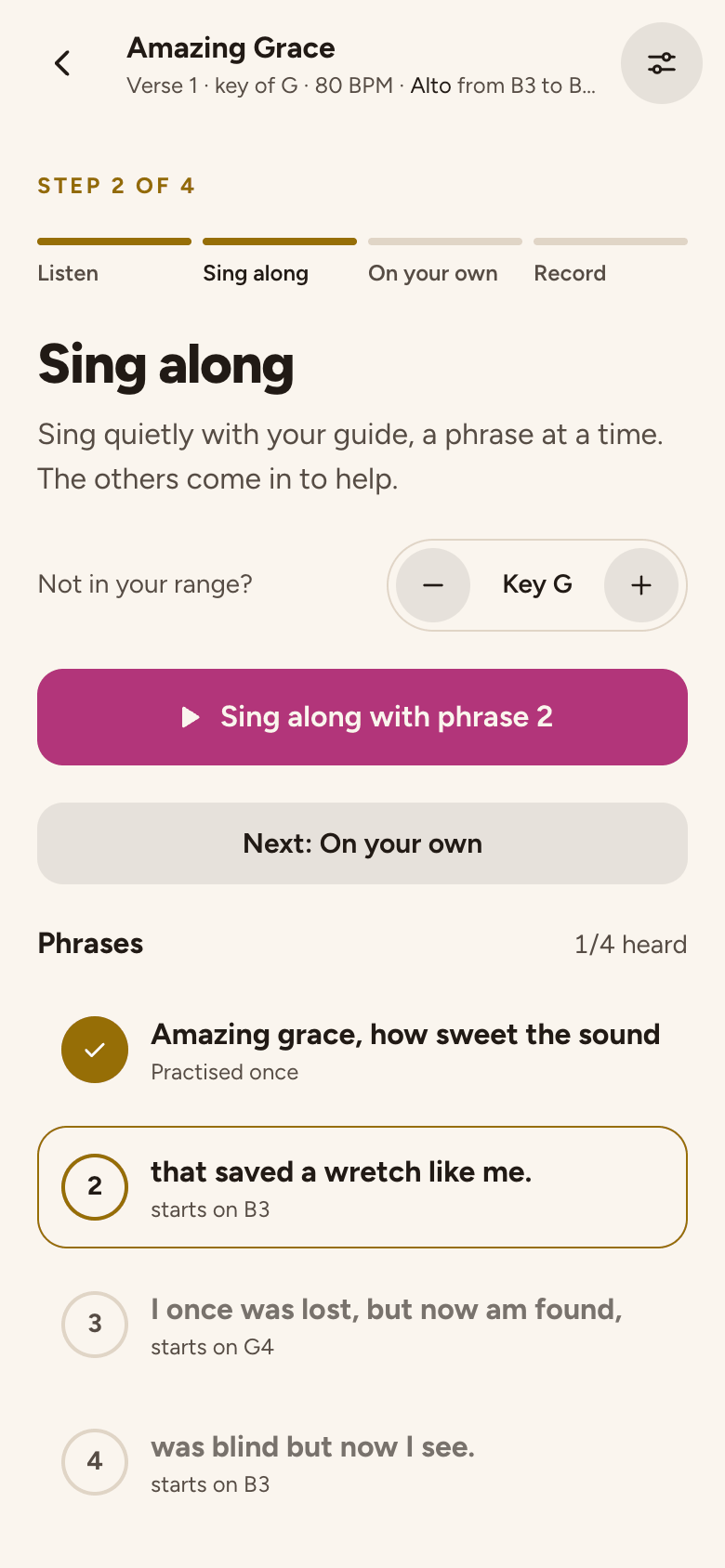
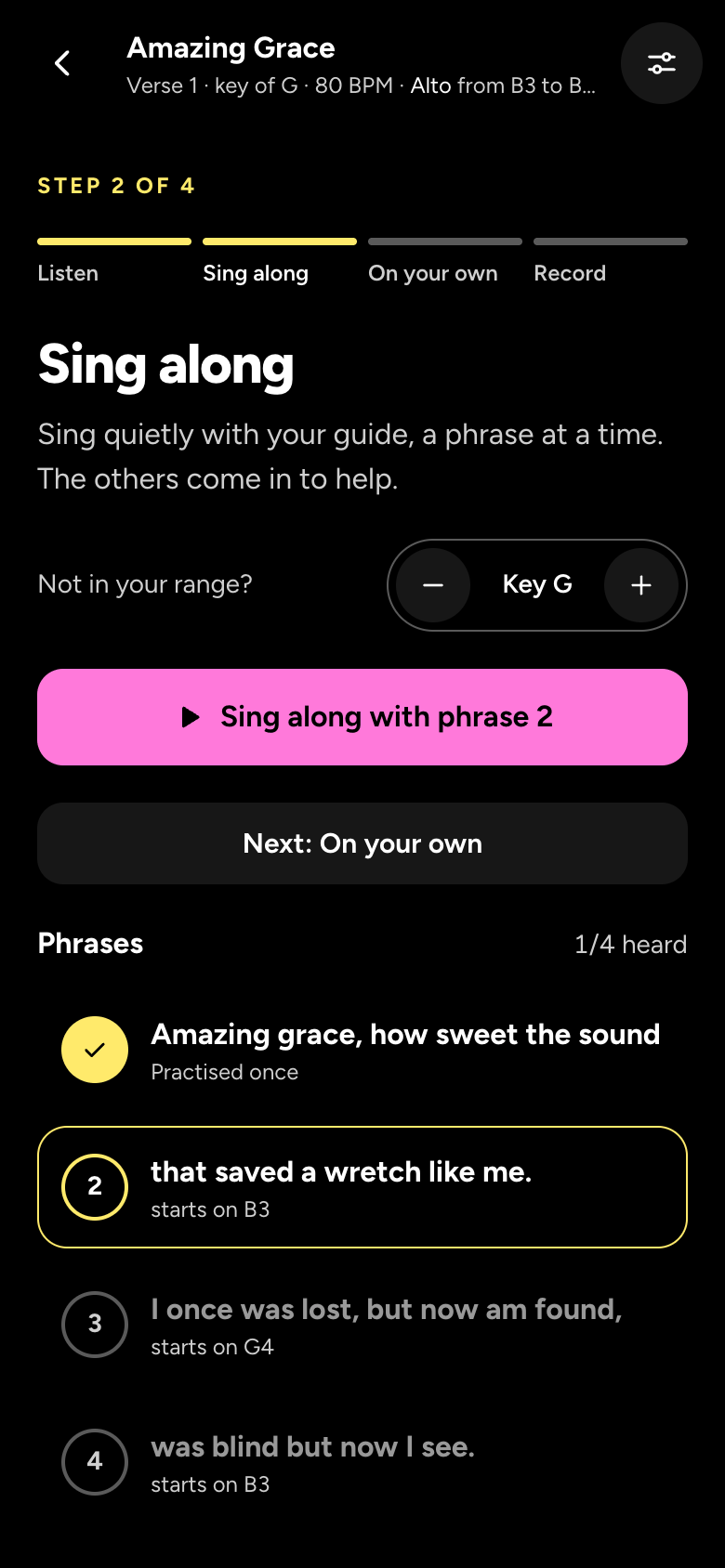
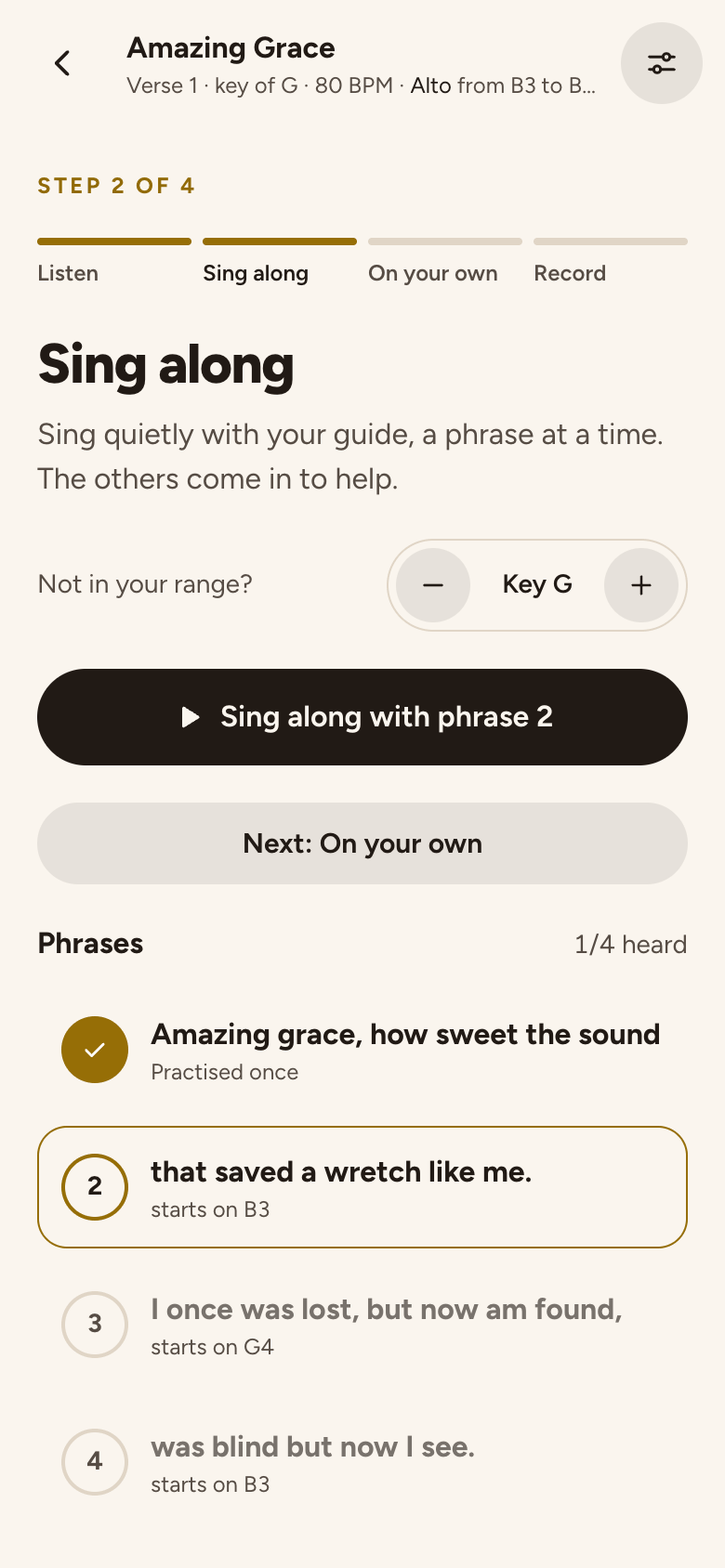
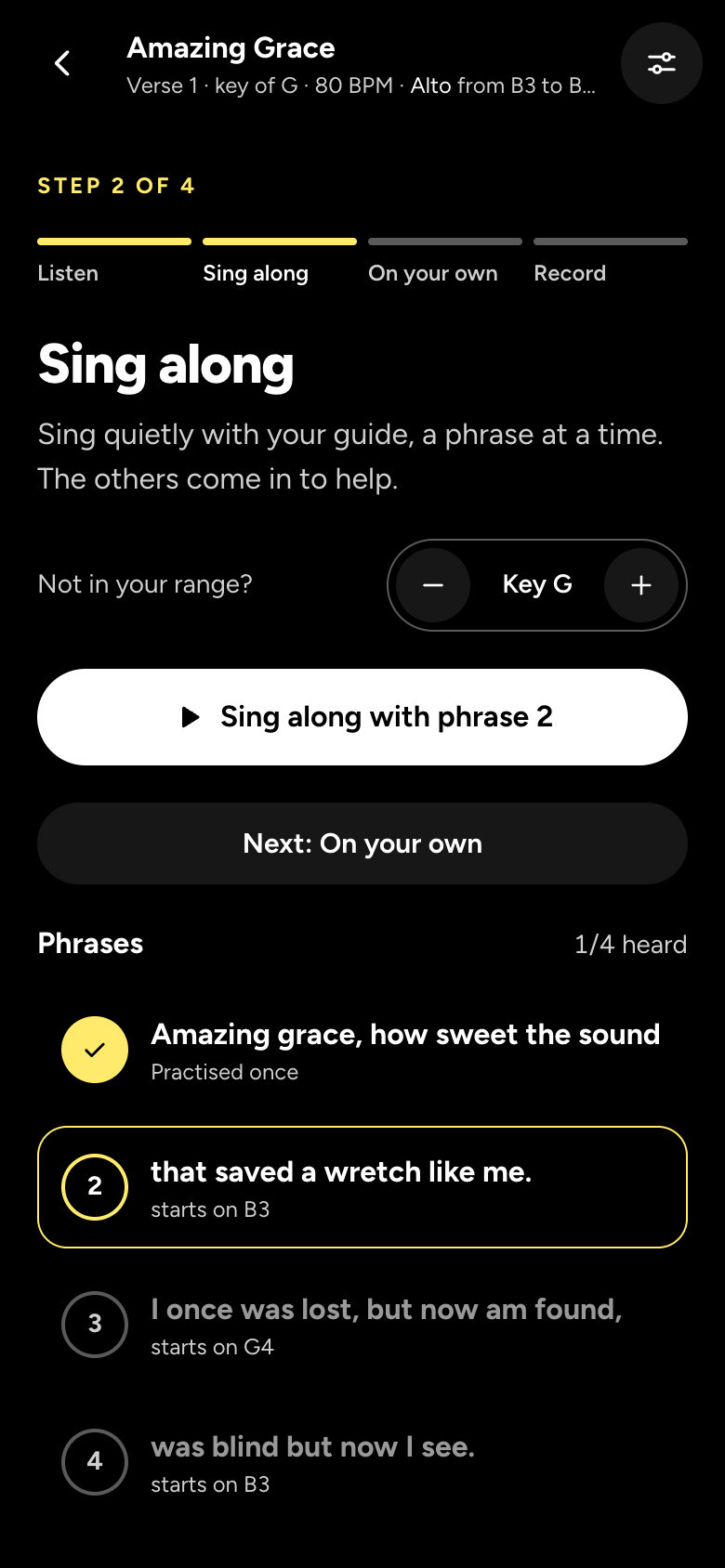
- Sing along: sing quietly with your guide, a phrase at a time. The others come in to help.
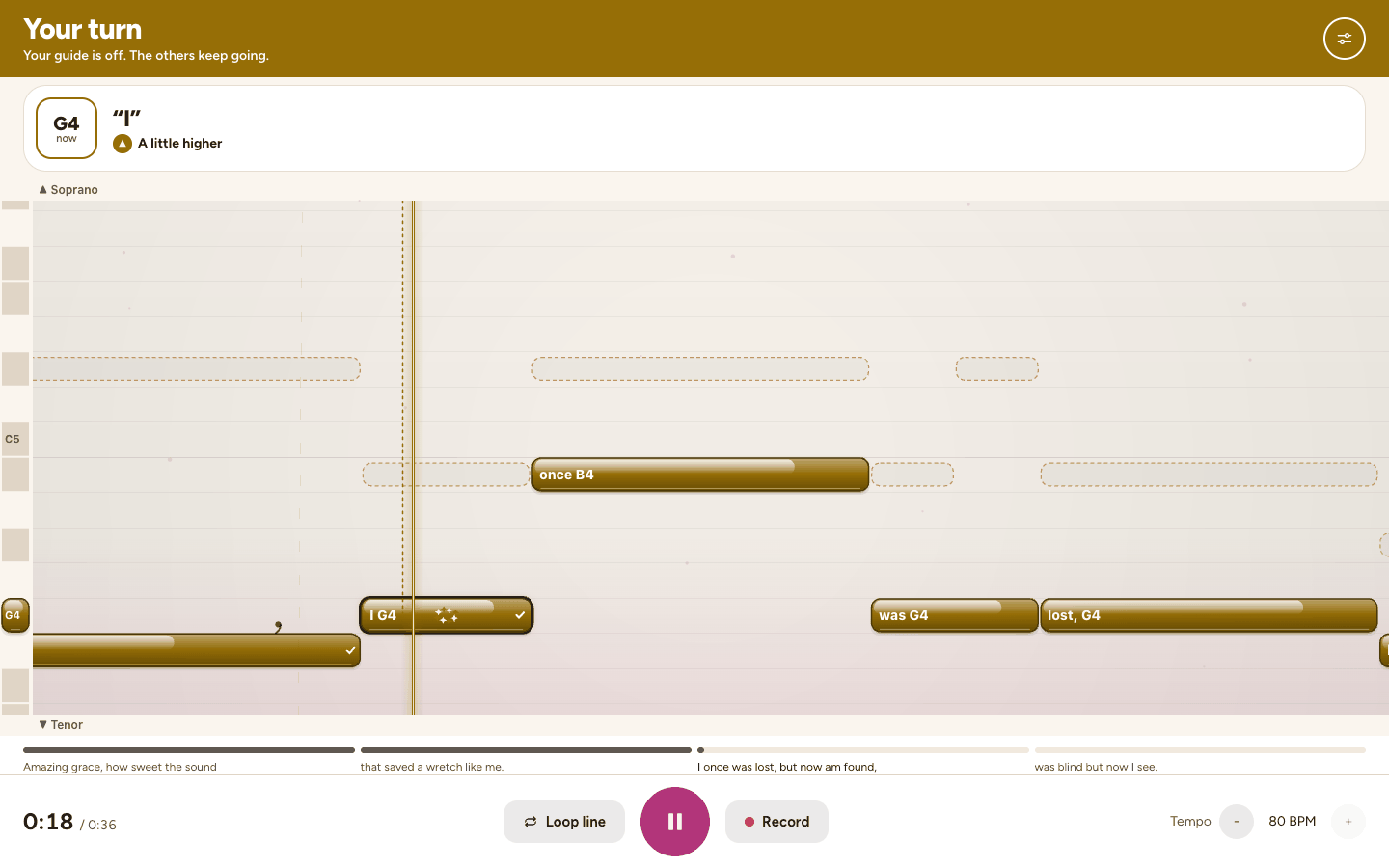
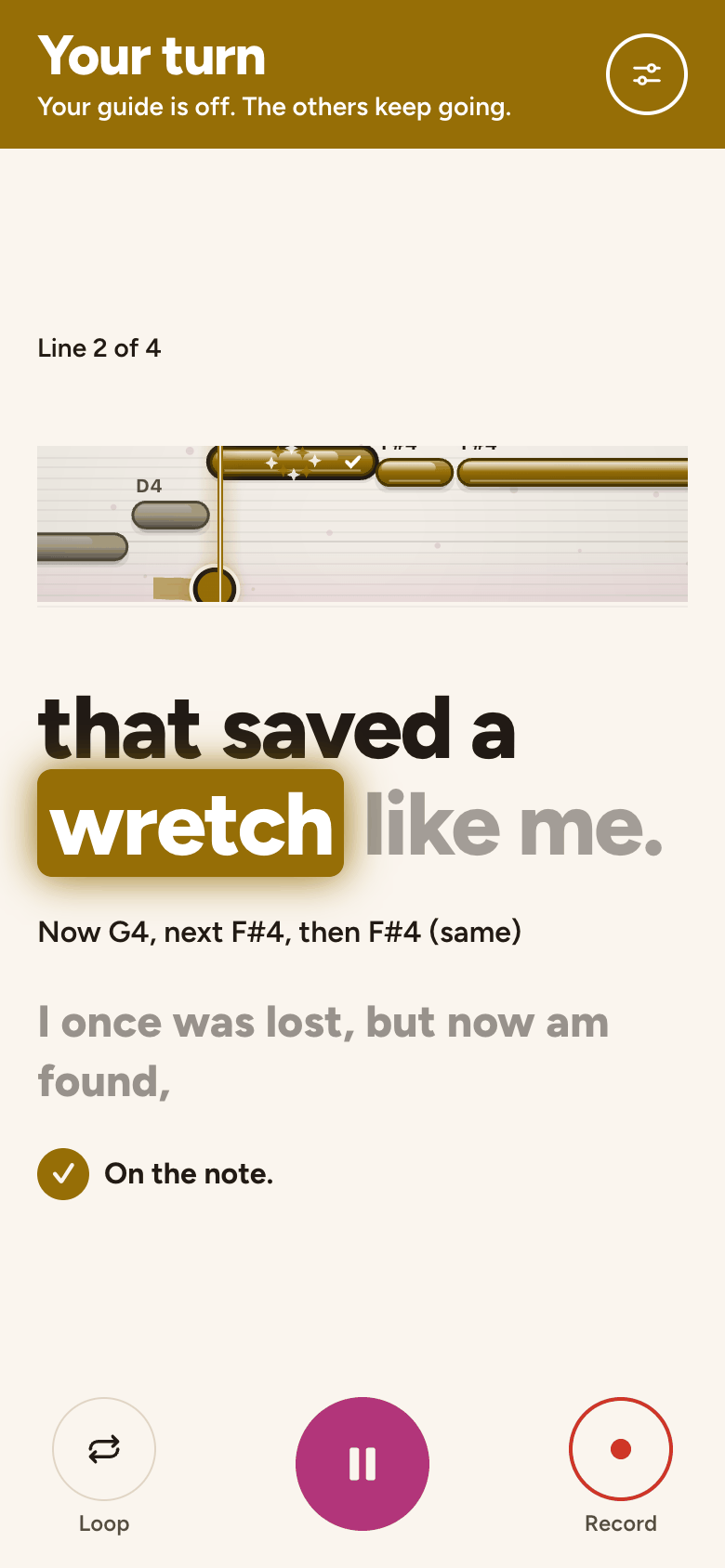
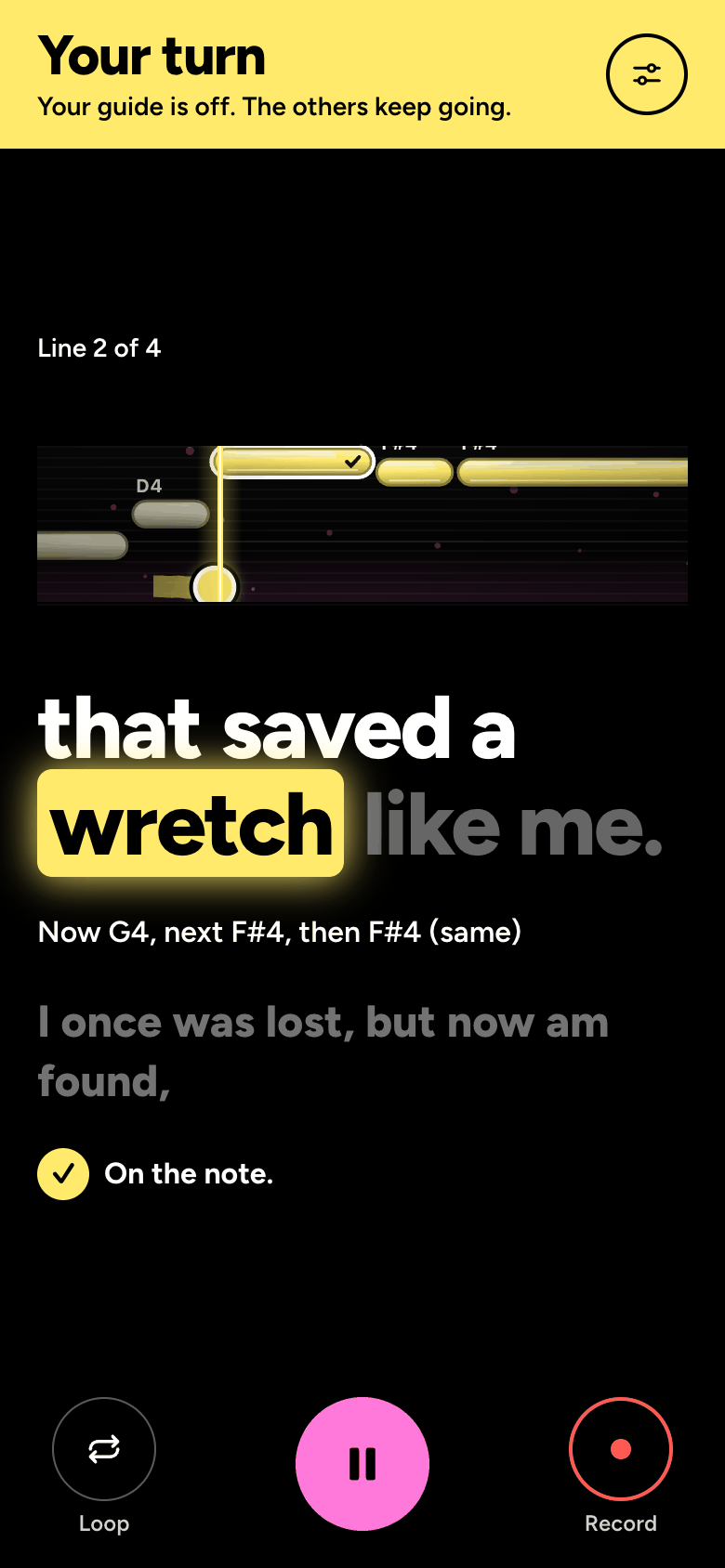
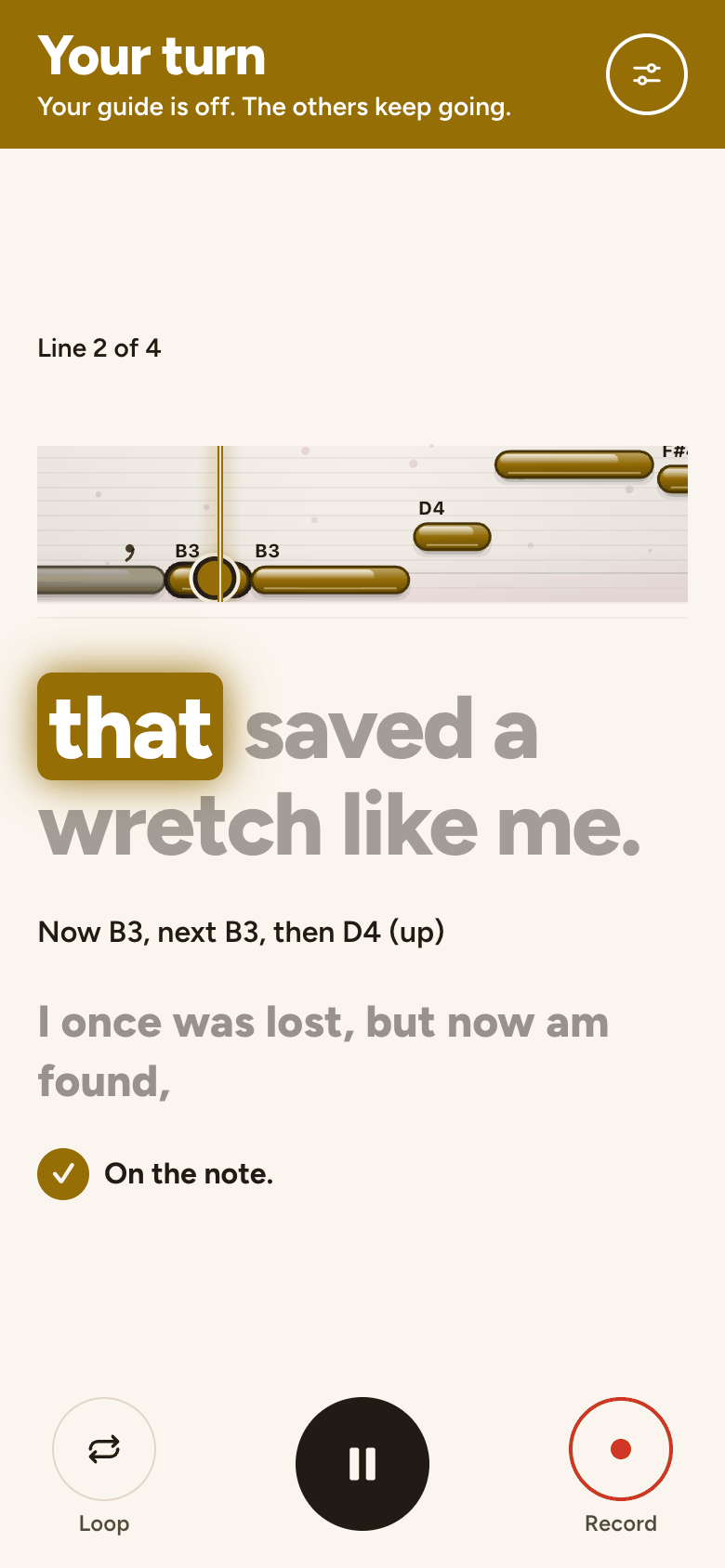
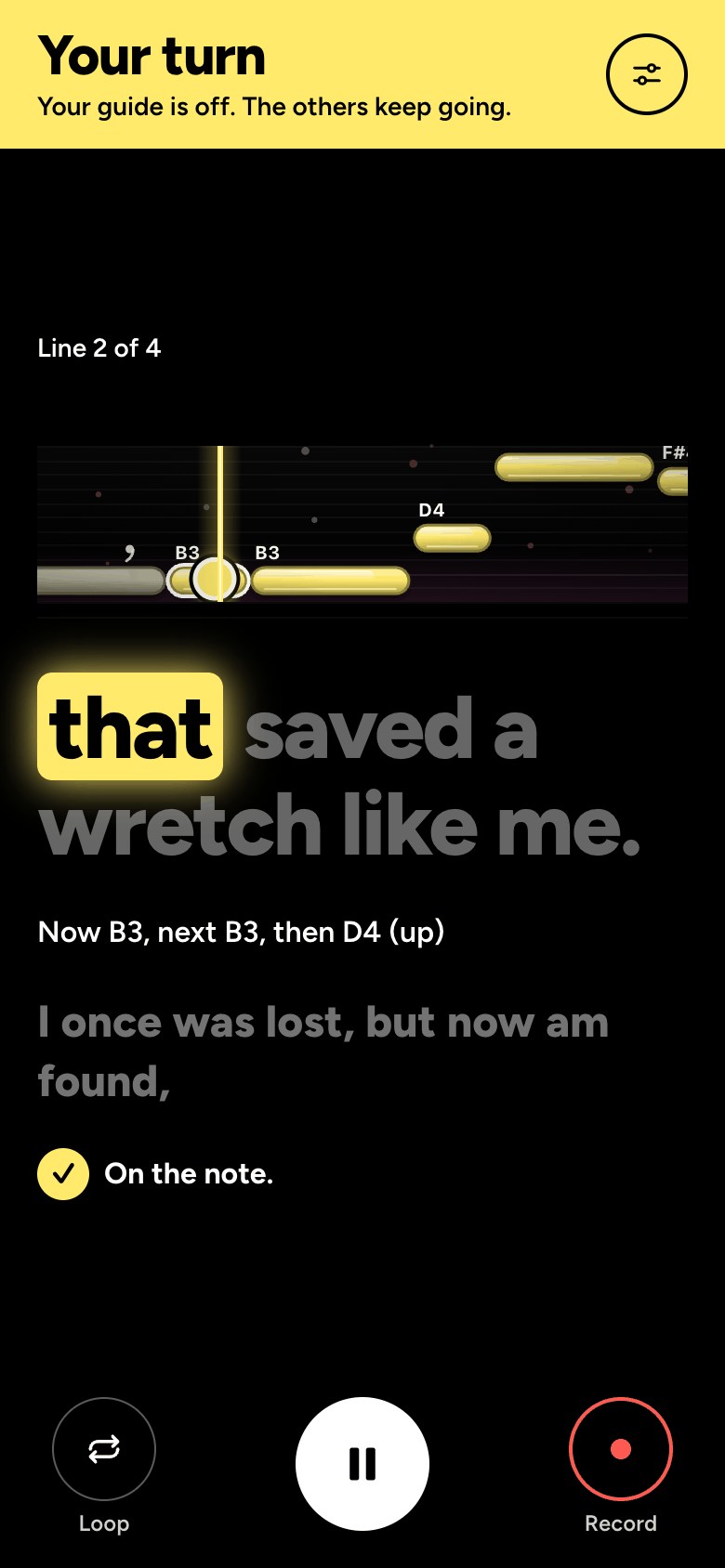
- On your own: hear a phrase, then sing it back with the others while your guide is off. The top turns your part's colour and says Your turn.
- Record: record your part from the start, with the others singing.
The phrases
- Under the step, Phrases lists your part line by line, with how many you've heard, like 1/4 heard. A phrase you haven't practised yet says which note it starts on.
- The big button plays the phrase you're on for this step, like Sing along with phrase 2; on a bigger screen, Play does it. Between plays, Phrase 2 · ready shows its first note big: tap the note to hear it.
- Tap any other phrase to go to it. Each says how often you've practised it.
- When a step is done, go on to the next one, for example Next: Sing along, or tap Practise once more. Skip to record is always there, and Choose another part if this one isn't right.
On your turn, Again repeats the phrase. To hear your guide on your turn, turn it on in Settings, under What you hear.
The whole song
- Sing your part straight through, live, with the others. Choose how you hear your part: Listen, Sing along (your guide sings with you) or On your own (your guide goes quiet while the others keep going).
- On a bigger screen, the song's lines run along the bottom, each filling as it's sung: tap one to go there.
- A bar before you come in after a rest, a card says Get ready and counts the beats.
What you hear
- Settings opens on What you hear: every part, yours first as your guide, each on or off. The melody's row has a small Melody tag: on a harmony part, it plays softly under your guide while you listen.
- Your guide has a level for Sing along: Soft, Medium or Loud. While you record, your guide is off unless you turn it on, even mid-take.
- What you choose is kept for this song on this device, and your guide's level for every song. Settings shows a dot while something is off, and Reset puts it all back.
- Sing plays what you choose here, whatever the studio's mute and solo say. Without headphones, the others play softer while you record, so less of them reaches your mic.
Words, Notes or Staff
- Choose Words, Notes or Staff in Settings, under Display, then Show.
- Words shows the line being sung, big, with the syllable now in your part's colour and the next line under it.
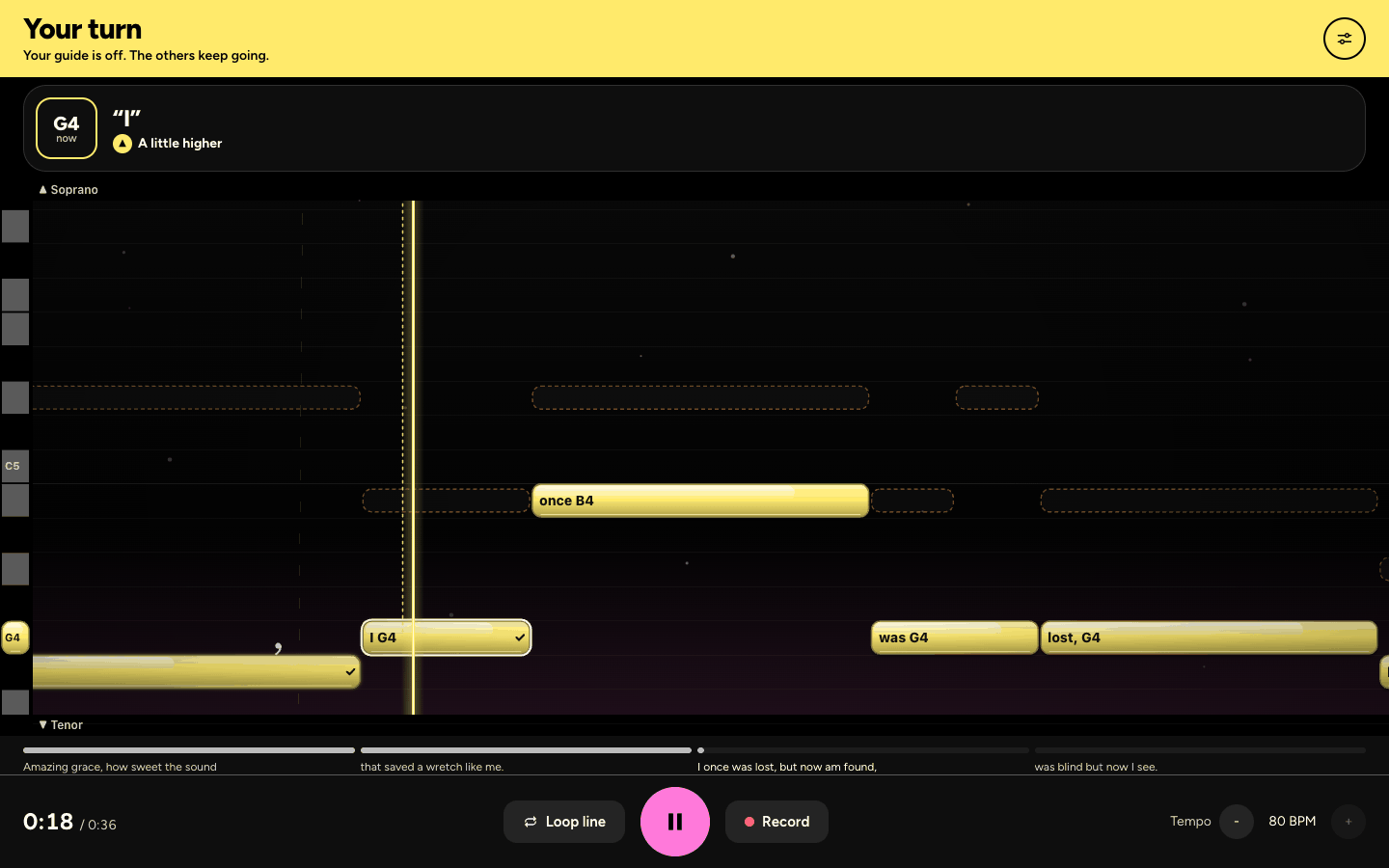
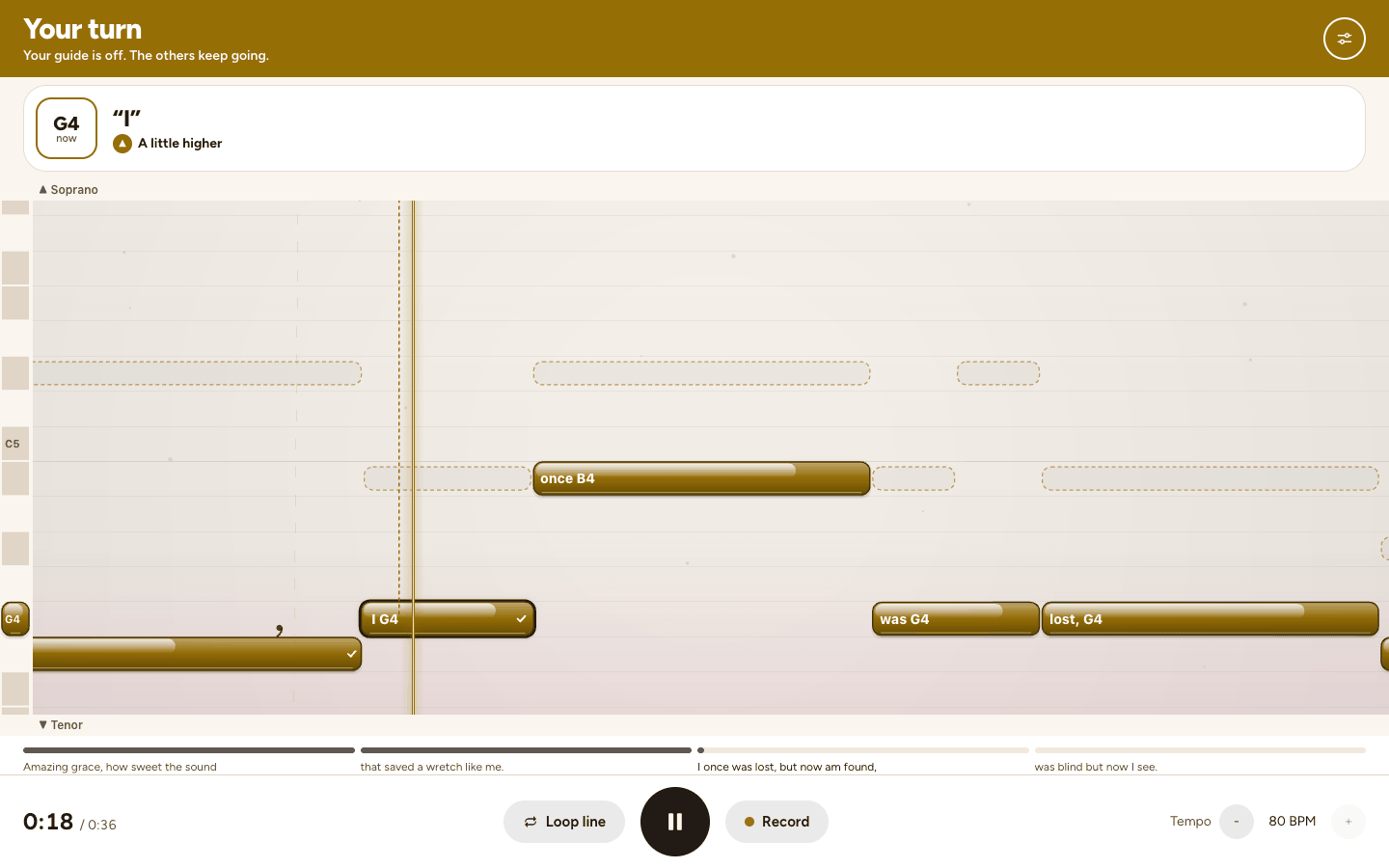
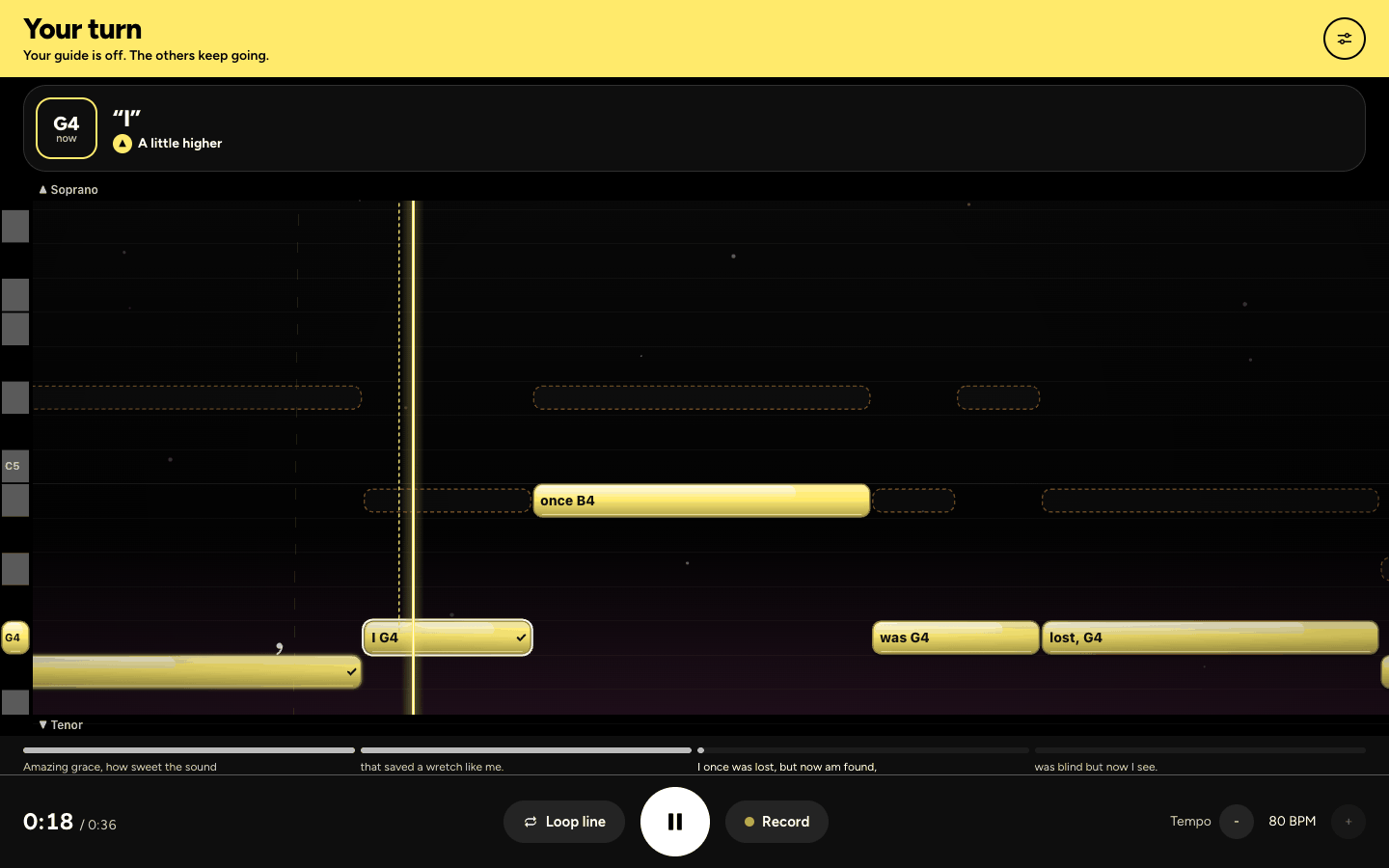
- Notes shows your notes as bars moving toward a line, each with its word and its name, and the other parts faint above and below.
- Staff shows the music on a staff. A part with no words, like a bass on "oo", always shows it.
Your notes light up
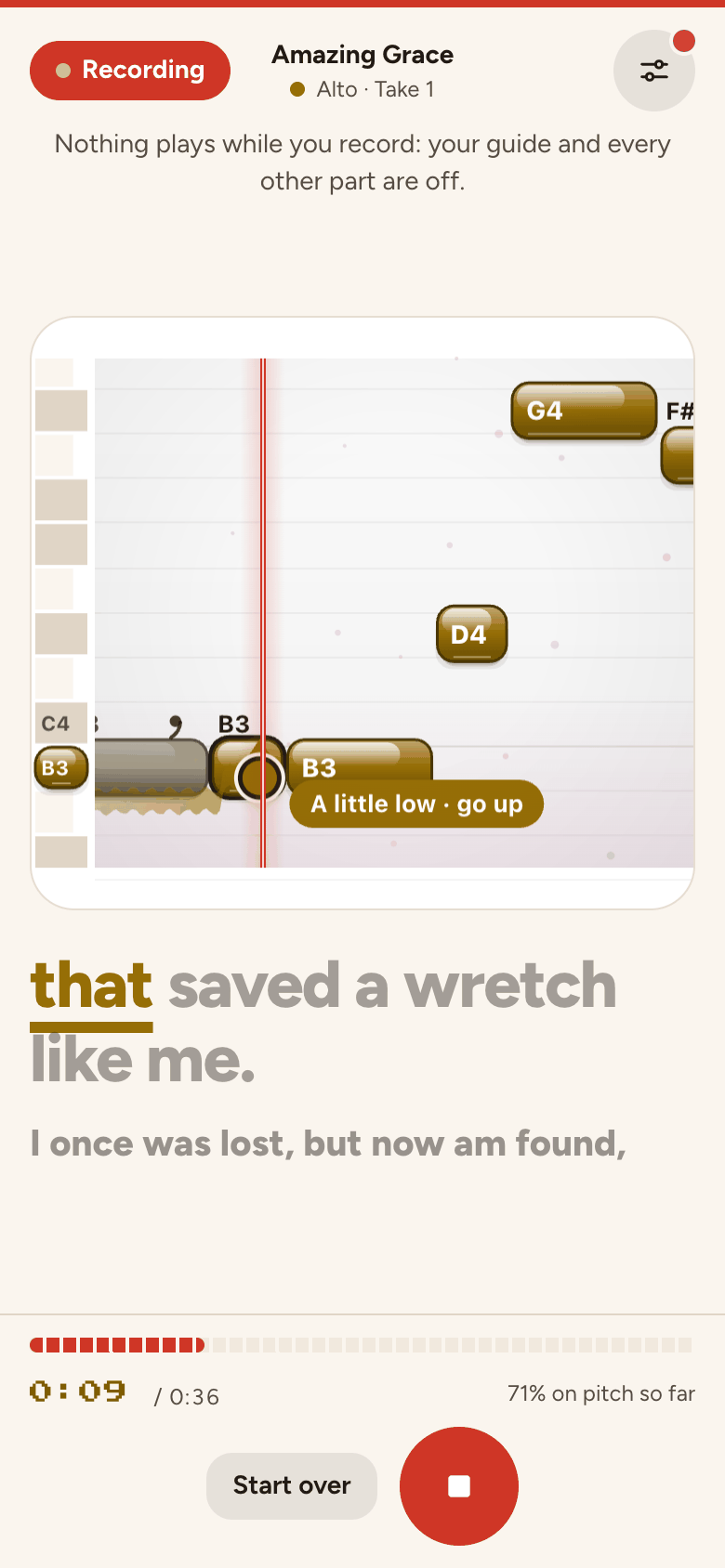
- On your turn and while you record, we hear you as you sing. In Notes, your voice is a dot in your part's colour that grows as you sing louder, with a trail that fades behind it, and each note lights up as you hit it.
- In Words, the syllable glows when you hit it, and the line under the words says On the note., A little higher or A little lower.
- A missed note just dims and slides past. Nothing turns red.
- In game mode, hit three or more in a row in Notes and we count them.
Loop, slow down and your first note
- Loop line (on a phone, Loop) plays the line you're in over and over. Tap it again to stop.
- To slow down, open Settings, then Speed: 100%, 85% or 70%. In the whole song on a bigger screen, the minus and plus beside Tempo do the same. Recording is always at full speed, so your take fits with the others.
- In the whole song, before you start, a line says the word and note you come in on, with Hear note. Just before you come in, Play my first note does the same.
- Settings also has Note names (D4, do re mi, 1 2 3, or Off), Keyboard down the side and Other parts on the lane for Notes, and Chords underneath on songs with chords: a soft backing to tune to, never recorded.
- On a computer, Keyboard shortcuts are on: R to record, L to loop, N for the next phrase, M to turn your guide off or on, and Space to play.
Record your part
- In Part by part, tap Record the Alto (your part's name) at the Record step. In the whole song, tap Record.
- Put your headphones on when we ask, choose Wired or Bluetooth and tap Start recording, and run the timing check the first time you record with a mic.
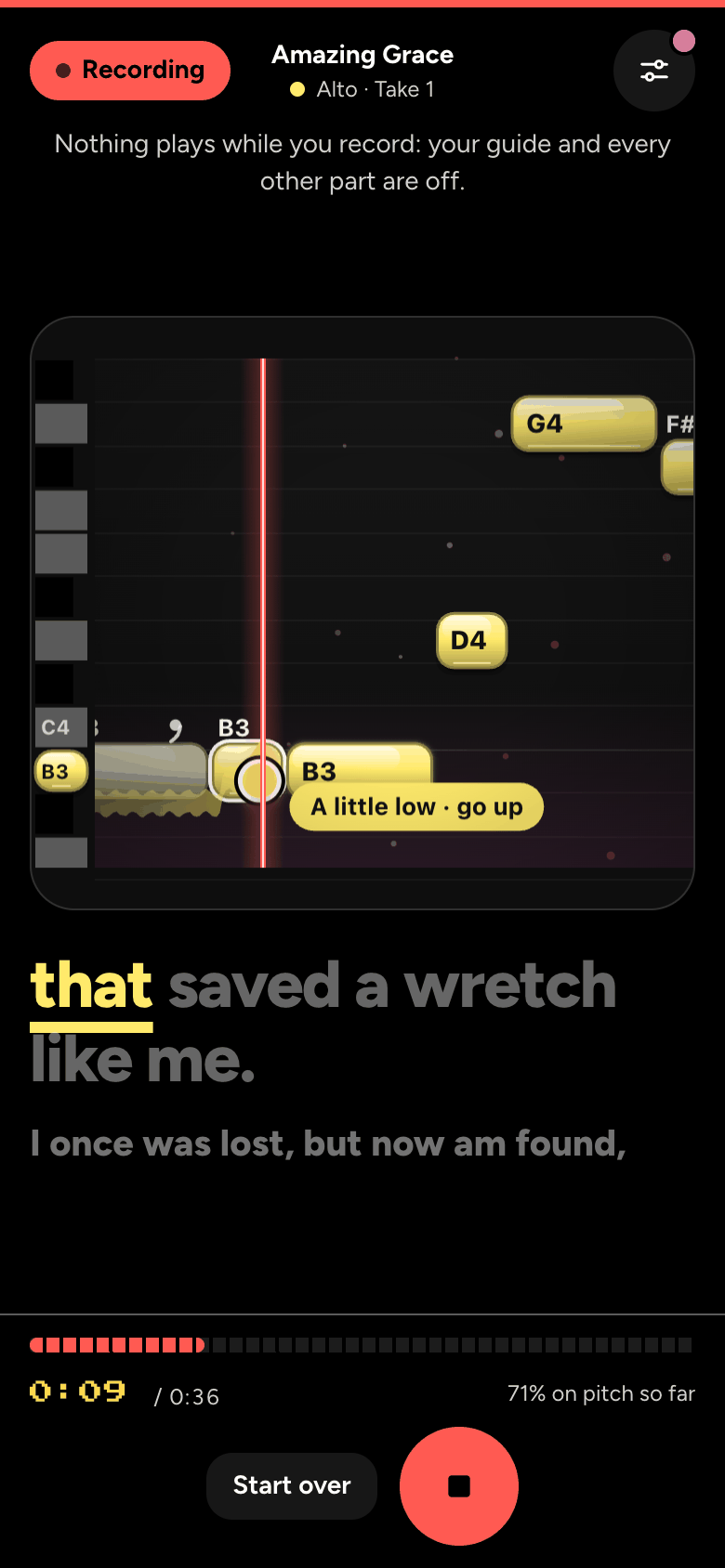
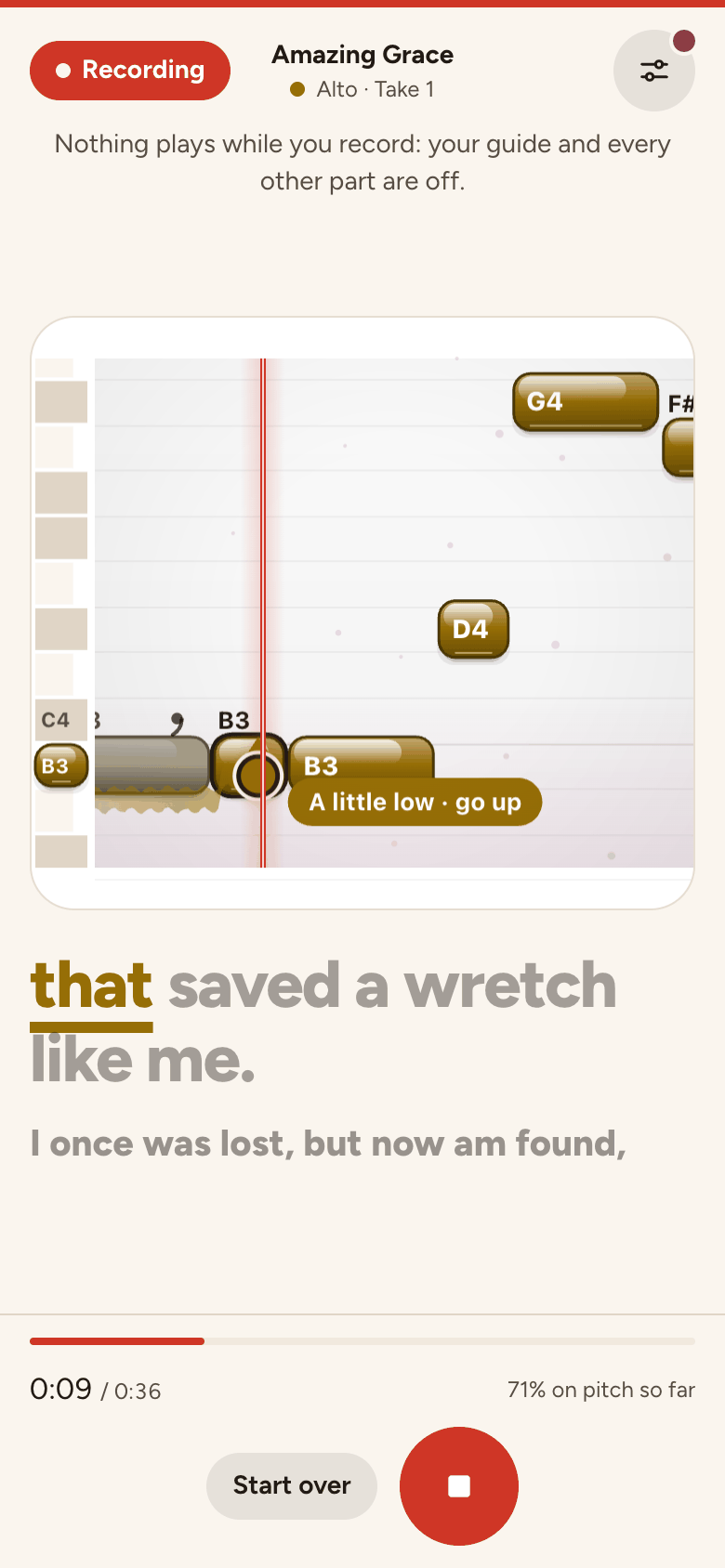
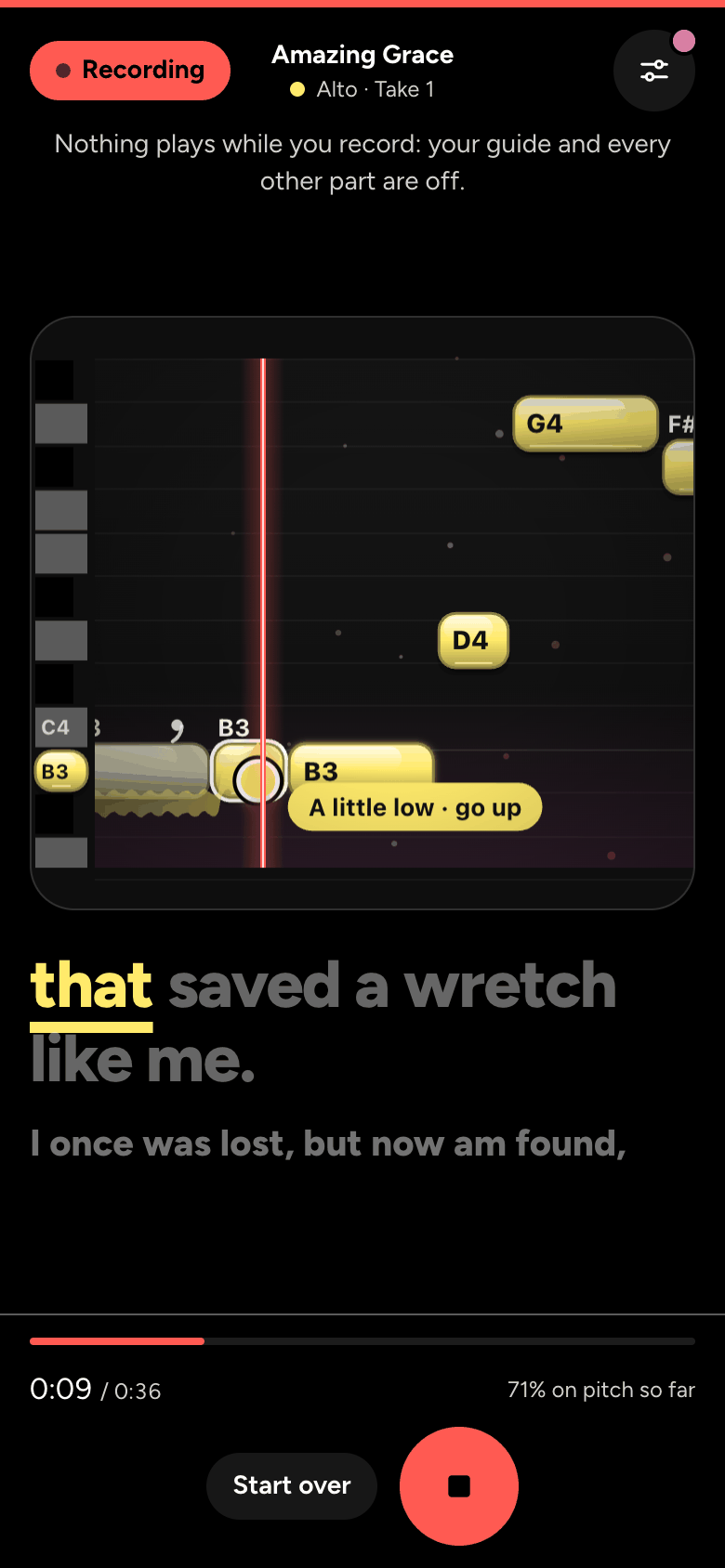
- A bar of clicks counts you in, then everything else steps aside: the red Recording label with your part and the take (Take 1), your notes big, and the words, the syllable you're on in your part's colour. Settings is there too, with just What you hear.
- Sing along with the others. At the bottom are the time, how much has been on pitch so far, and Start over, which begins the take again.
- The take stops by itself half a second after the song ends, and your review opens. To stop sooner, tap the big red Stop and keep button.
Slowed down? We offer Back to full speed first.
After a take
- After a take, your part's review opens. Hear it with the others plays your take with the other parts you hear (What you hear, in Settings, chooses them).
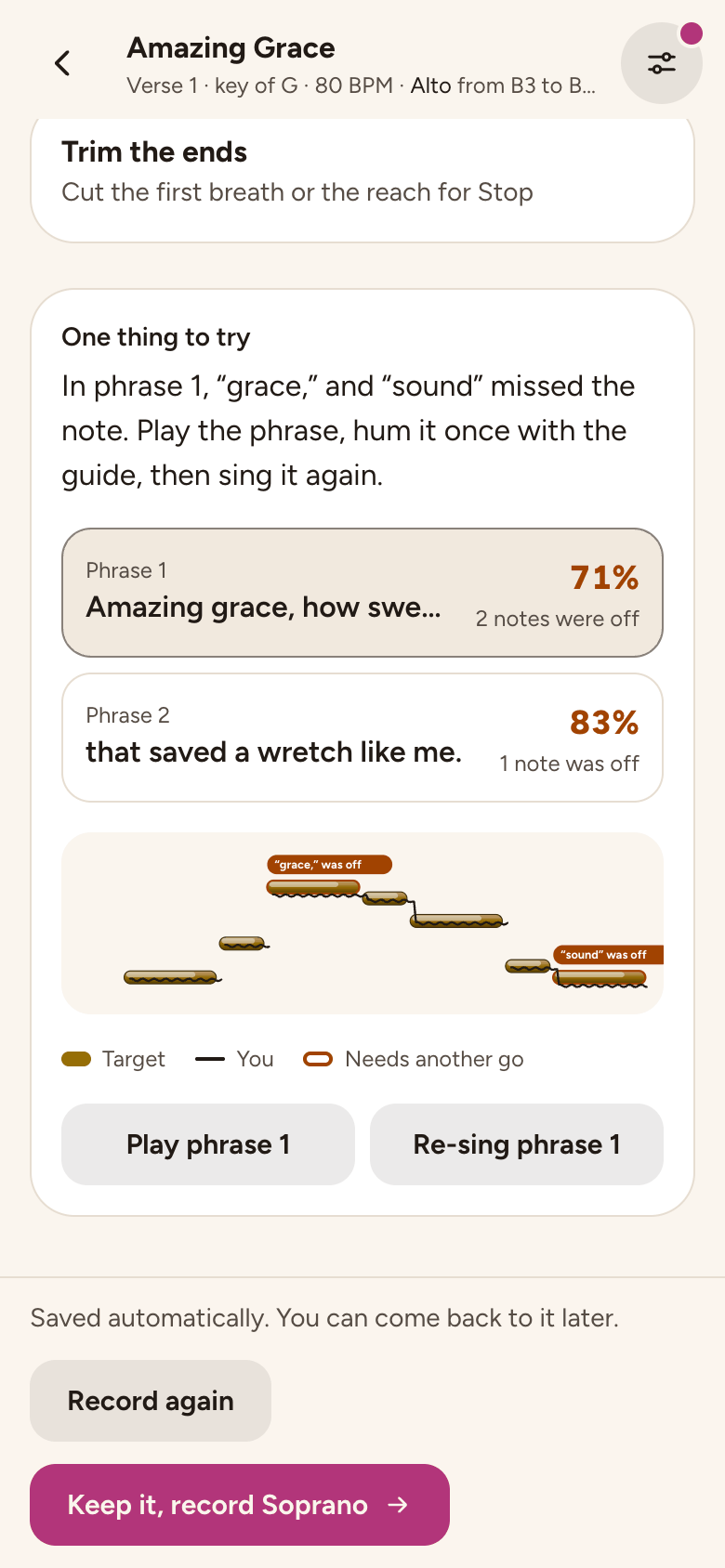
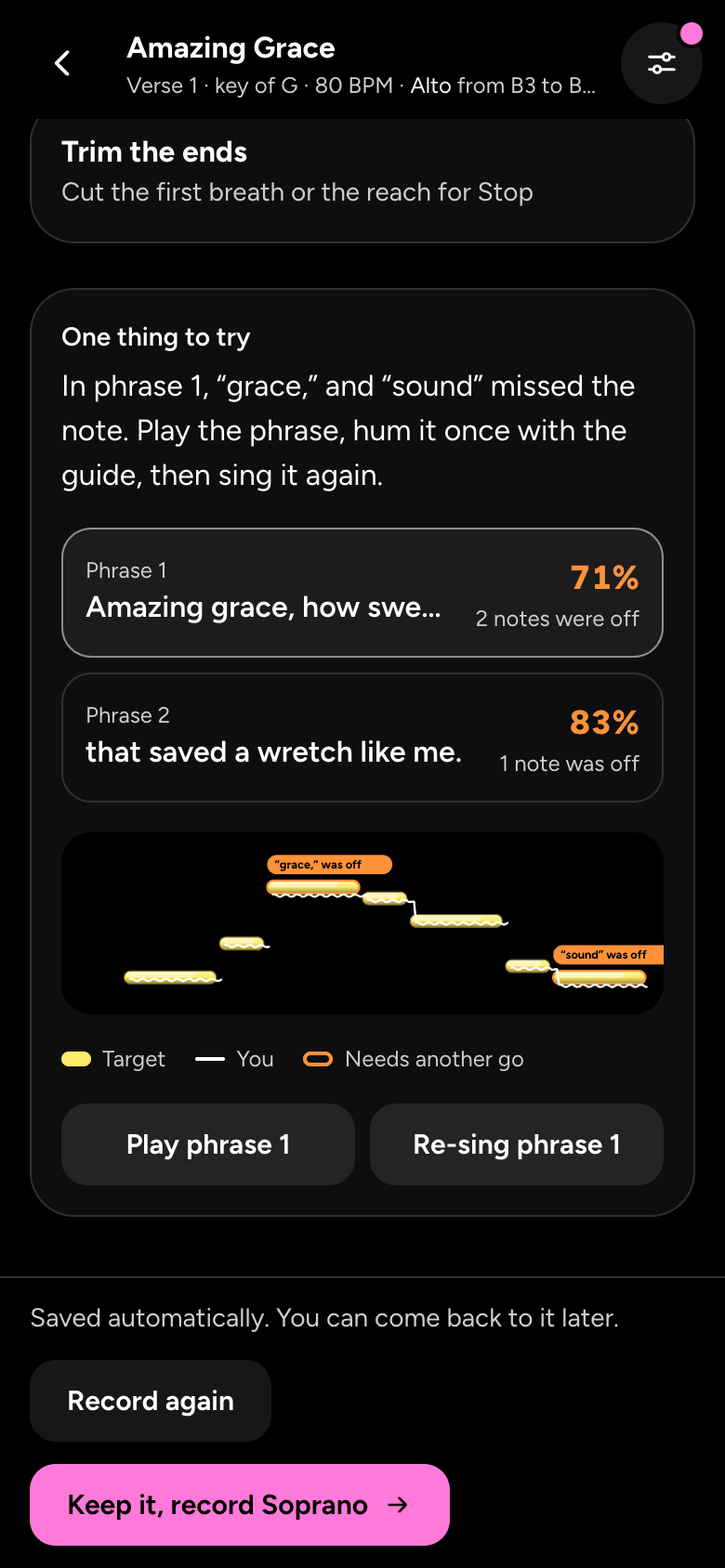
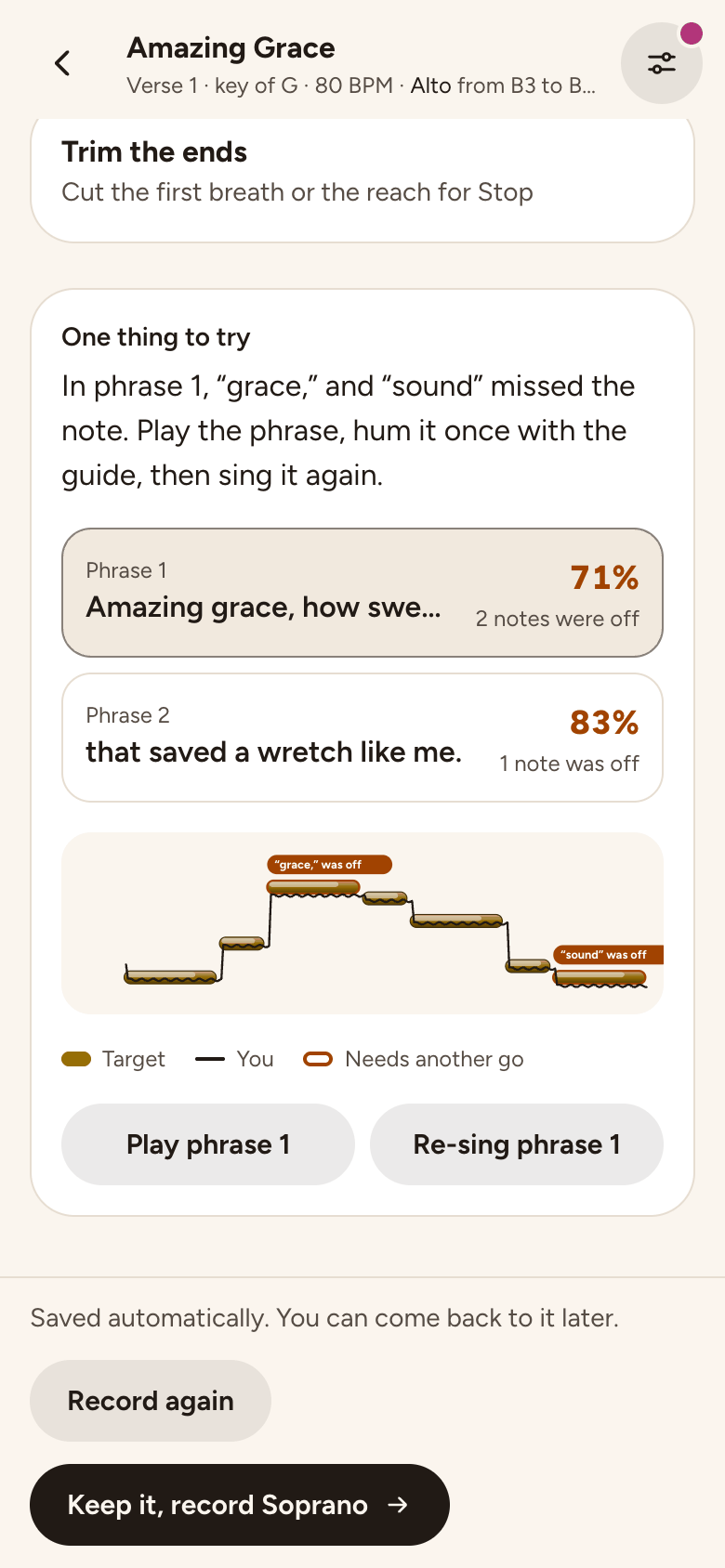
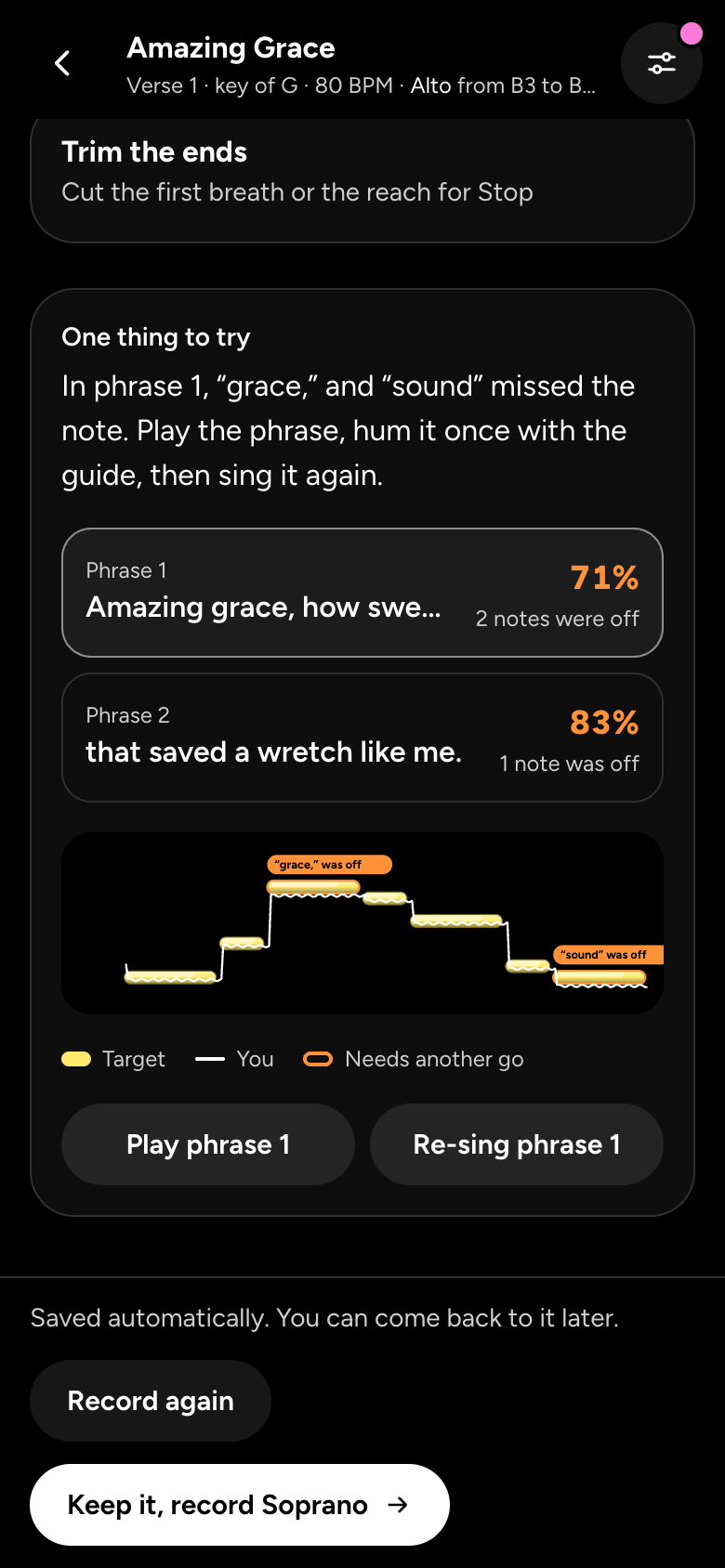
- One thing to try names the phrase and the words that missed, and how to fix them. Under it, each phrase shows how much was on pitch and how many notes were off.
- Tap a phrase to see its pitch line, with a key: Target, You and Needs another go. Play the phrase to hear it, or re-sing just that line.
- Nudge timing moves the take if it sounds early or late, and Trim the ends cuts the first breath or the reach for Stop. When it's right, tap Keep it, record Soprano (the next part's name), or Record again to sing it over.
- The review's heading says how it went, like Close: 77% on pitch: Excellent from 90%, Close from 70%, then Getting there or A tricky one. In game mode, your best on the part shows under it.
- If we could hear the other parts through your mic, we say so, and that take doesn't count against you. Headphones give you an accurate result.
Still stuck? Tell us what you tried: it sends the details we need, like your browser and your last timing check.
Or write to [email protected].