Recording in the studio
Record parts, keep your best take, fix a phrase or the ends, set the timing, mix the parts, sing with friends and export.
Contents
On this page
The studio
- The studio is where a song's parts are recorded and mixed. Open one from Your songs on the home, or tap Open in the studio in Sing.
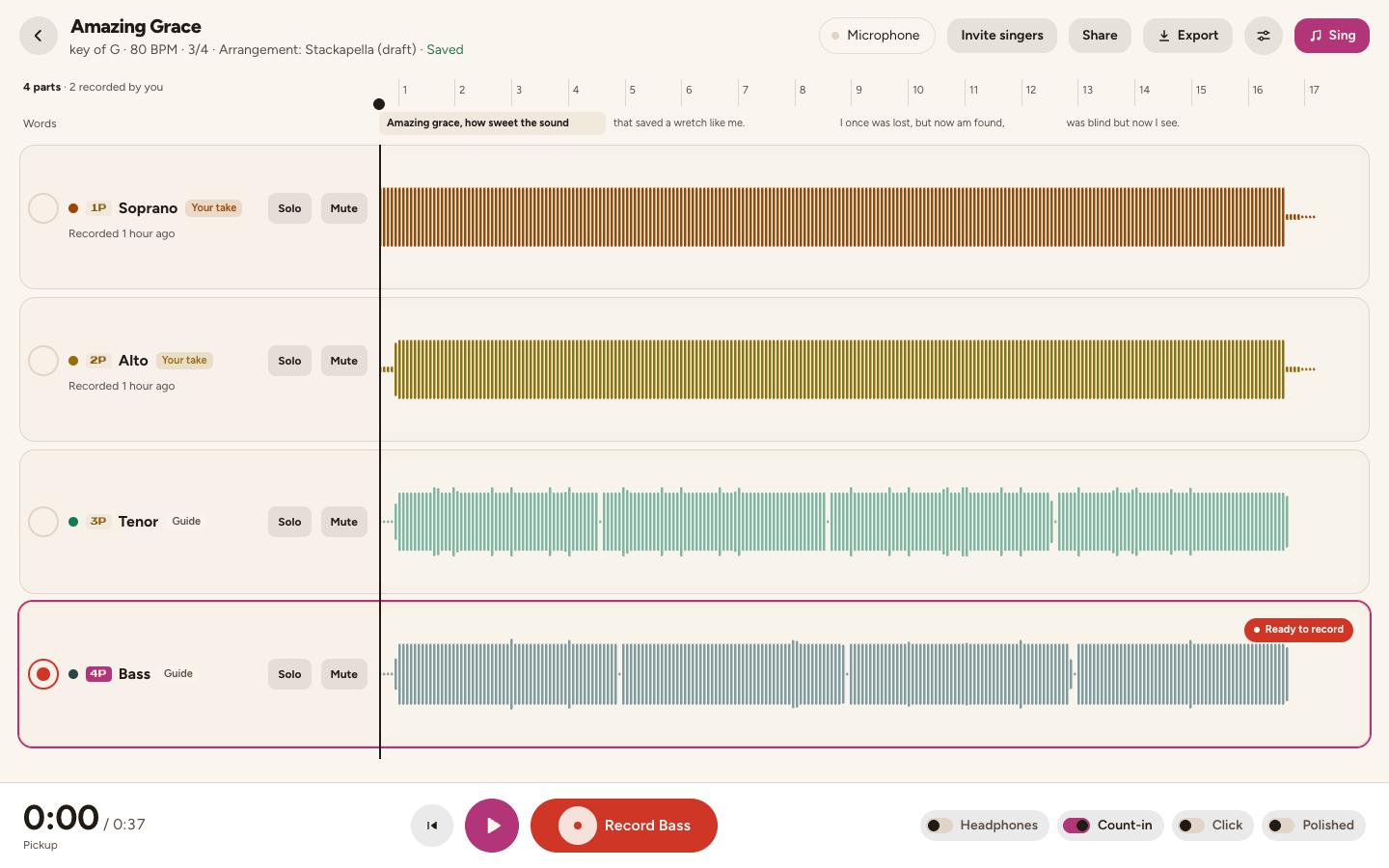
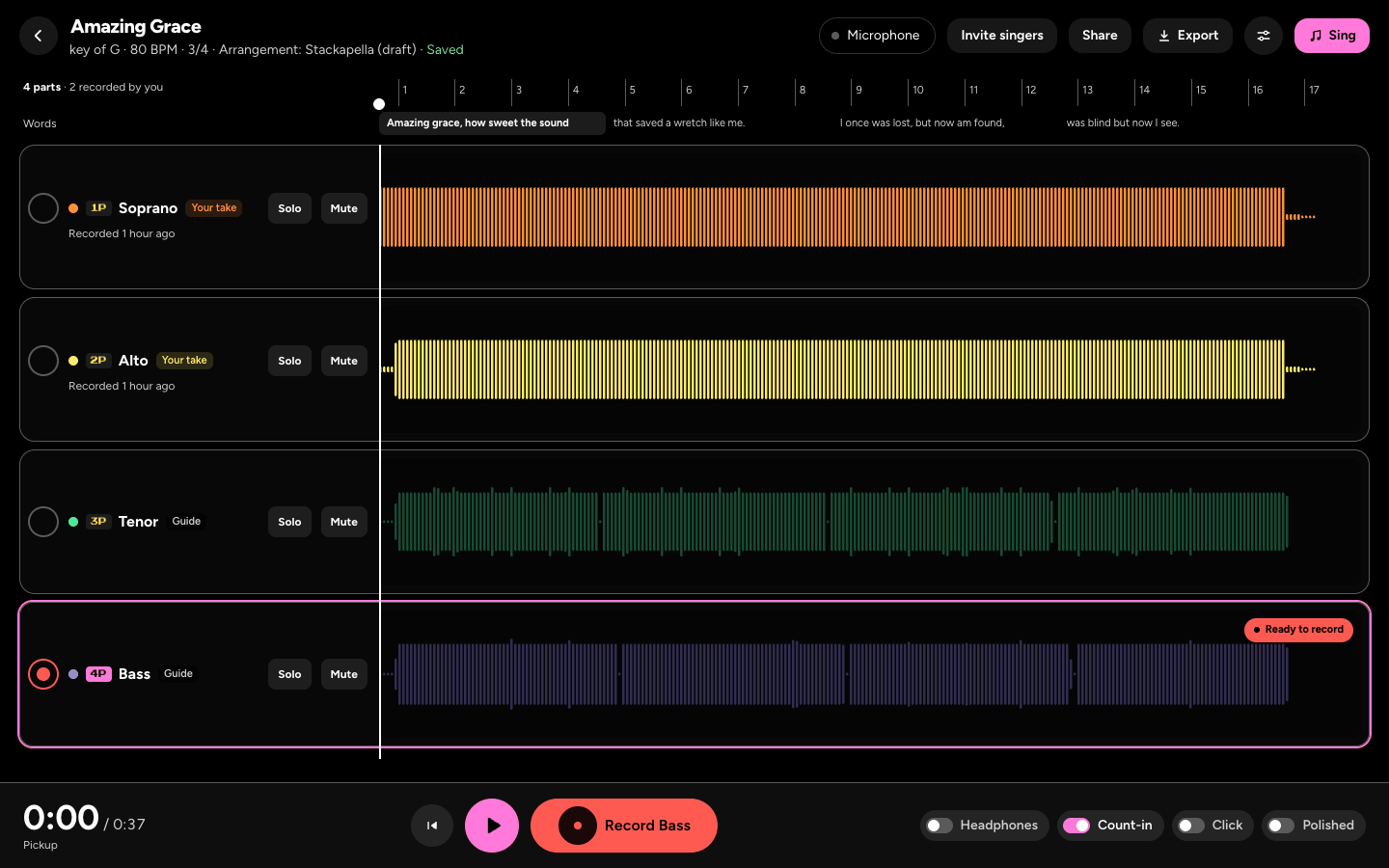
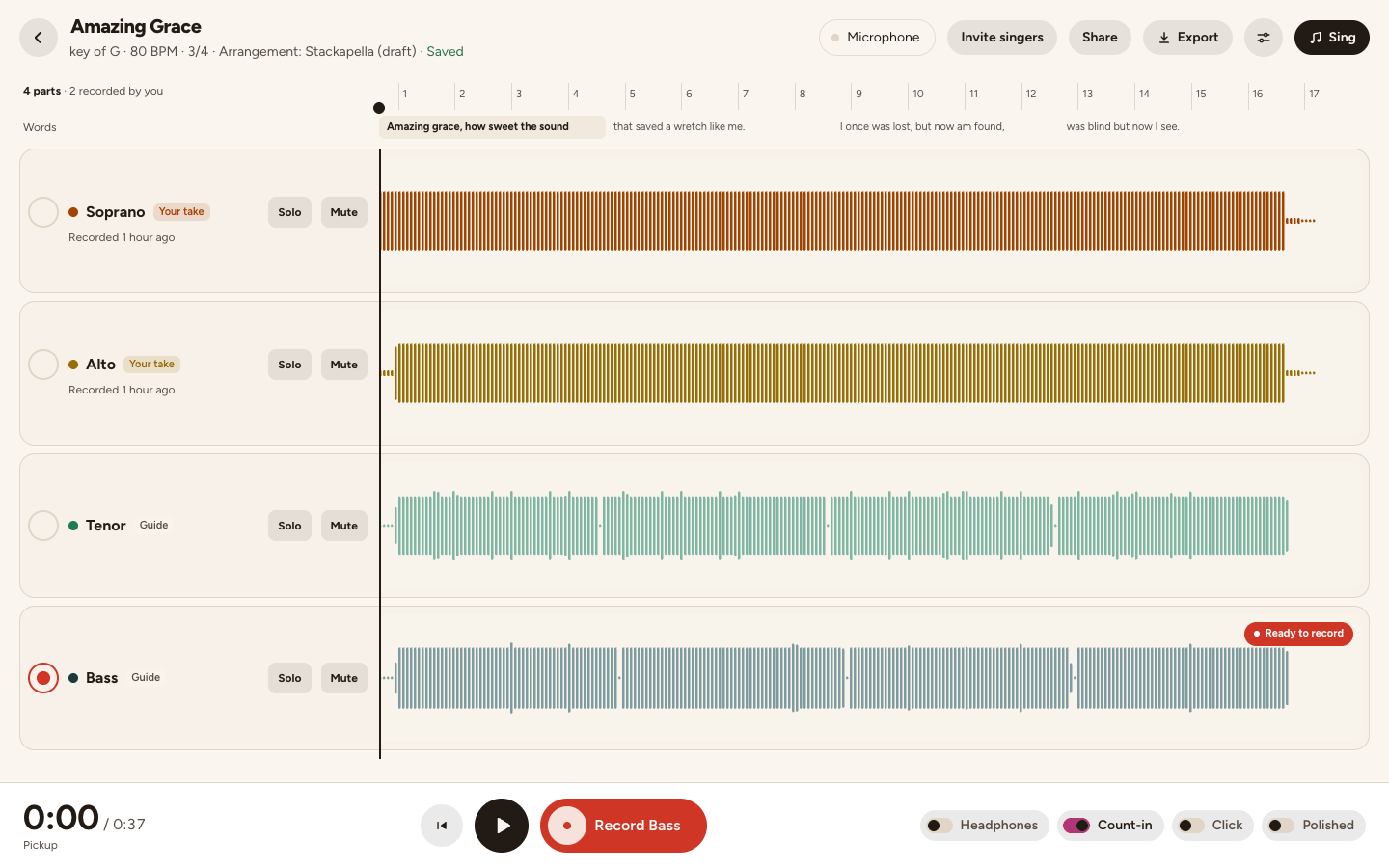
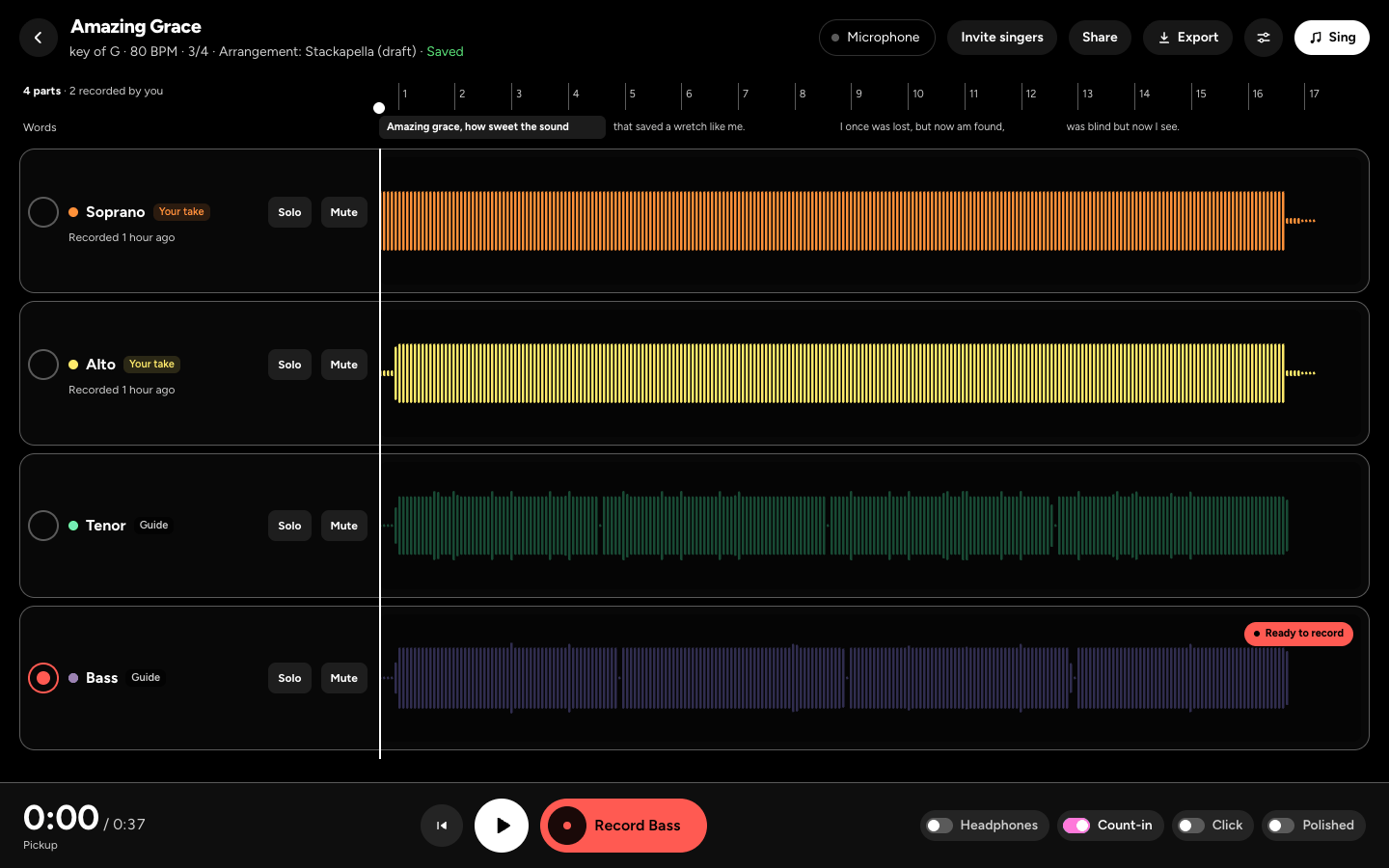
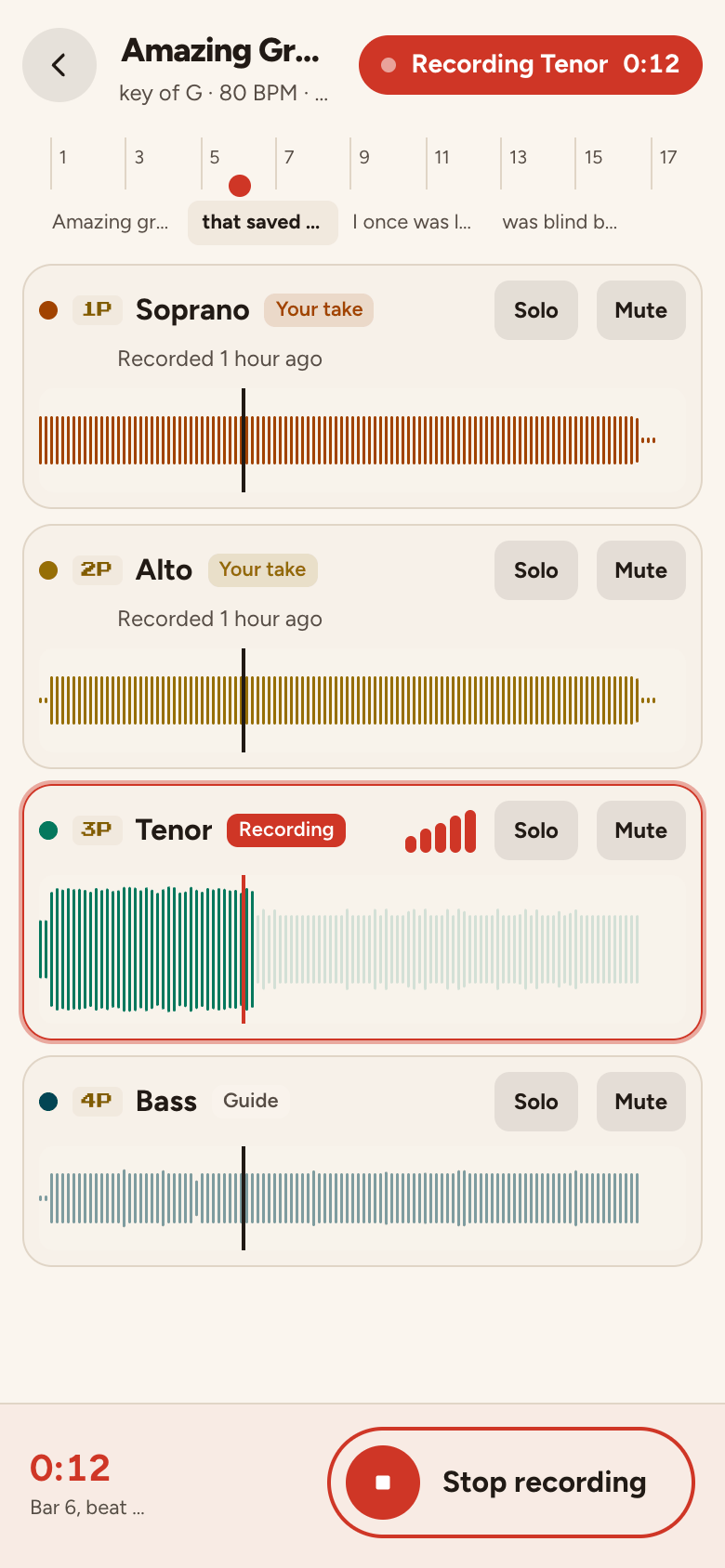
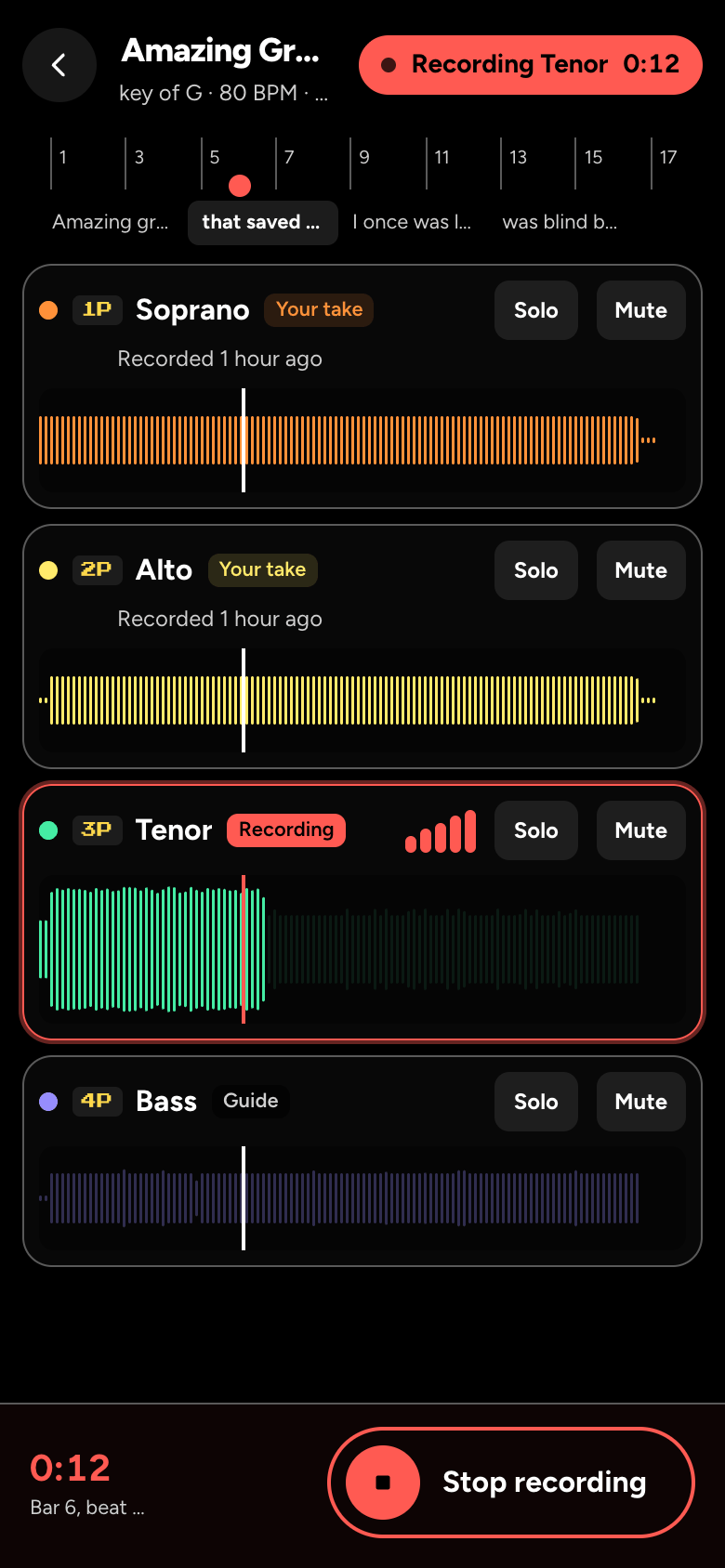
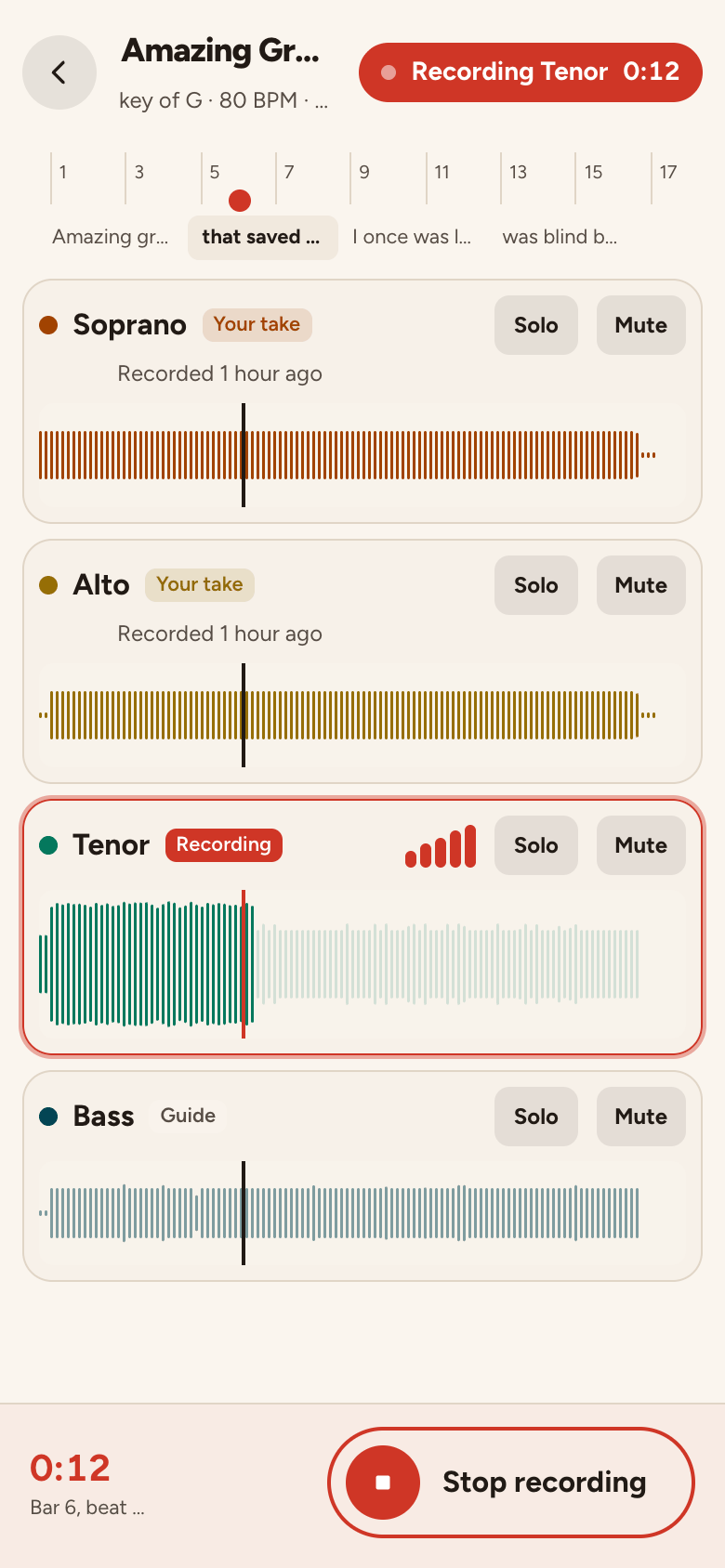
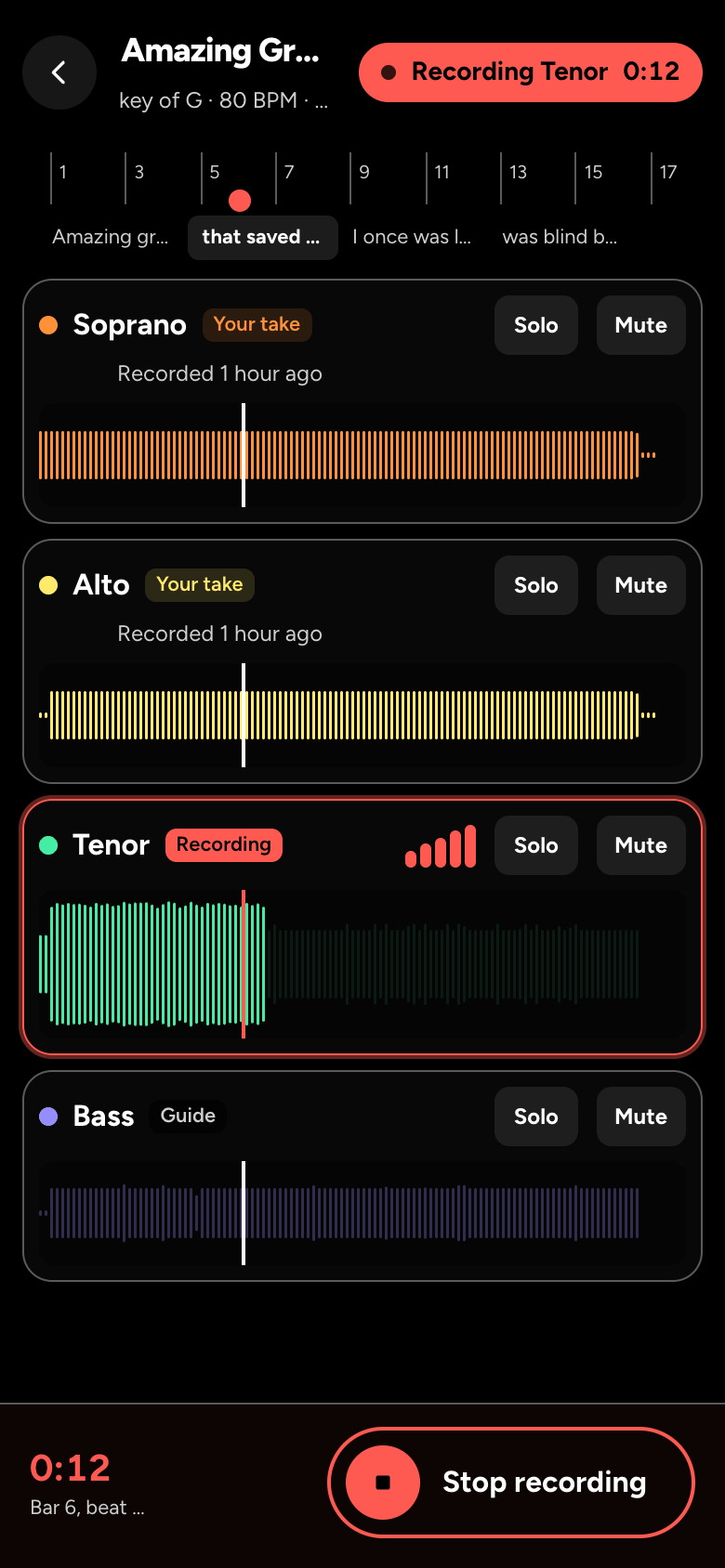
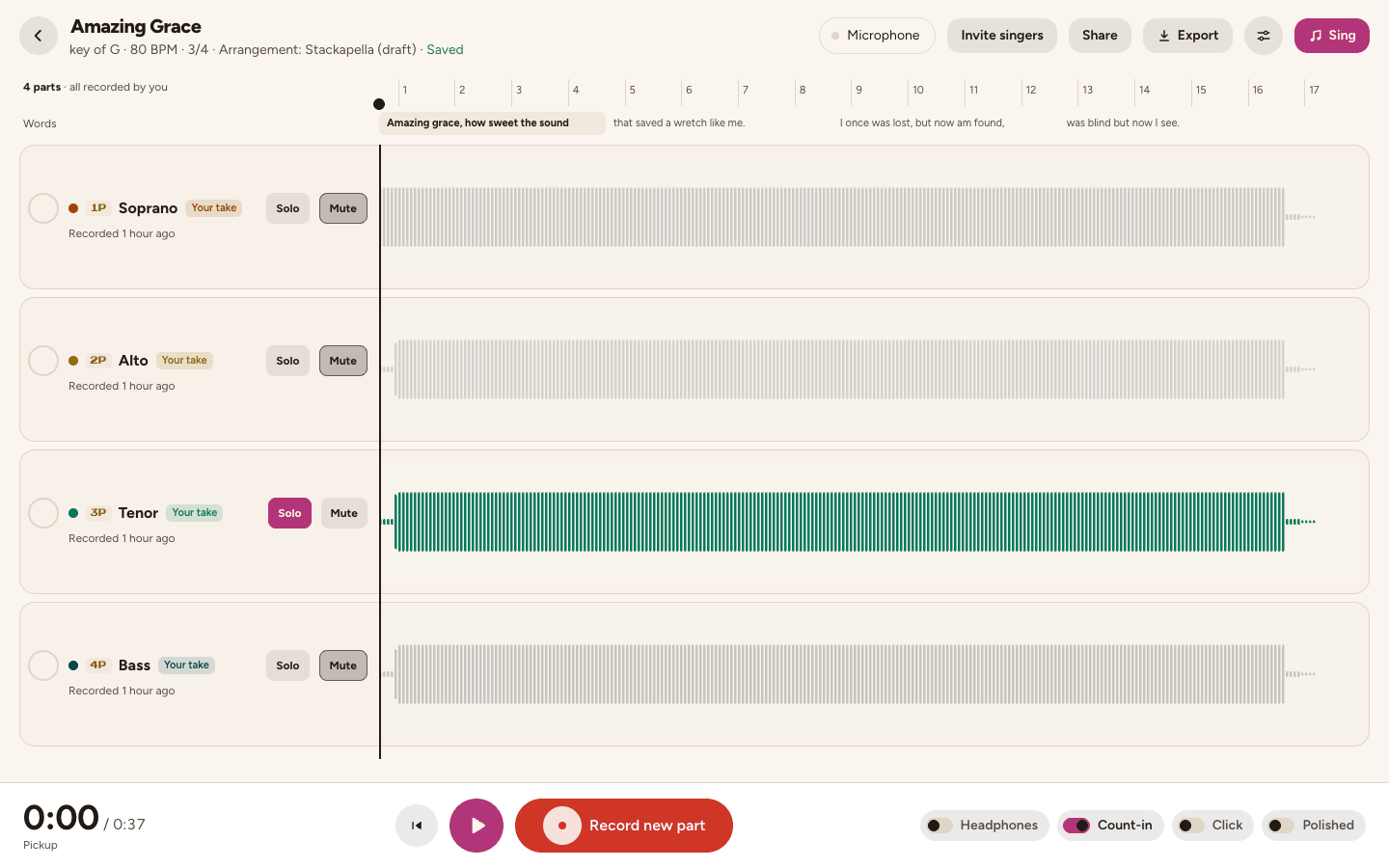
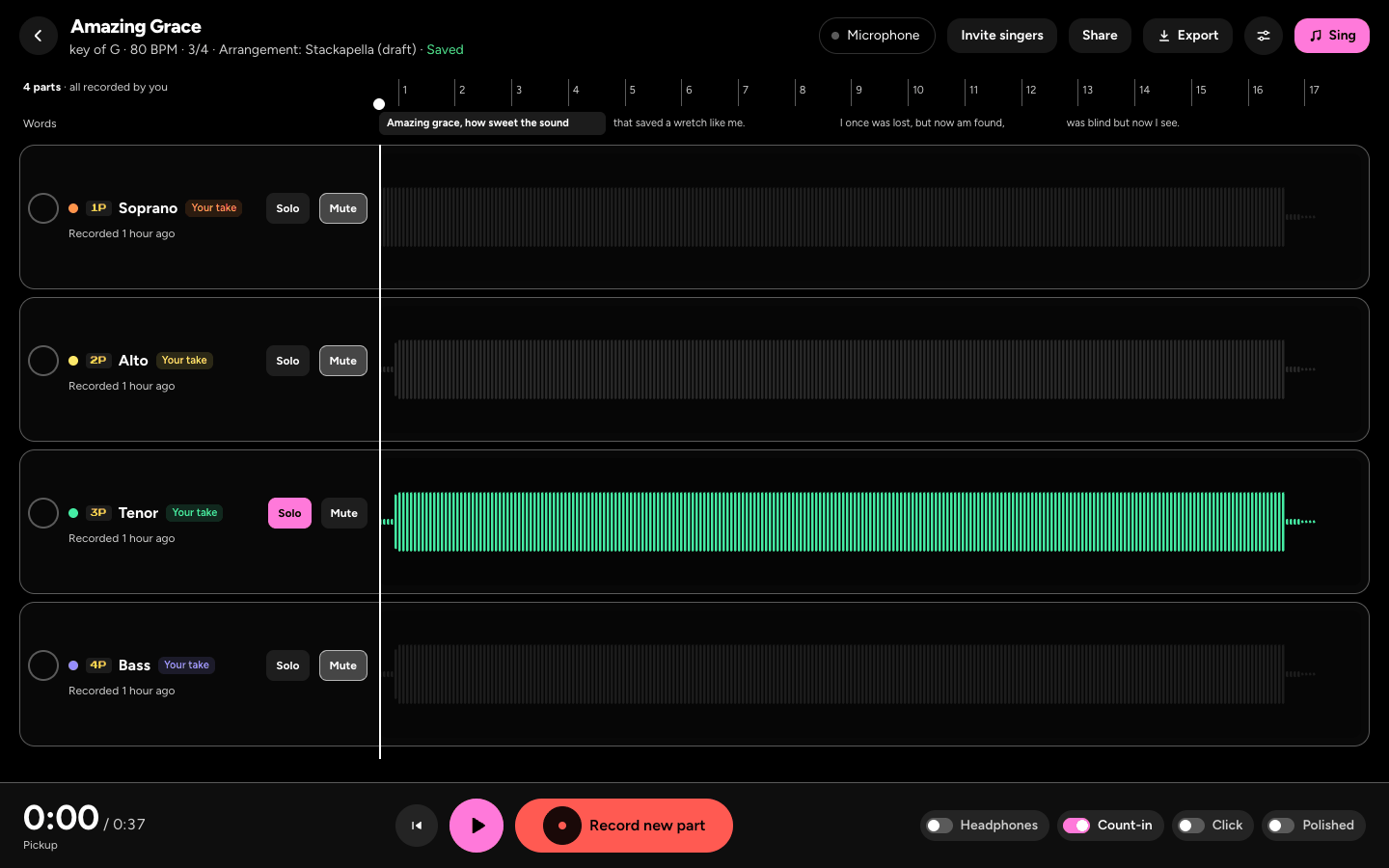
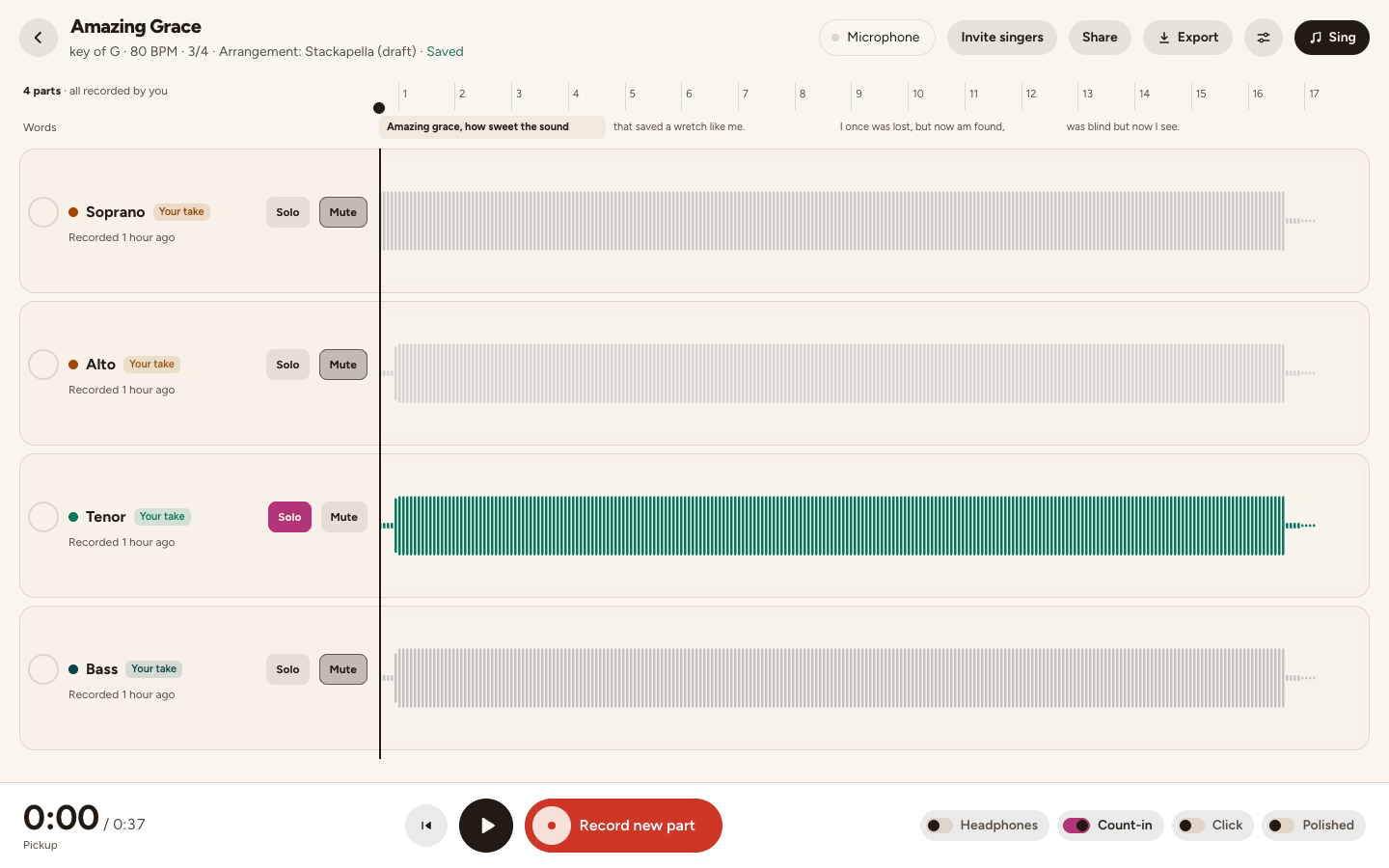
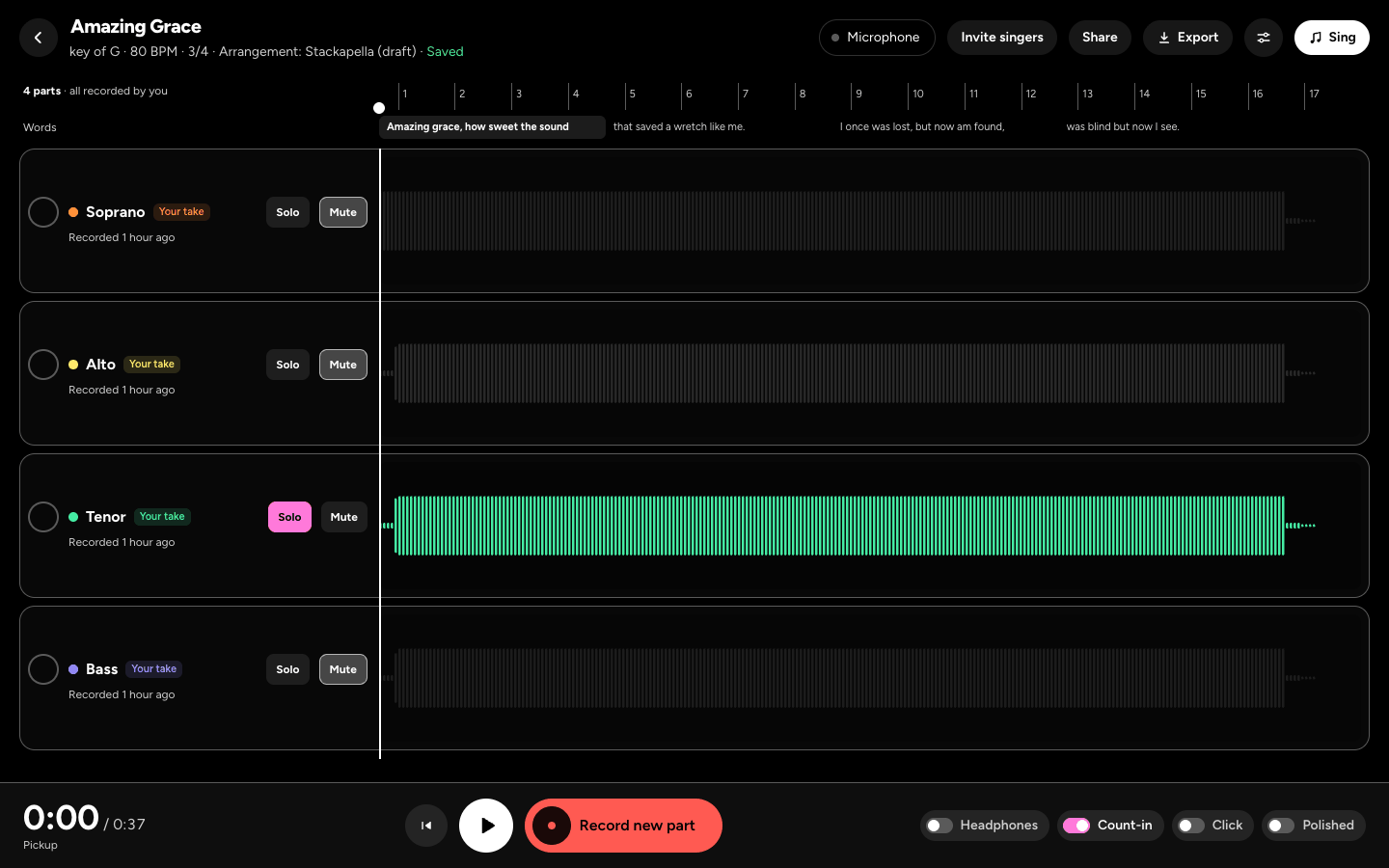
- Each part is a track: a circle to pick it for recording, its colour and name, a tag (Guide, Your take, or a friend's name), Solo and Mute (S and M where the row is narrow), and its waveform across the song. Above them, a line says how many parts are recorded by you.
- Tap a part's name to open its row: Level and Pan, each with its value, the Timing of your take, then Retake, Trim, Rename and Voice, Learn it in Sing for a song's part, and its Takes. Voice has the rest.
- The part picked to record says Ready to record, and a recorded part says when, for example Recorded 1 hour ago. Under the ruler, Words shows the song's lines: the one you're on is filled, and a tap goes there.
- On the home, New song, then Just record, opens an empty studio on Sing the tune first: every voice you add stacks on top, and you hear the others while you sing.
Record a part
- Put your headphones on.
- Tap the circle next to the part you'll sing. It starts on the next part without your take, in the order the song suggests. Tap it again to unpick it: the red button then says Pick a track to record.
- Tap the red button. It names the part, for example Record Tenor, or Retake Tenor once it has your take, and recording always starts from the beginning of the song. When every part has your take, it says Record new part. In a song of your own, it names the track, for example Record Track 1, then the next one: the next track waits at the bottom, Armed for recording, and Add track adds another.
- The first time with a mic, we run the timing check. It takes about 10 seconds.
- A bar of clicks counts you in, with big numbers on screen. Every track that isn't muted plays while you sing, the one you're recording too (its guide, or your earlier take), softer without headphones.
- Tap Stop recording when you're done.
Keep your phone unlocked while you record. If a call or a locked screen stops a take, we keep it up to that moment.
Headphones, count-in and click
- On a bigger screen, three switches beside the red button say what recording will do: Headphones (so we don't ask before each take), Count-in (a bar of clicks, then sing) and Click (a steady beat while you sing).
- On a phone, they're on the card for the first voice in an empty song of your own: Headphones, Count-in and Click.
- Song settings has the Key, with minus and plus and Find my key with a range check, the Parts for 2, 3 or 4 singers, and Count me in and Metronome as switches. A song of your own has its Tempo (BPM) and Time signature too. Save keeps what you changed. It's the sliders button at the top on a bigger screen, or in the More menu on a phone.
Takes and your best one
- Each part keeps every take. To sing it again, pick it and tap the red button (Retake Tenor, for example), or open its row and tap Retake: the new take is used, and the earlier ones are listed under Takes, each with a play button, Use this take and a bin to delete it.
- Straight after, Undo: use the previous take on the notice above the transport puts the earlier take back.
- Signed in, a take you delete from Takes waits in Recently deleted for 30 days: Settings, then See what's using space under Storage, then Restore take. A take only on this device can't come back.
- For a song's part, Voice, then Delete take, goes back to the guide.
- If a take comes out silent, we say so. Pick another mic, then record again.
Fix one phrase
- After a take in Sing, tap Re-sing a phrase.
- Pick the phrase to sing again. The rest of your take stays as it is.
- Tap Sing it. You hear the others and a count-in, then sing just that phrase. It stops by itself.
- Tap Hear it in place, then Keep it, Try again, or Keep the old one.
If the join sounds a little different from the rest, we say so, and offer Record the whole part again.
Trim the ends
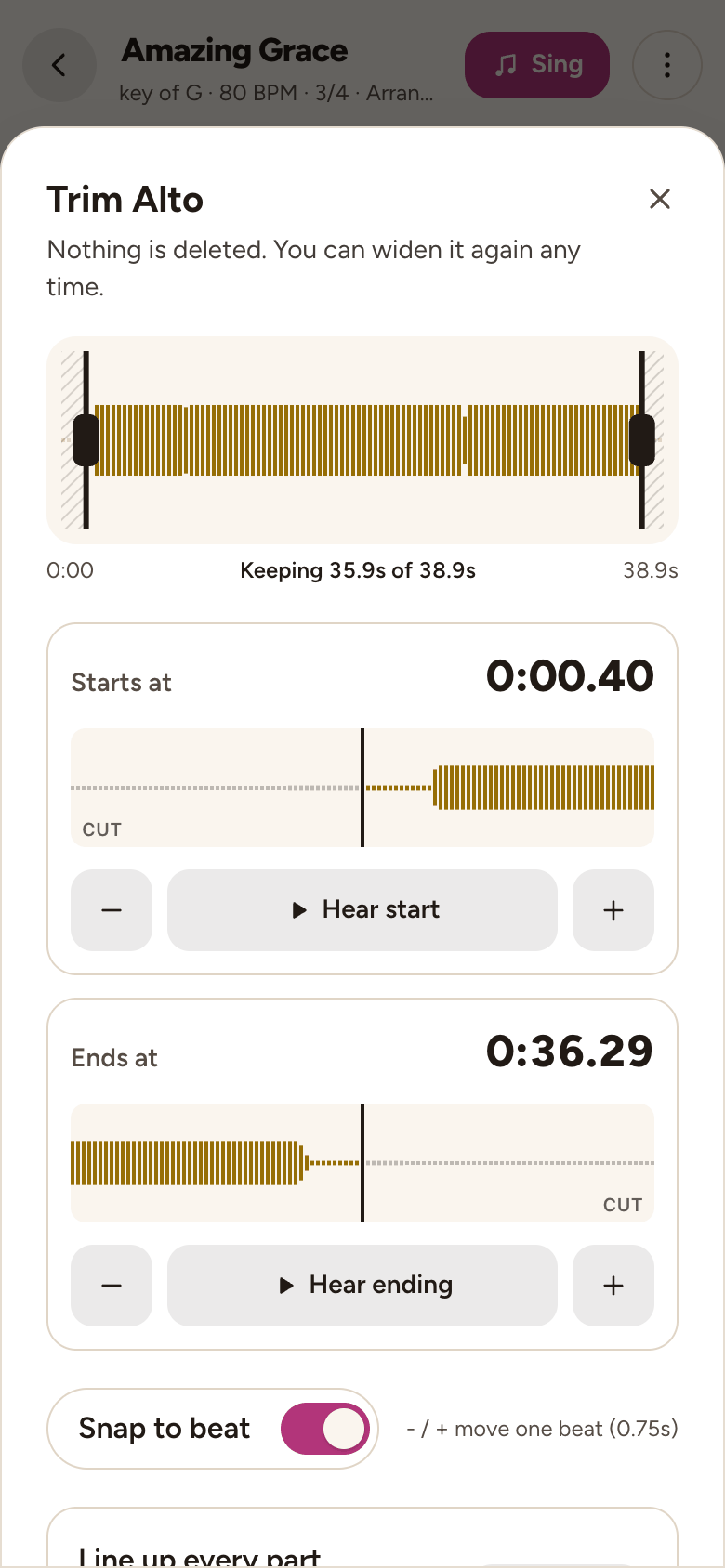
- Trim cuts a breath, a cough or the reach for Stop. In the studio, tap the part's name and then Trim. In Sing, after a take, tap Trim the ends.
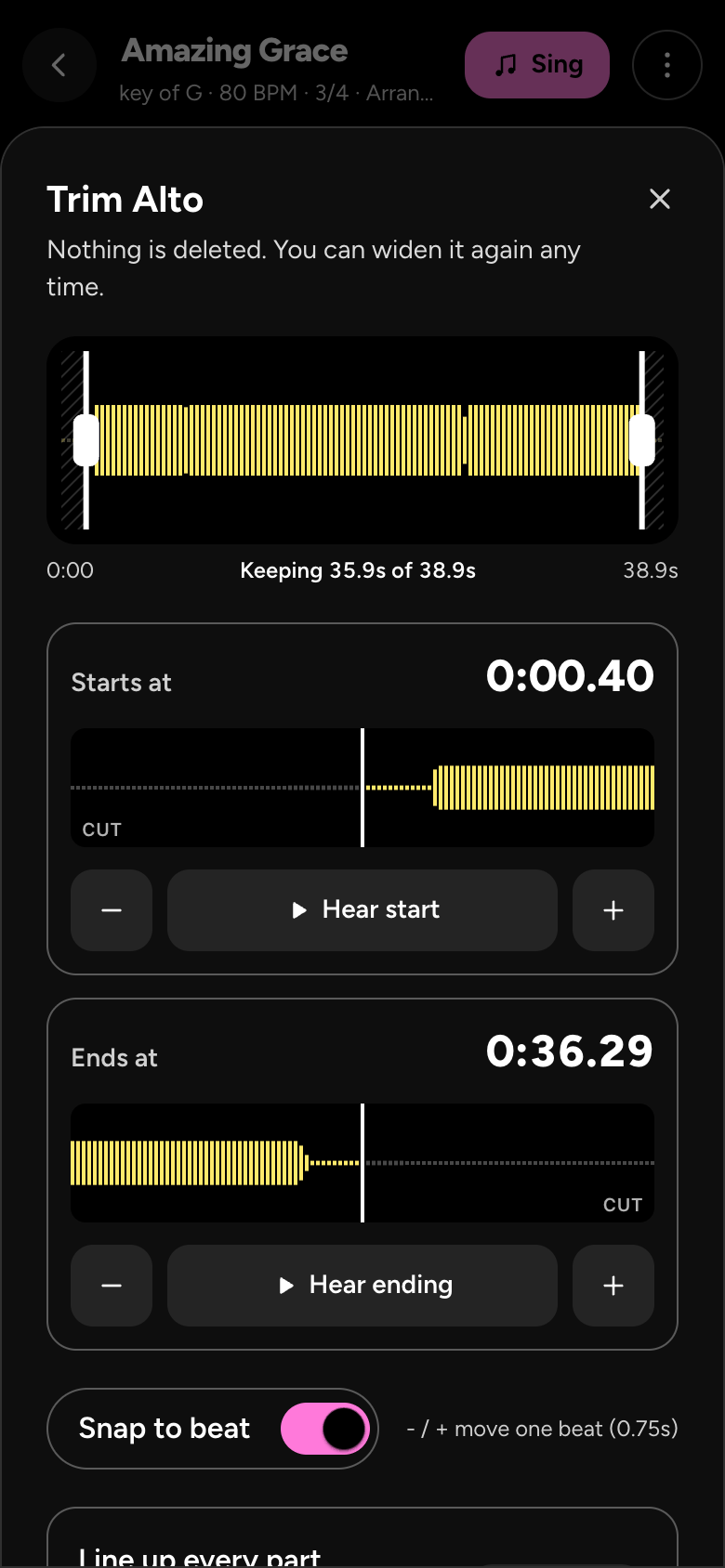
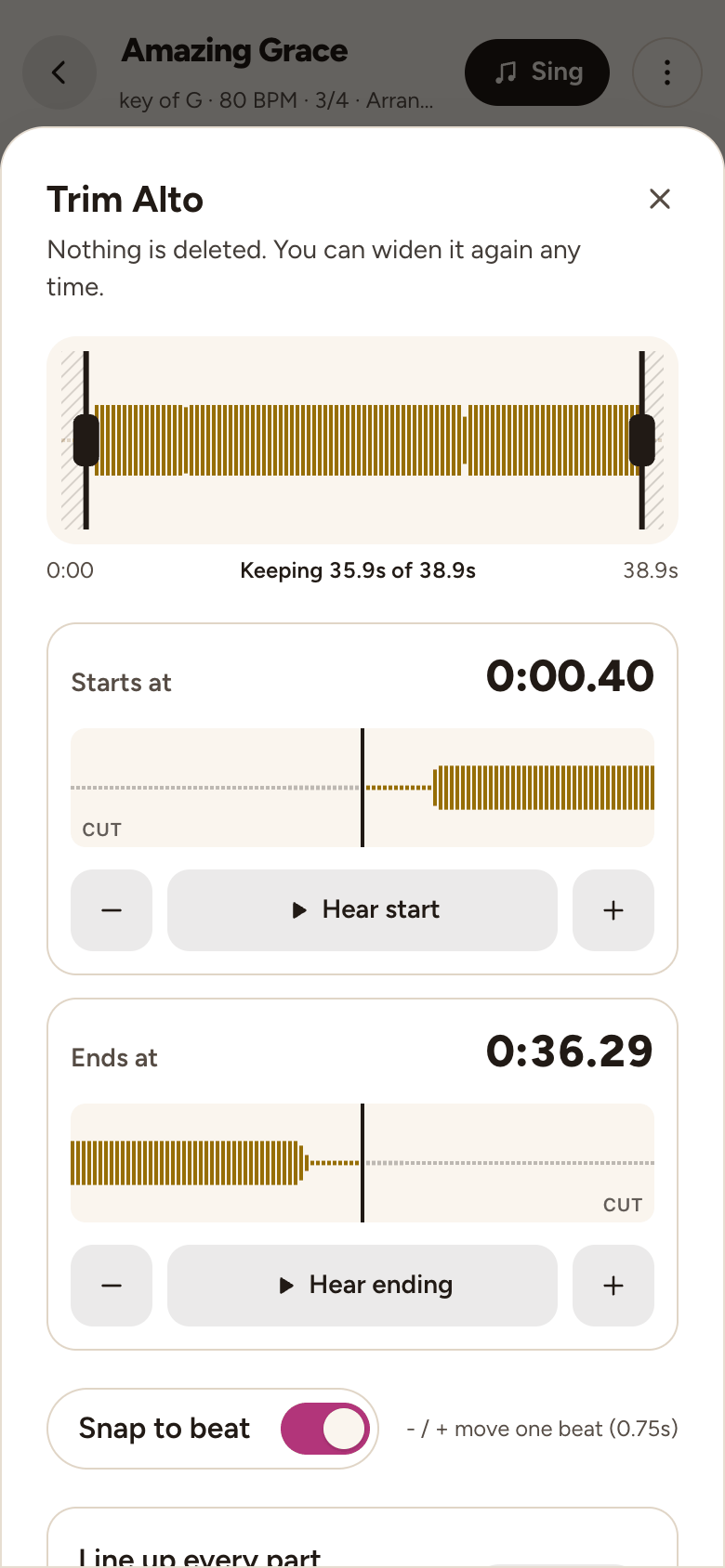
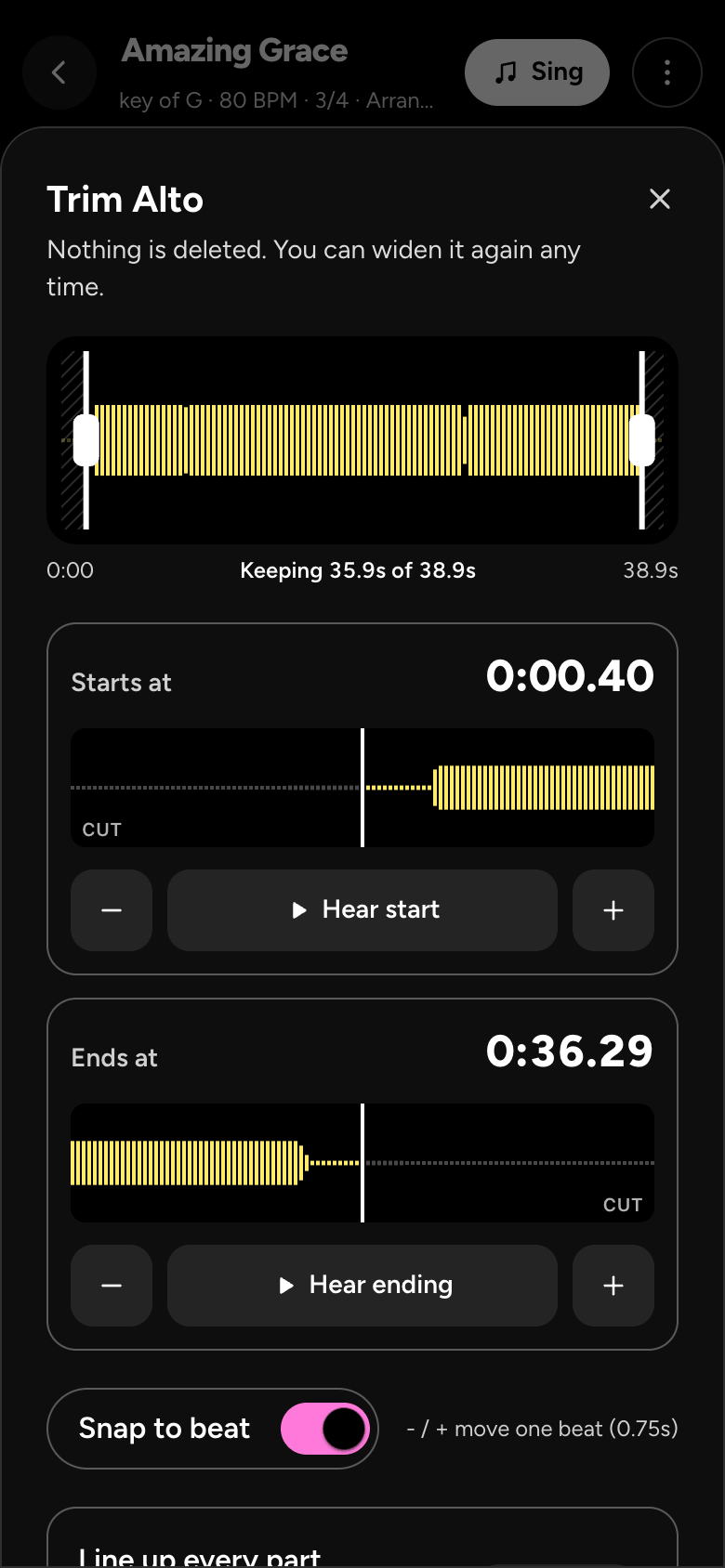
- Drag either end of the take by its grip, or use the minus and plus under Starts at and Ends at. Each card zooms in on its end, with Hear start or Hear ending.
- Where there's a breath at the start or the click from Stop at the end, a suggestion offers to cut it, with the time to cut at. Snap to beat keeps the ends on a beat, and moves them a beat at a time.
- Play trimmed part plays what you keep, and Reset puts it back. Nothing is deleted: you can widen it again any time.
- In the studio, with two or more takes, Line up every part trims them all to start together (Same start) or end together (Same end). Undo puts them all back.
The timing
- Open Microphone and timing: in the More menu on a phone, or the mic at the top on a bigger screen, with its name and whether it's listening. It shows your mic, its level and your timing, with Check timing or Check again.
- If you switch headphones or mics, we ask New headphones or mic?. Tap Check the mic and timing.
- To nudge one of your takes, tap its name and use the minus and plus beside Timing, 10 ms at a time. As recorded puts it back.
- Parts out of time has the whole check, step by step.
The mixer
- Solo (S on a narrow row) plays only the soloed parts. Mute (M) leaves a part out. A muted part's Mute is lit and its name says Muted; while another part is soloed, the others' Mute is softly lit. Every part you can't hear is greyed.
- Tap a part's name for its Level, with its value (100 is as recorded), and its Pan, from L to R with C in the middle, on any screen.
- Voice has Practise this part, the part's Name, and under Mix its Volume, Pan and Timing, on any screen. Where a real singer sang the part, Guide voice chooses them (Recommended by Hillel) or the Practice voice. Under Your take: Delete take, Trim and Re-record.
- Mute, solo and level are for the studio and its export. Sing plays the parts you choose in its What you hear.
Sing together
- Friends you invite record their own parts and hear everyone else's. You stay in charge of the key, tempo and title.
- In the studio, tap Invite singers at the top (on a phone, Sing together in the More menu). You need to be signed in.
- A song that isn't in your account yet asks you to save it first: tap Save and invite, and your takes and settings come with it. Not now goes back.
- Under Invite a friend, choose Any part or For a part, then Make a link. Send it to one friend yourself: it works once, until the date it shows, and we don't send it for you.
- Who's singing lists everyone, with a link not used yet that you can Take it back. Remove takes a singer out, with their parts or keeping them.
- A friend's part shows their name, and only they change it. Up to 2 friends can sing on a song, or 20 with Plus.
- Singing in someone else's song, you add and change your own parts and hear everyone's. Leave the song asks whether your parts stay for the others.
Hear it polished, and export
- Once something's recorded, turn on Polished beside the red button (on a phone, Hear it polished is in the More menu too). It levels the parts, smooths loud and quiet moments, and adds a room. Your recordings stay as they are.
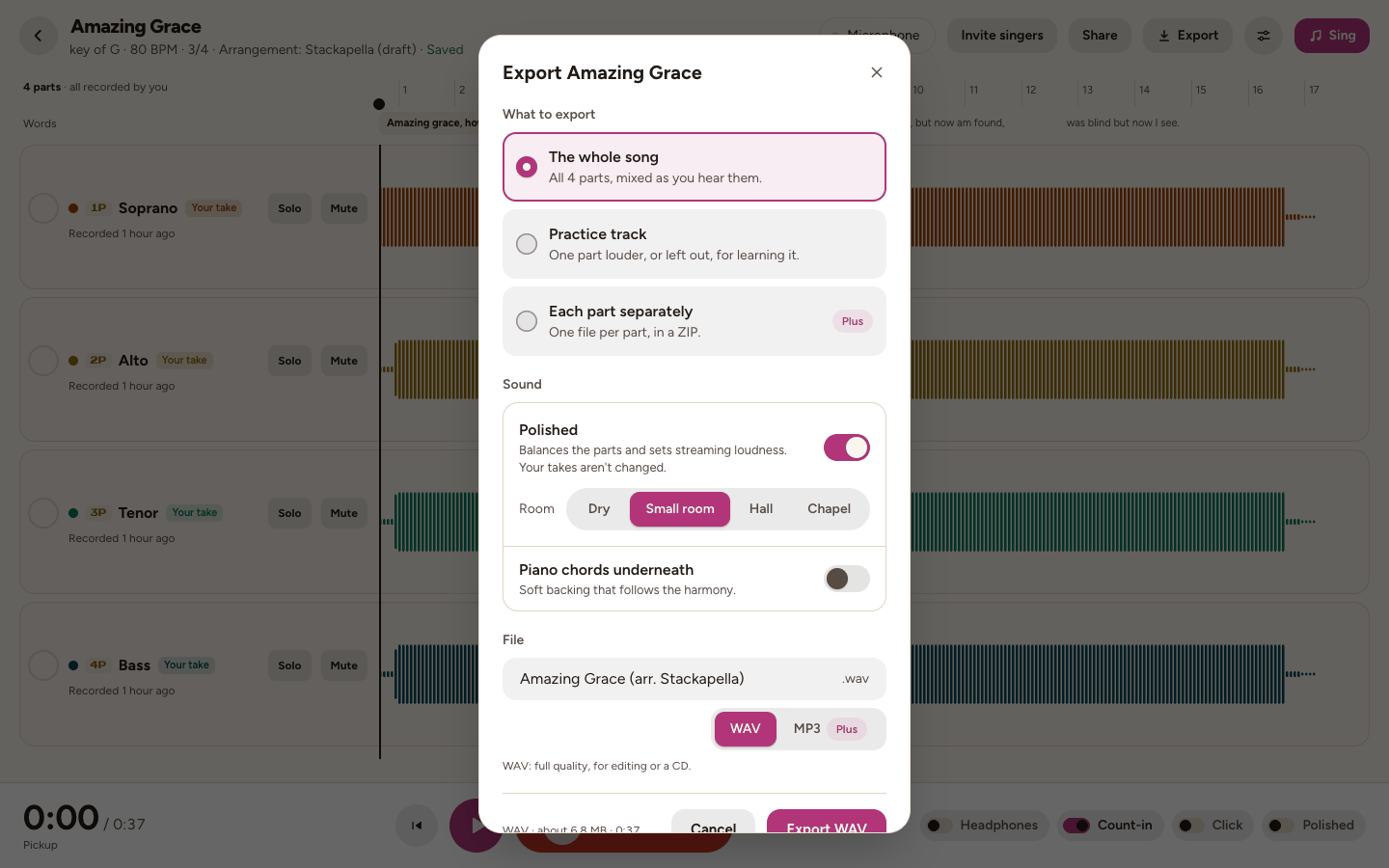
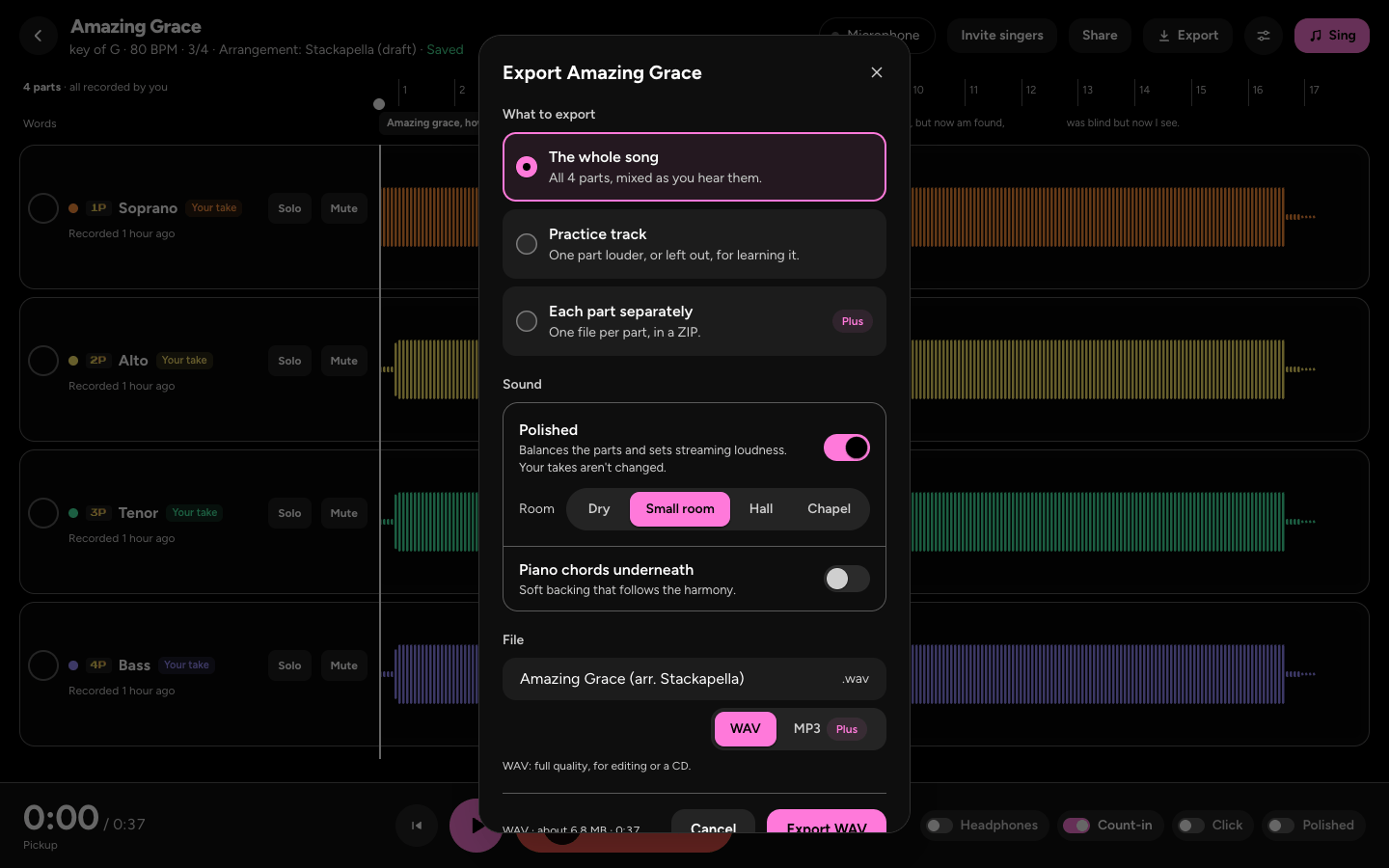
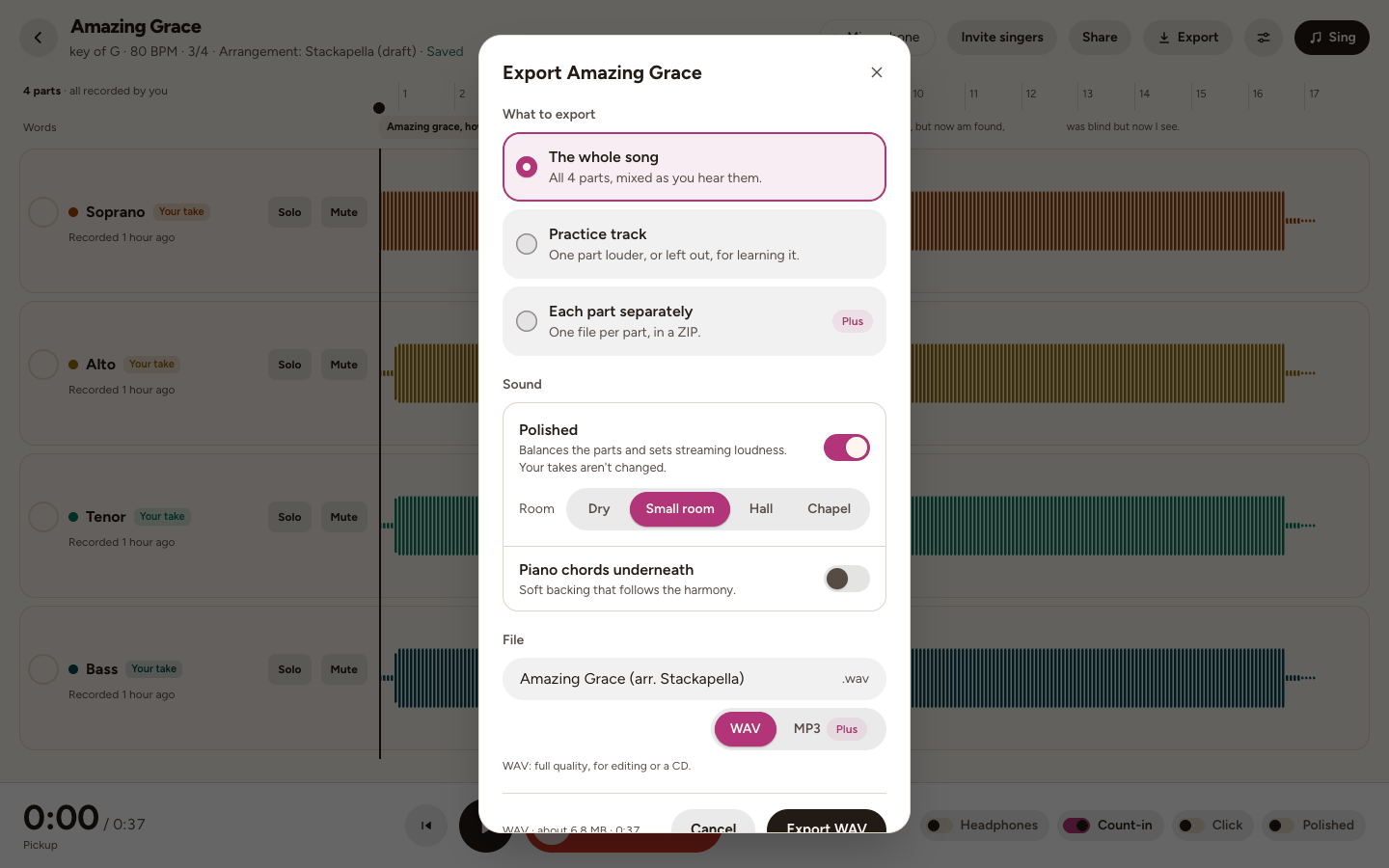
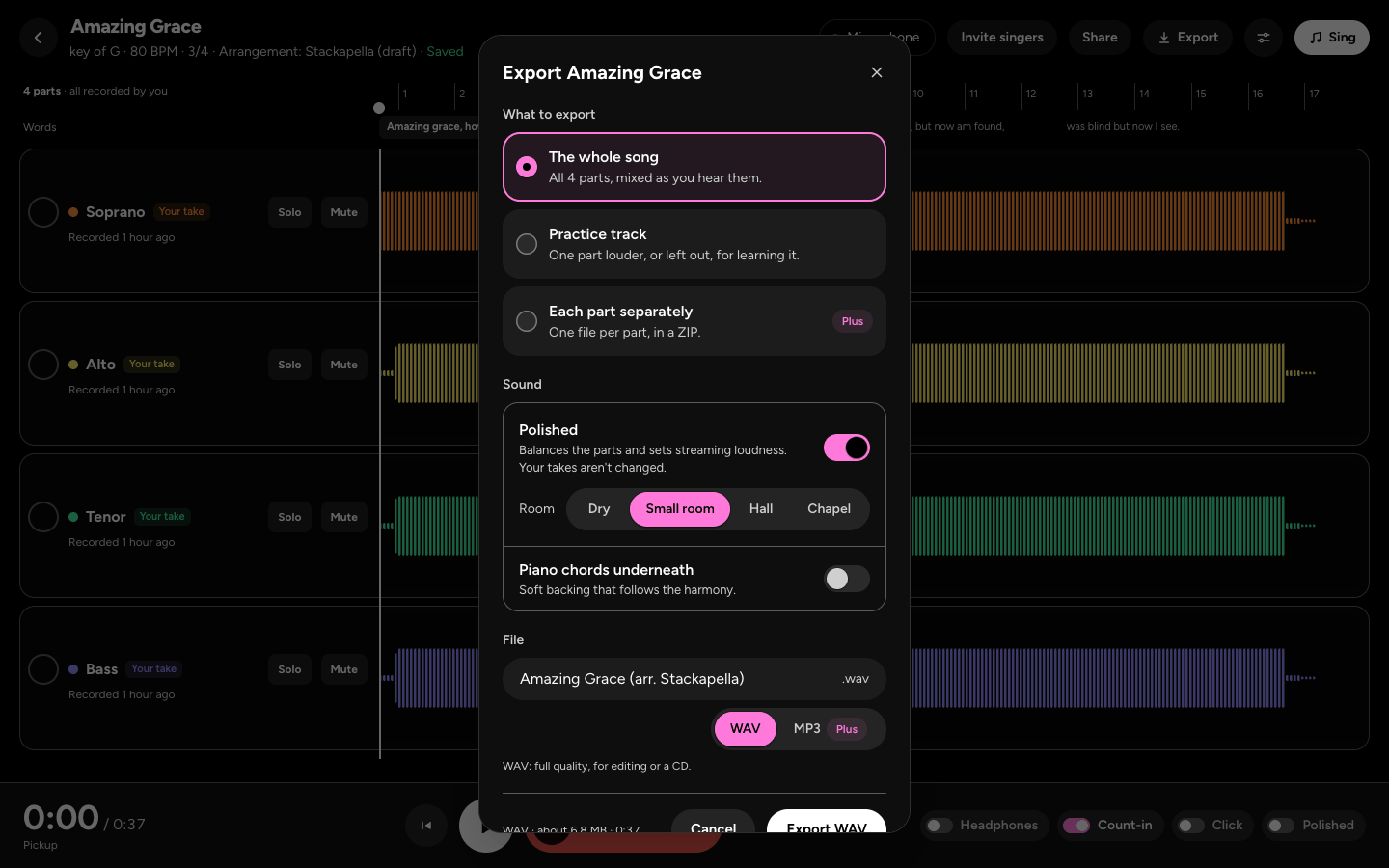
- Export, at the top (in the More menu on a phone), makes a file. Under What to export, choose The whole song, a Practice track (one part louder, or left out, for learning it), or Each part separately, a ZIP of WAVs.
- Under Sound, Polished balances the parts and sets the loudness, with a Room: Dry, Small room, Hall or Chapel. Piano chords underneath adds soft backing that follows the harmony.
- Under File, name it and choose WAV (full quality, and free) or MP3 (smaller, for sending), then tap Export WAV or Export MP3 at the bottom, beside how big the file will be. MP3 and Each part separately come with Plus.
- A part muted in the studio is left out, and we say so: Include it puts it back in the file.
- Sharing your harmony has the rest: links, videos and files.
Still stuck? Tell us what you tried: it sends the details we need, like your browser and your last timing check.
Or write to [email protected].