Find your voice and the course
Your comfortable note, the course map, lessons and stars, your range and badges, and what Plus adds.
Contents
On this page
The course
- The course teaches harmony from the start, in short lessons with a guide voice. Its units build on each other, from your first note to every part of a song.
- It leads the home. Before your first lesson, tap Start singing. After that, the home shows your next lesson with Continue lesson (or Continue), and Course map opens the whole course.
- Units 1 to 7 are free. The later units come with Stackapella Plus.
- A song a lesson opens is kept apart, and never counts toward the free plan's 3 songs.
Find your note
- Lesson 1 finds the note that's easy for your voice. The exercises after it start from there.
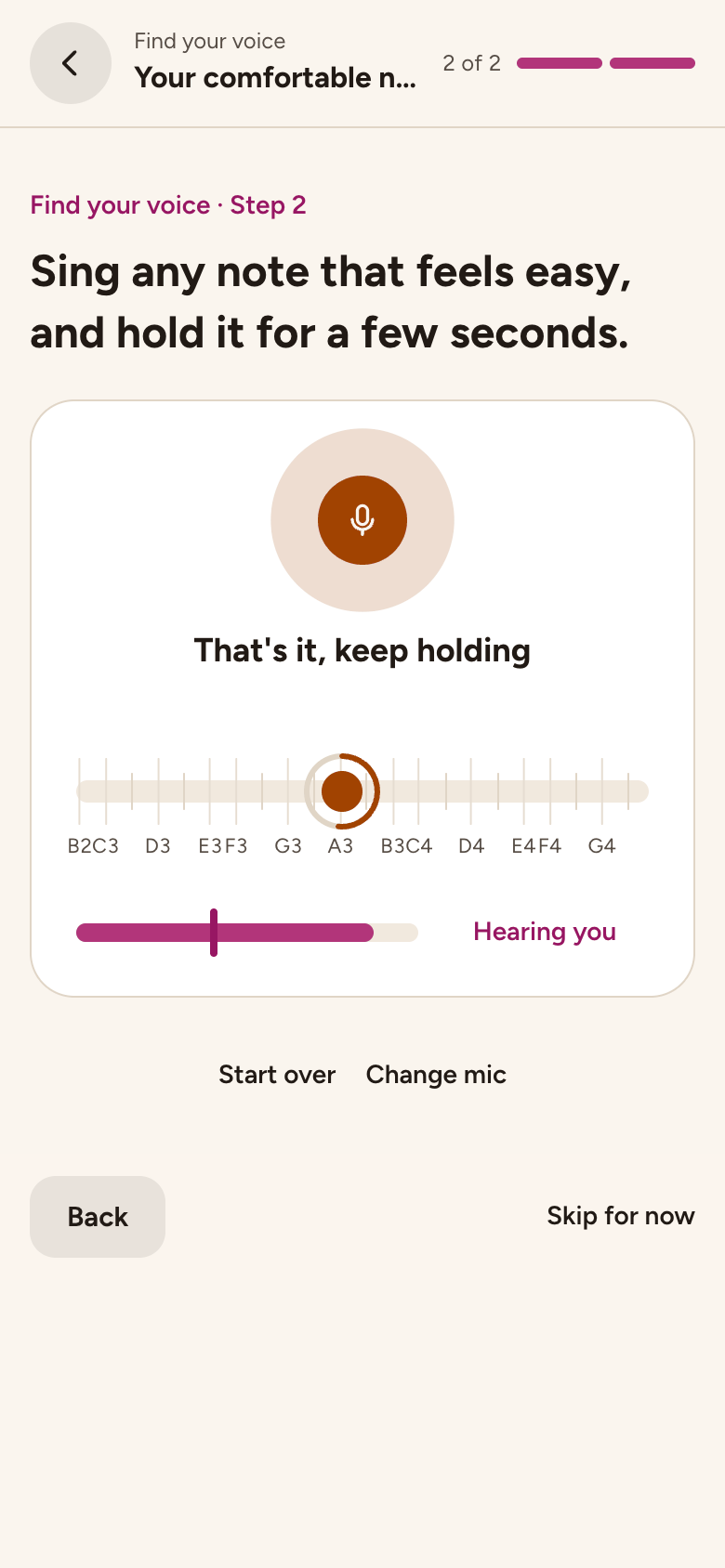
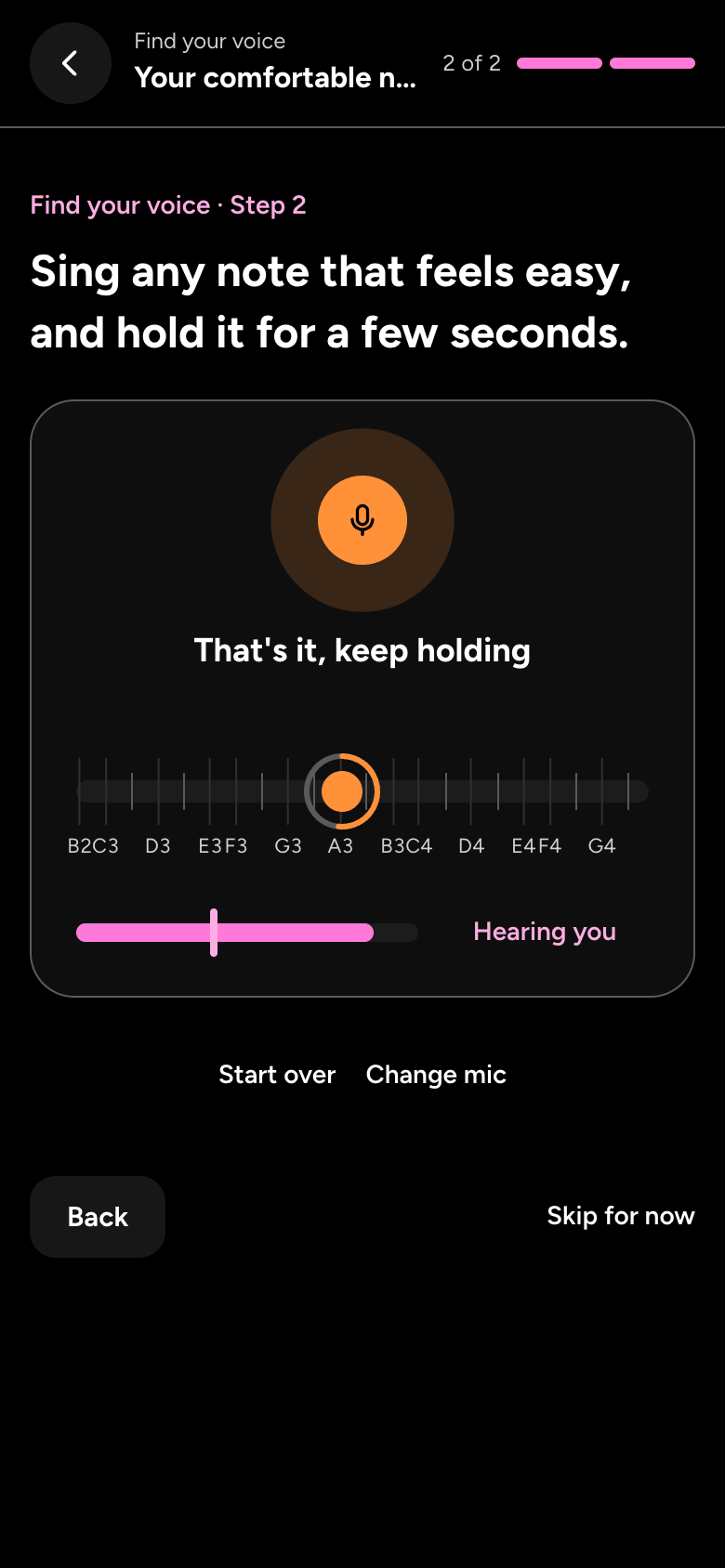
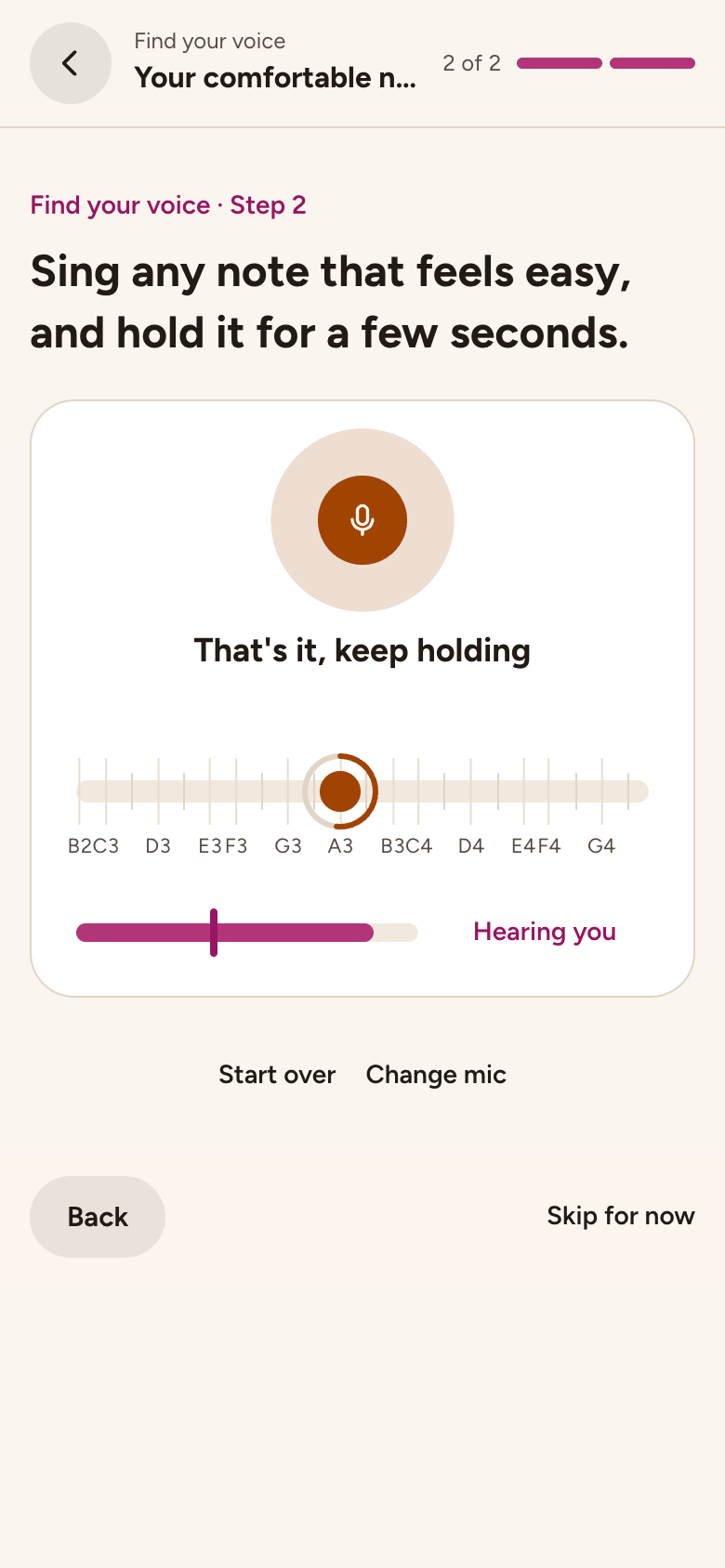
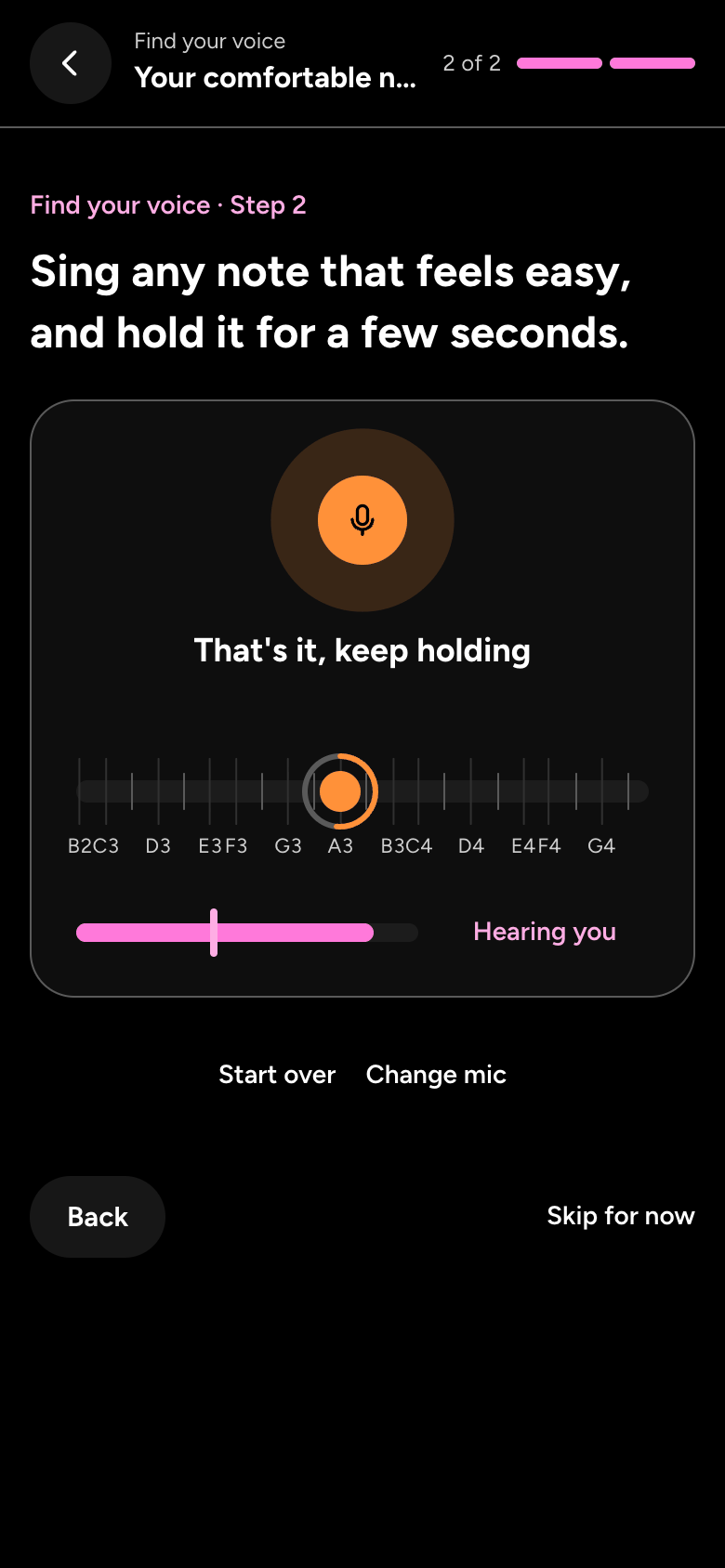
- If it asks, Tap anywhere to start listening, then sing any easy note, like a long "ahh", and hold it. The ring grows as we hear you, and we say That's it, keep holding.
- Then you see Your comfortable note, and which parts may suit you. Play it plays it back, and Sing again starts over.
- Nothing heard for a few seconds? We say No sound from your mic (or that we hear it only very quietly, so turn up its gain), with its level, the Microphone to pick, and Things to check: the input it's plugged into, the gain, 48V phantom power for a condenser mic, and that it isn't muted. Fix it, then try again.
- Skip for now works too (or Skip, I'll set up my mic later when there's no sound): the exercises start from a typical note until you find your own.
The course map
- Tap Course map on the home. Each unit is a card, and the one you're in is open, with its lessons as circles: a tick once you've sung one, and a play mark on your next one. Tap a lesson, then Start lesson (or Play again). A unit ends with a challenge.
- A unit opens once you've earned enough stars in the one before. A closed unit says what opens it: in game mode, how many stars; in serious mode, which unit to finish, like Opens as you finish unit 2.
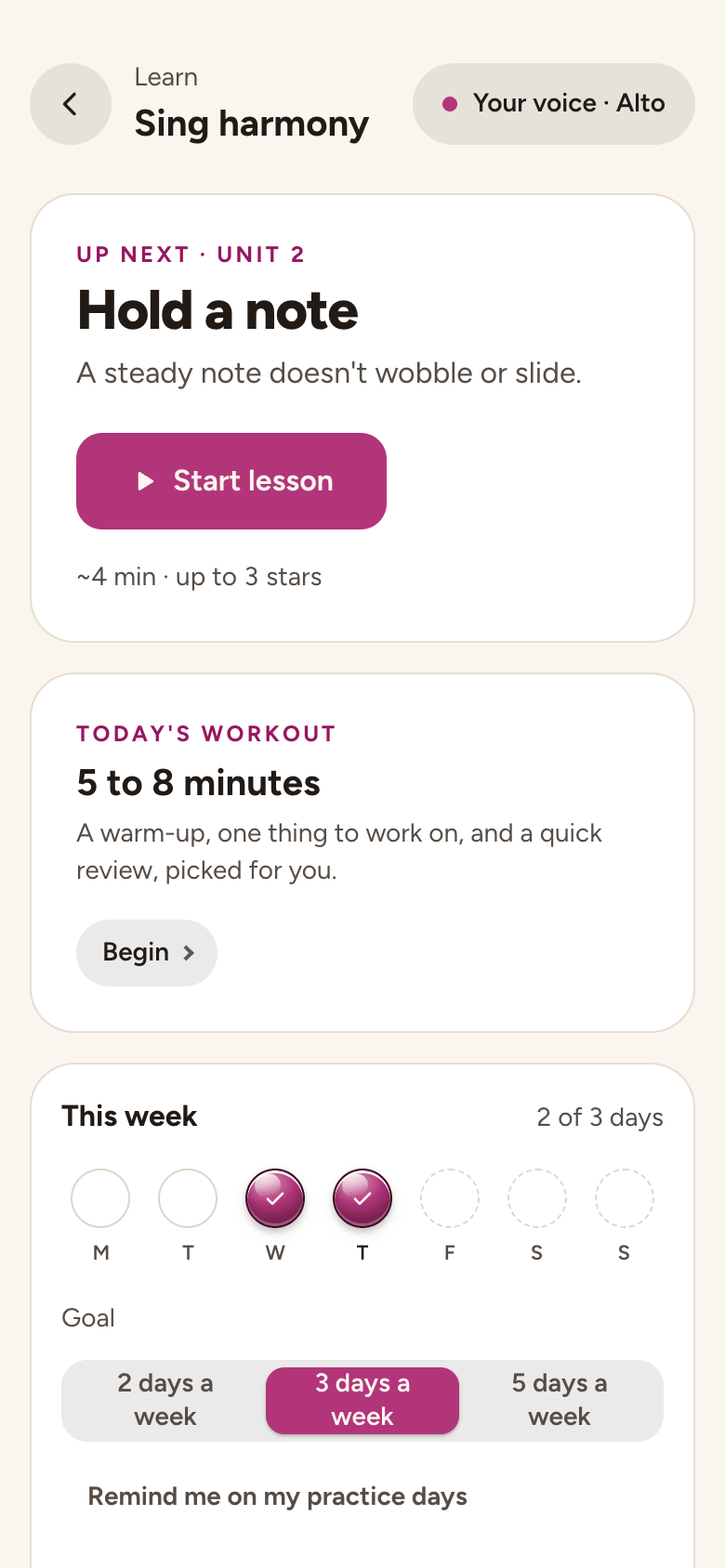
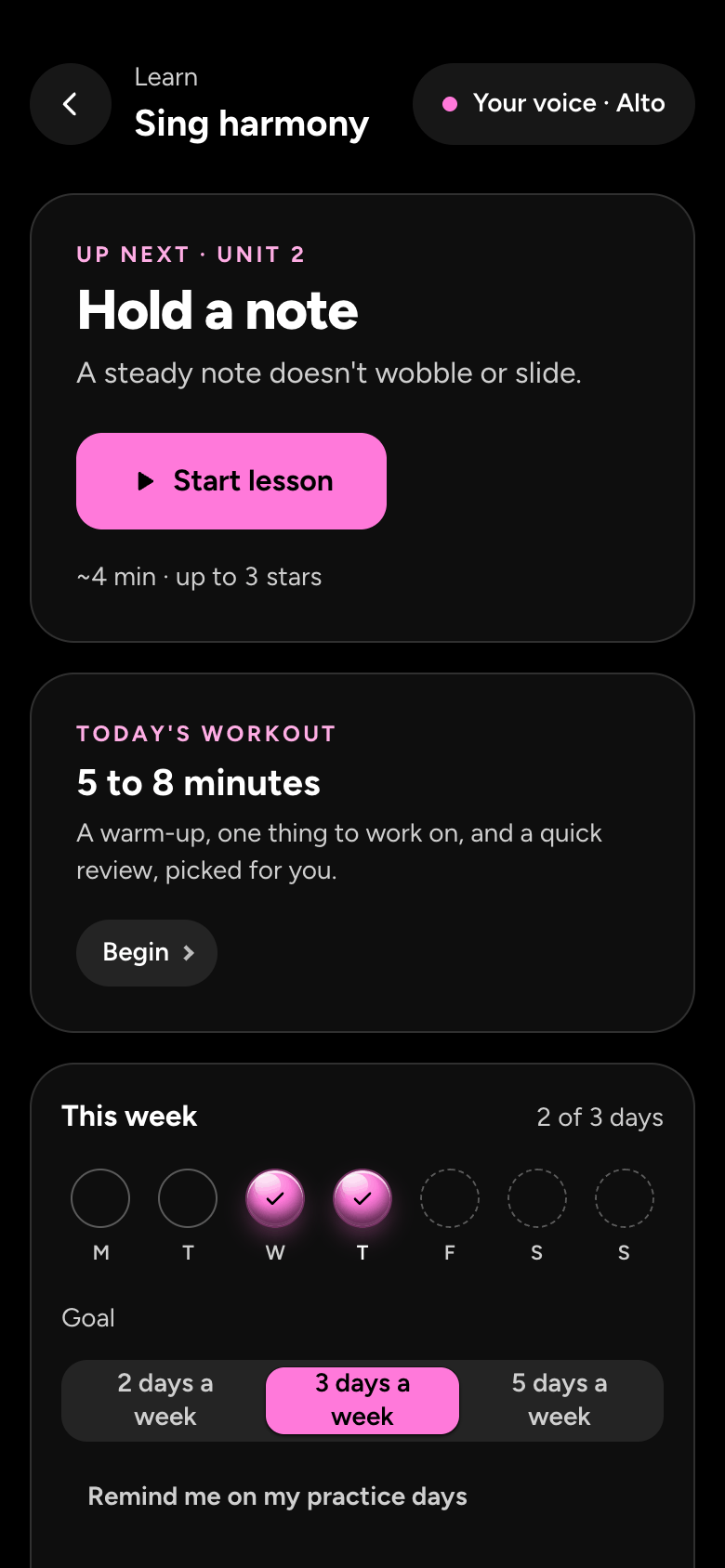
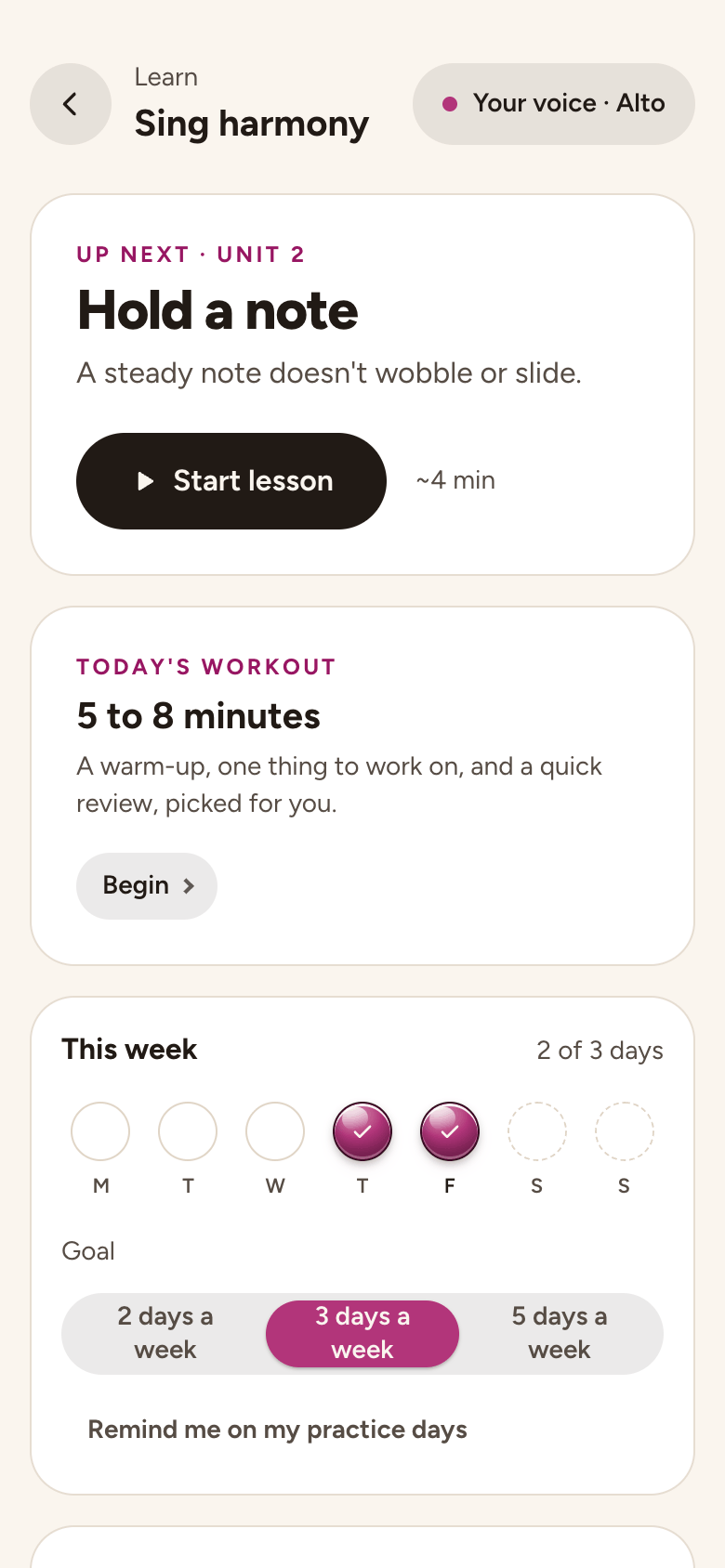
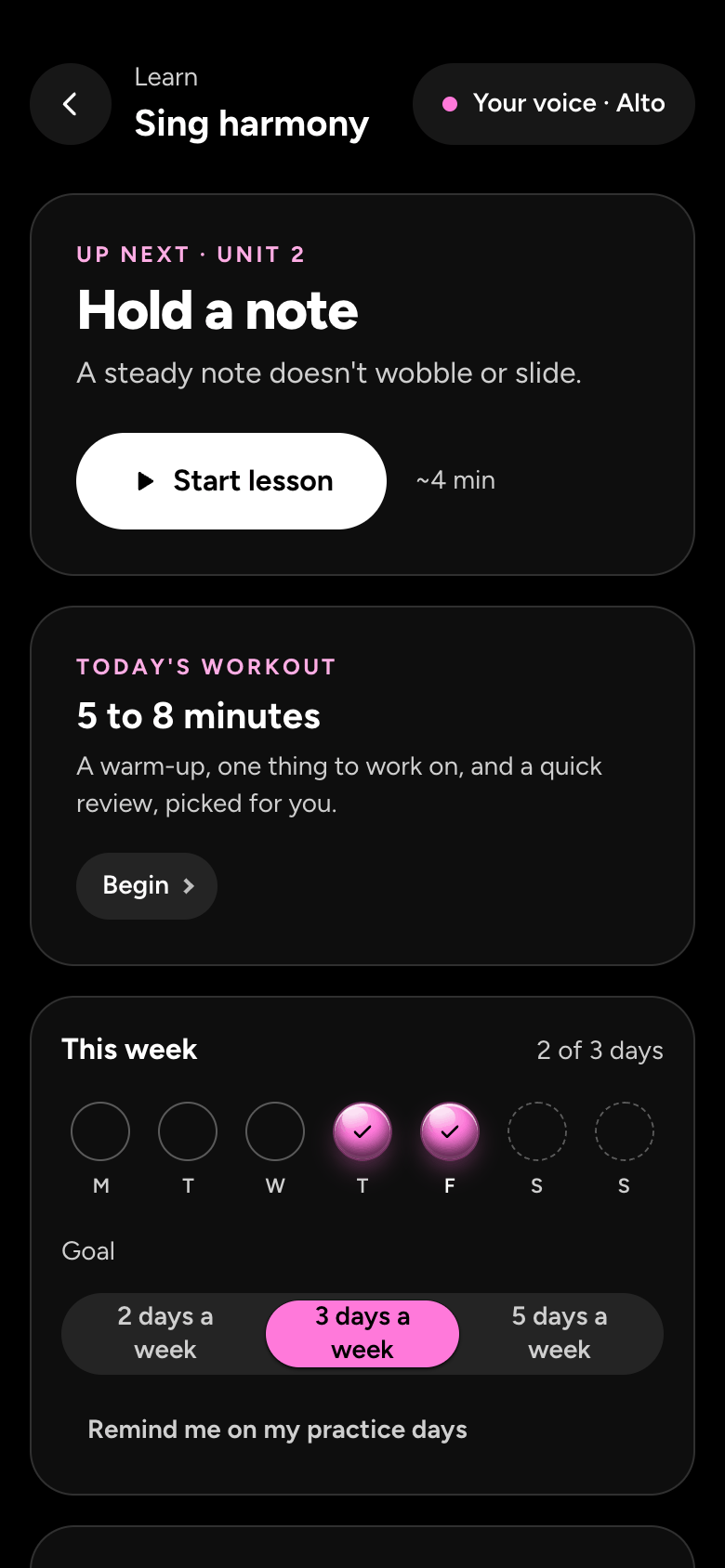
- At the top are your next lesson, with Start lesson, and Today's workout. Under them, This week shows the days you sang, with your Goal: 2, 3 or 5 days a week. In game mode, your level and XP sit beside it. Signed in, Remind me on my practice days sets up reminders.
- Today's workout is five to eight minutes made for you: a warm-up, one thing to work on, and a quick review. Tap Begin.
A lesson
- A lesson is a few short steps, one at a time, counted at the top, like 1 of 3. Tap Continue after each, and Finish at the end. A step you sing waits until you've sung it once (Skip goes past it).
- Each note is a brick as long as the note, with its word inside, and the notes scroll past as you sing. In a step to try, the music waits for you, one note at a time: the note fills only while you're on it, and if you're off we say Slide up or Come down. Skip this note appears if one won't come.
- A step to sing is scored: sing it through, and we listen.
- Some steps open a real song: tap Open it in Sing, sing in it for a little while, then come back.
- A record step opens a song to record your part: tap Record it in Sing, record, come back, then tap Check my recording.
No headphones? Choose No headphones when we ask. The sound underneath then rests while you sing, so the mic hears only you.
Stars and XP
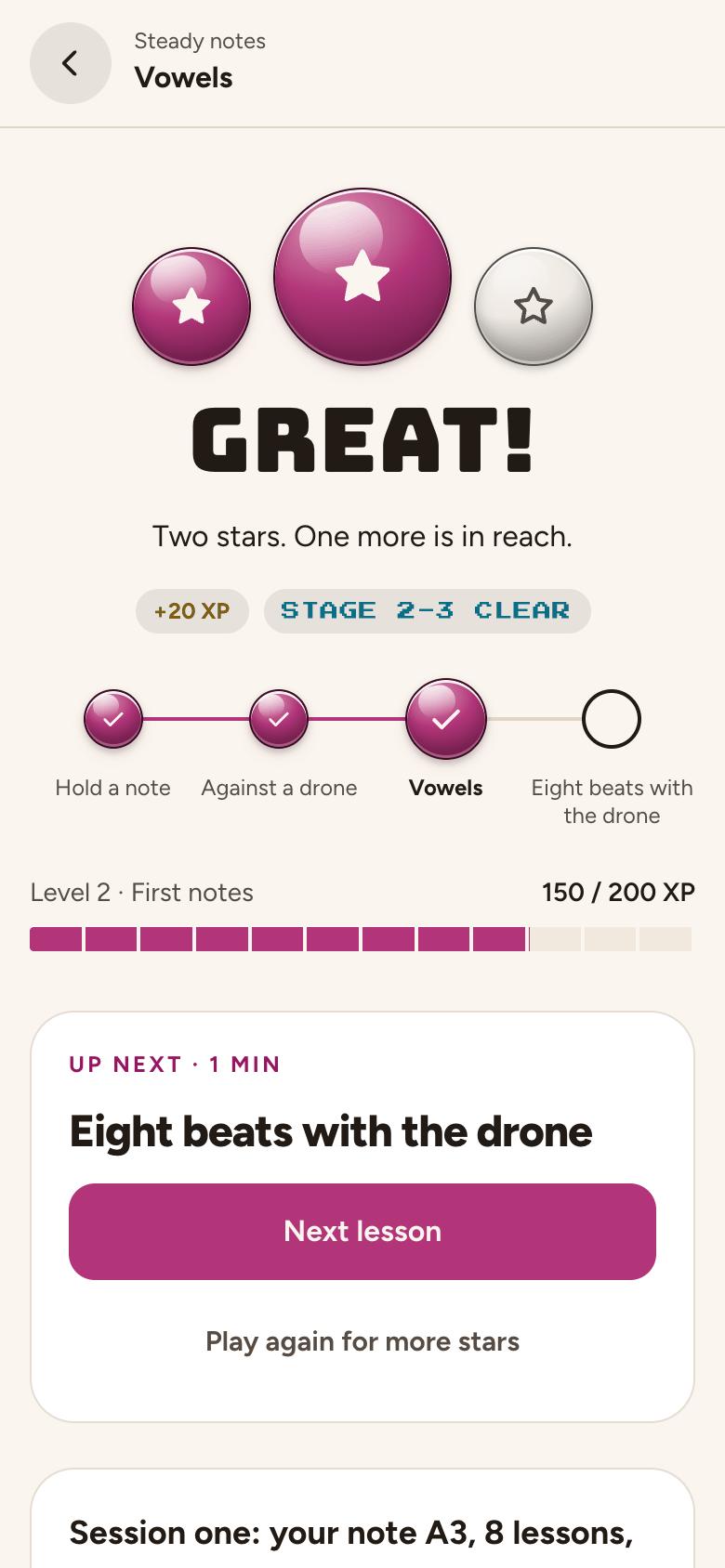
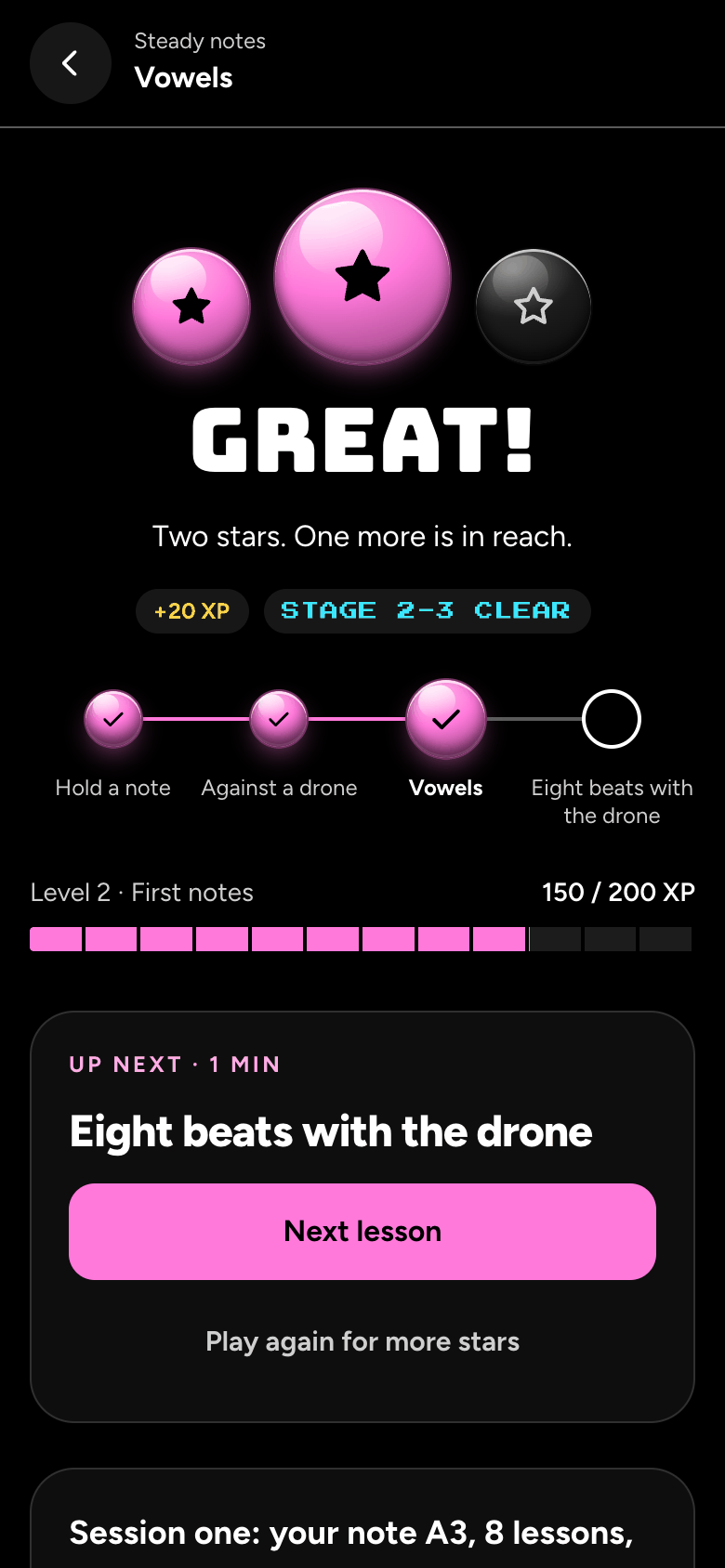
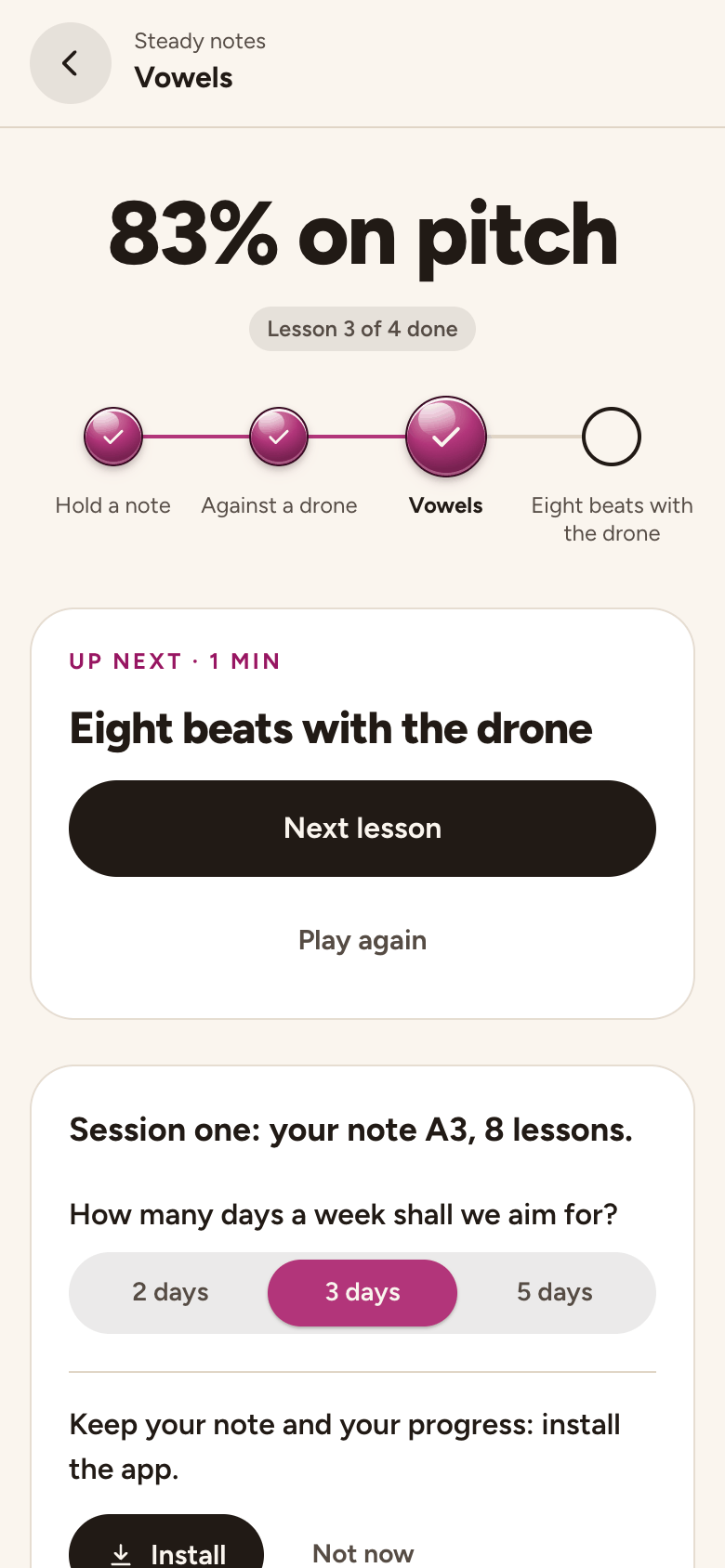
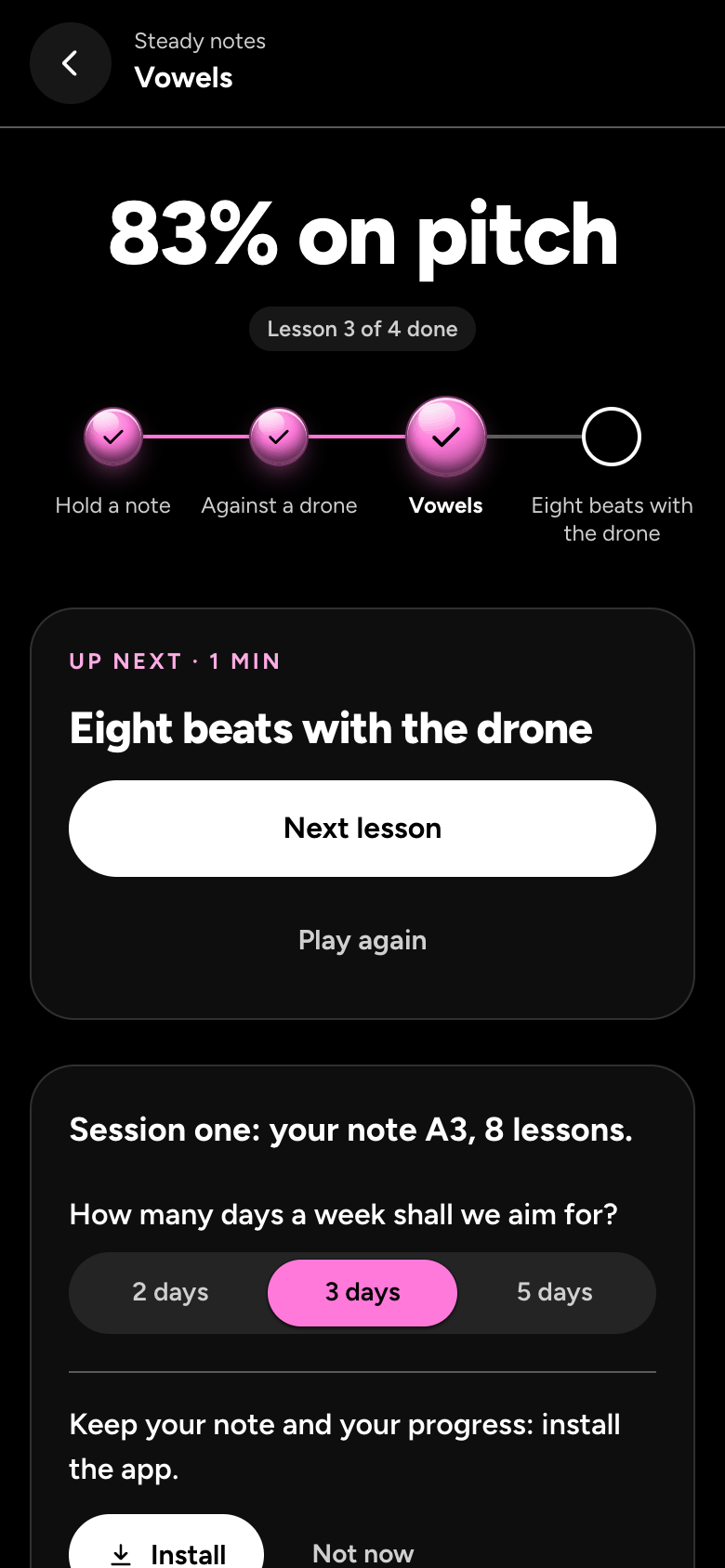
- In game mode, a lesson gives up to 3 stars: 1 for singing it through, 2 for 70% or more on pitch, and 3 for 90% or more. Serious mode shows the measure instead, like 82% on pitch, with no stars.
- If we couldn't hear you clearly, there are no stars this time, and nothing is lost. Try again somewhere quieter, a little closer to the mic.
- Play again replays a lesson (in game mode, Play again for more stars until you have 3). Next lesson goes on. Some lessons end with a Did you know? card: a fact about singing, with its source.
- In game mode, lessons and workouts earn XP, which raises your level. There's a most for each day, and your stars still count after it. Serious mode has no XP or levels.
Your voice
- On the course map, tap Your voice at the top right: once we know your range, it says which, like Your voice · Alto. On a bigger screen, the home has it at the side too, as Range, badges and history.
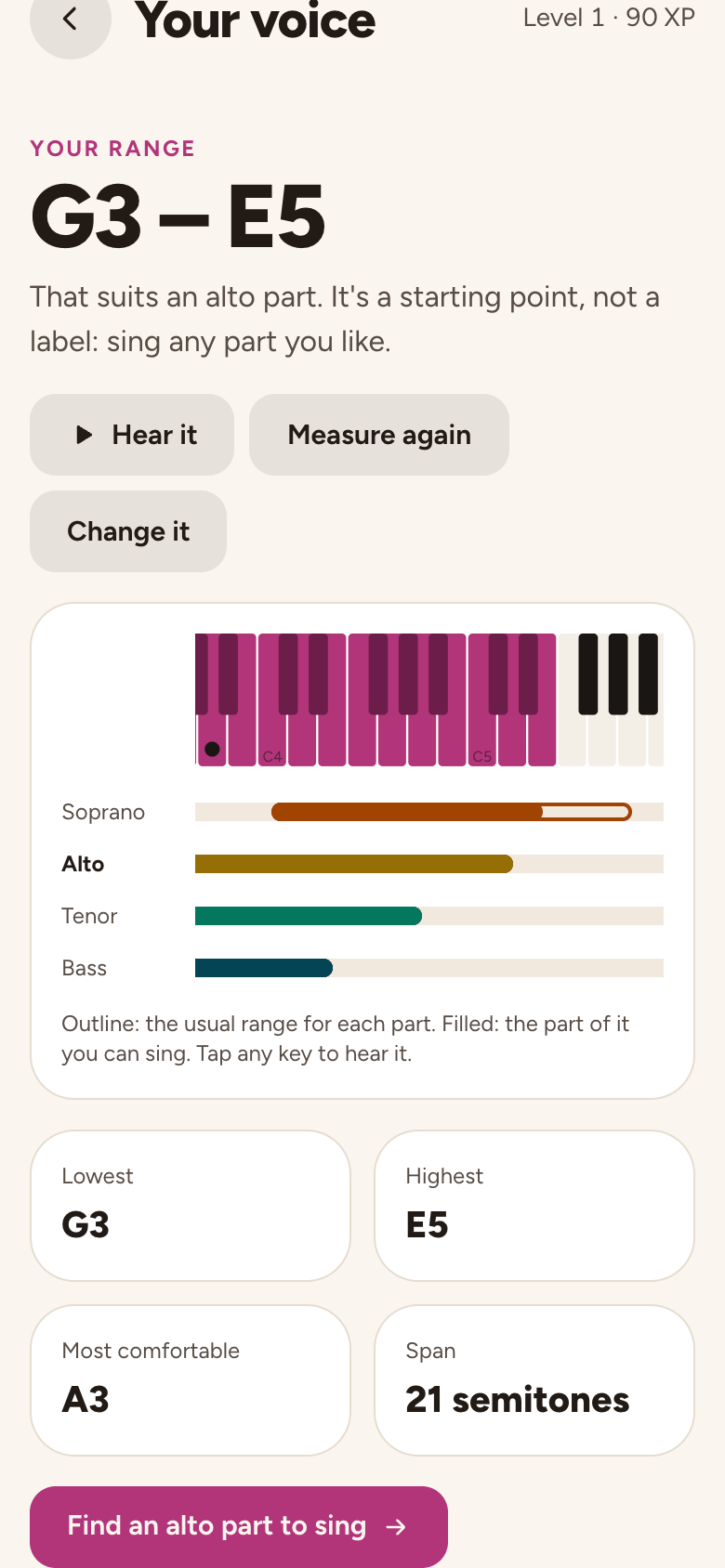
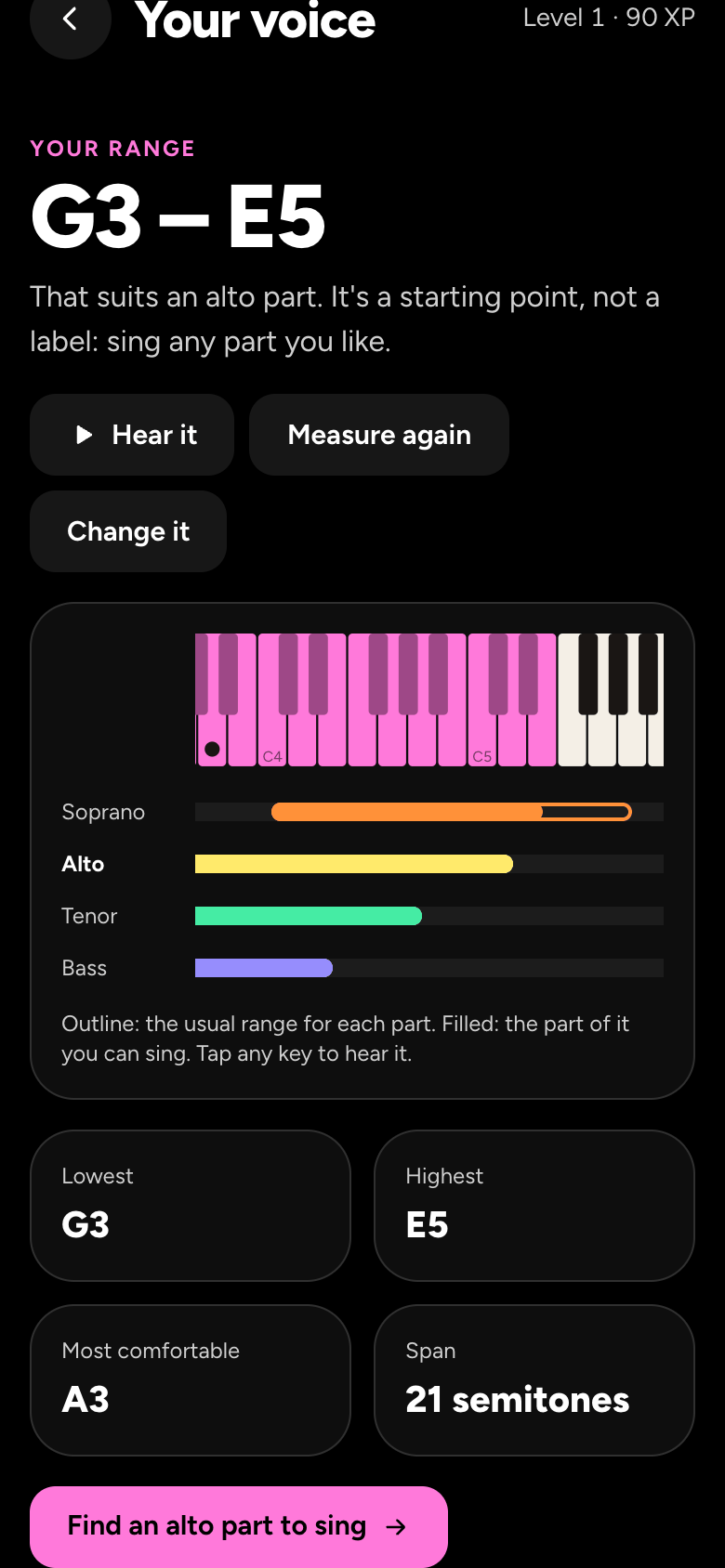
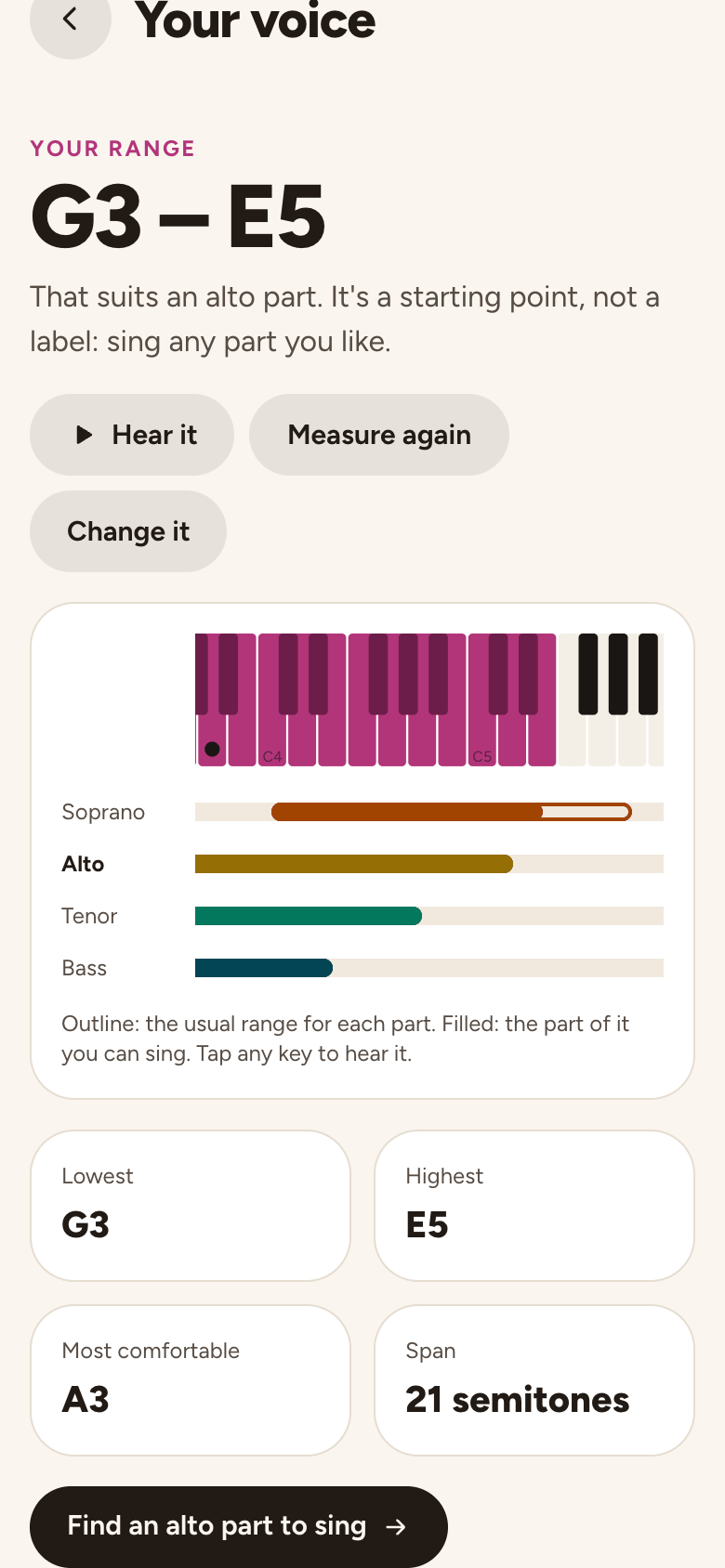
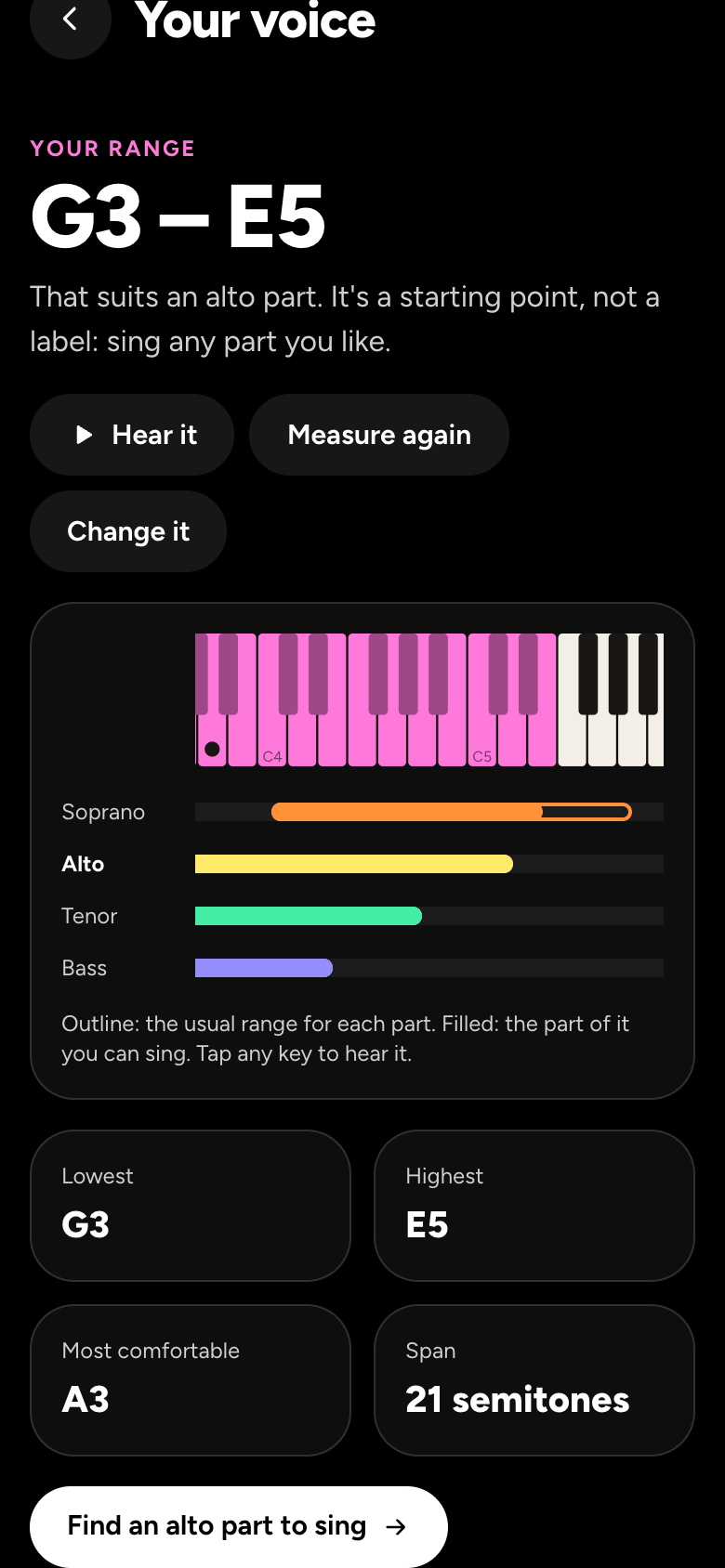
- Your range shows the notes you sing on a keyboard, with your comfortable note marked. It fills in as you sing the course's first lessons, or a range check. Measure again (or Measure your range) runs a range check, and Change it (or Choose it) lets you pick a voice or set your lowest and highest notes.
- It also says which part your range suits, like "That suits an alto part.", with a button to find songs with that part. It's a starting point, not a label: sing any part you like.
Check your range
- Check my range is where you choose your part, and in Sing under your part's name. Find your range asks for your Lowest note, then your Highest note: sing each on "ah" and hold it until it says Got it, then tap Next. Try again sings that note again.
- We show your range and how each part fits. The page on your part and key has the details.
Badges
- In game mode, Badges on Your voice lists them all, with how many you've earned, and can show one group at a time, like Firsts, Range or Habit. The ones you've earned show the date. The rest wait under Still to earn, each with a line saying what it's for and, where it counts, how far you've got. Serious mode has no badges.
What Plus adds
- Stackapella Plus opens the course's later units, after the free units 1 to 7, and the ten Plus courses on singing skills, harmony and styles, from Vibrato and Perfect your pitch to Barbershop and tags and Yodeling. Each one's first lesson is free for everyone.
- Free has one workout a day. Plus has as many as you like.
- Your history on Your voice: how much of each take was on pitch over time, which way you tend to lean, and recent highlights. Without Plus, it shows a sample.
- Plus and billing has the price and the trial.
Still stuck? Tell us what you tried: it sends the details we need, like your browser and your last timing check.
Or write to [email protected].