Settings and your account
Your profile, ways to sign in, how it looks, reminders, the mic, your plan and storage, your data and getting in touch.
Contents
On this page
Open Settings
- Signed in, tap your name or picture at the top of the home.
- Settings has seven parts: Profile, Account and sign-in, Game mode, Practice and appearance, Plan and storage, Your data and This device. On a bigger screen they're listed down the side: tap one to jump to it.
- Not signed in? Settings asks you to sign in to see your account. Game mode, Practice and appearance (with how it looks and the sounds) and This device are still there.
Your profile
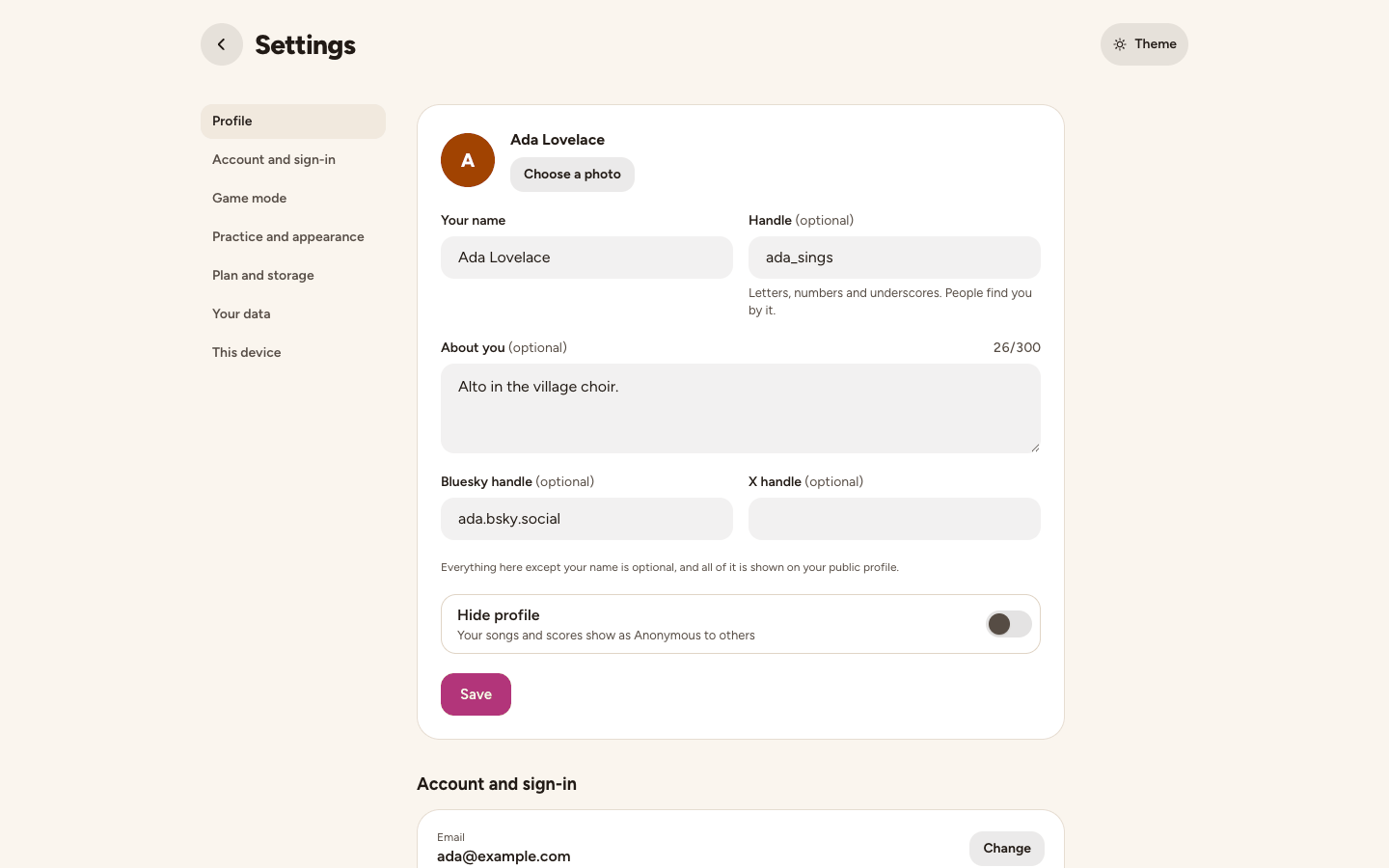
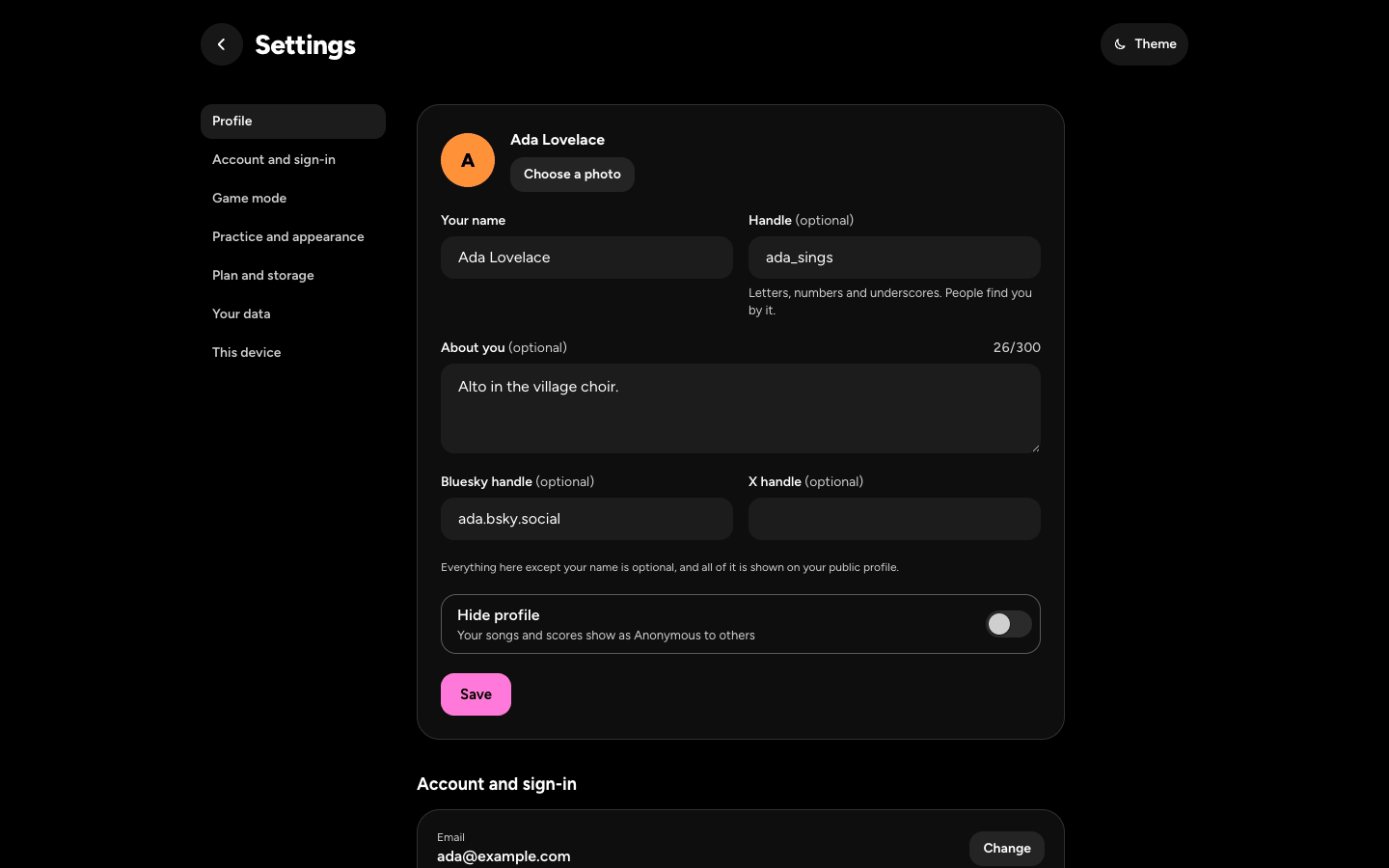
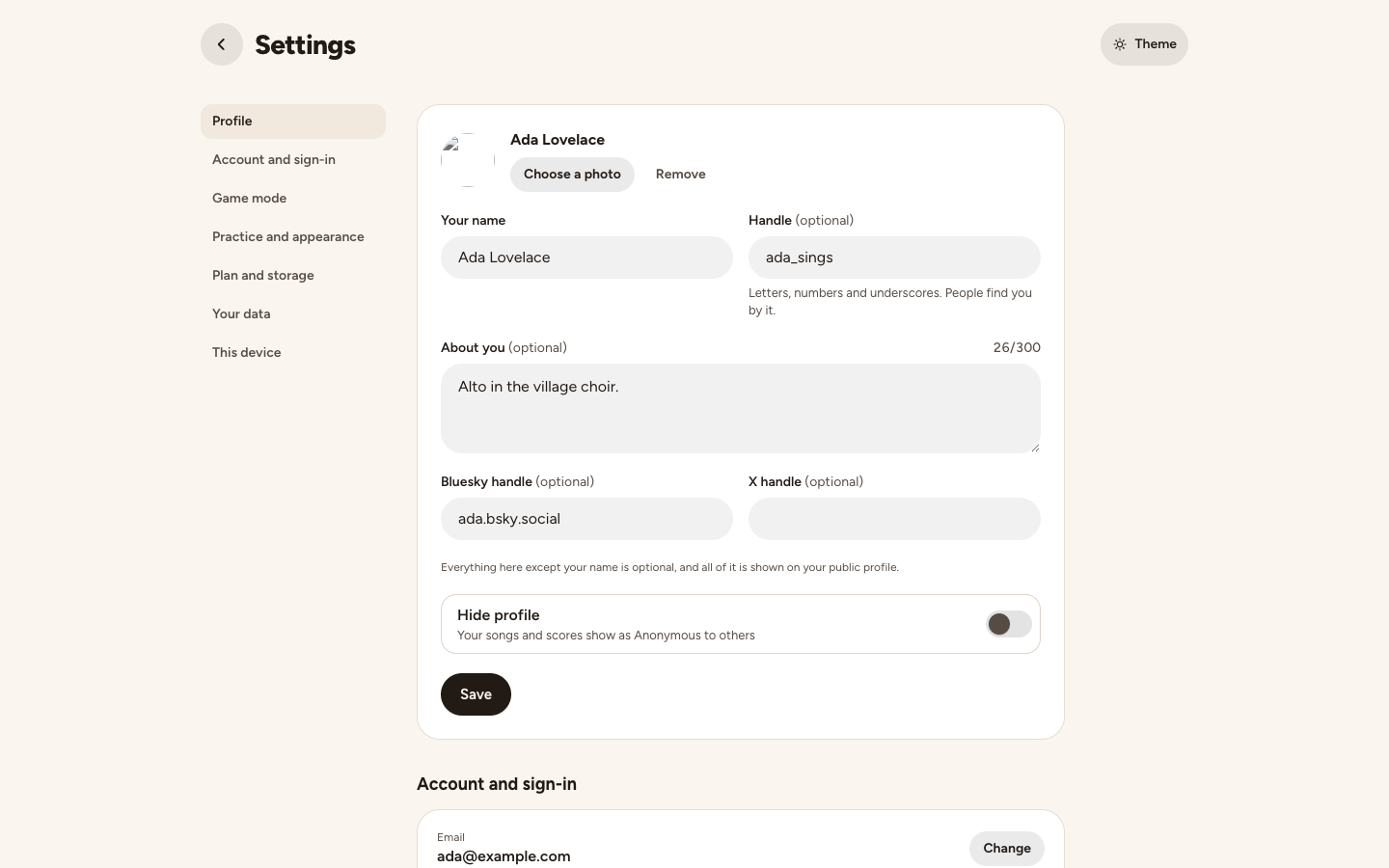
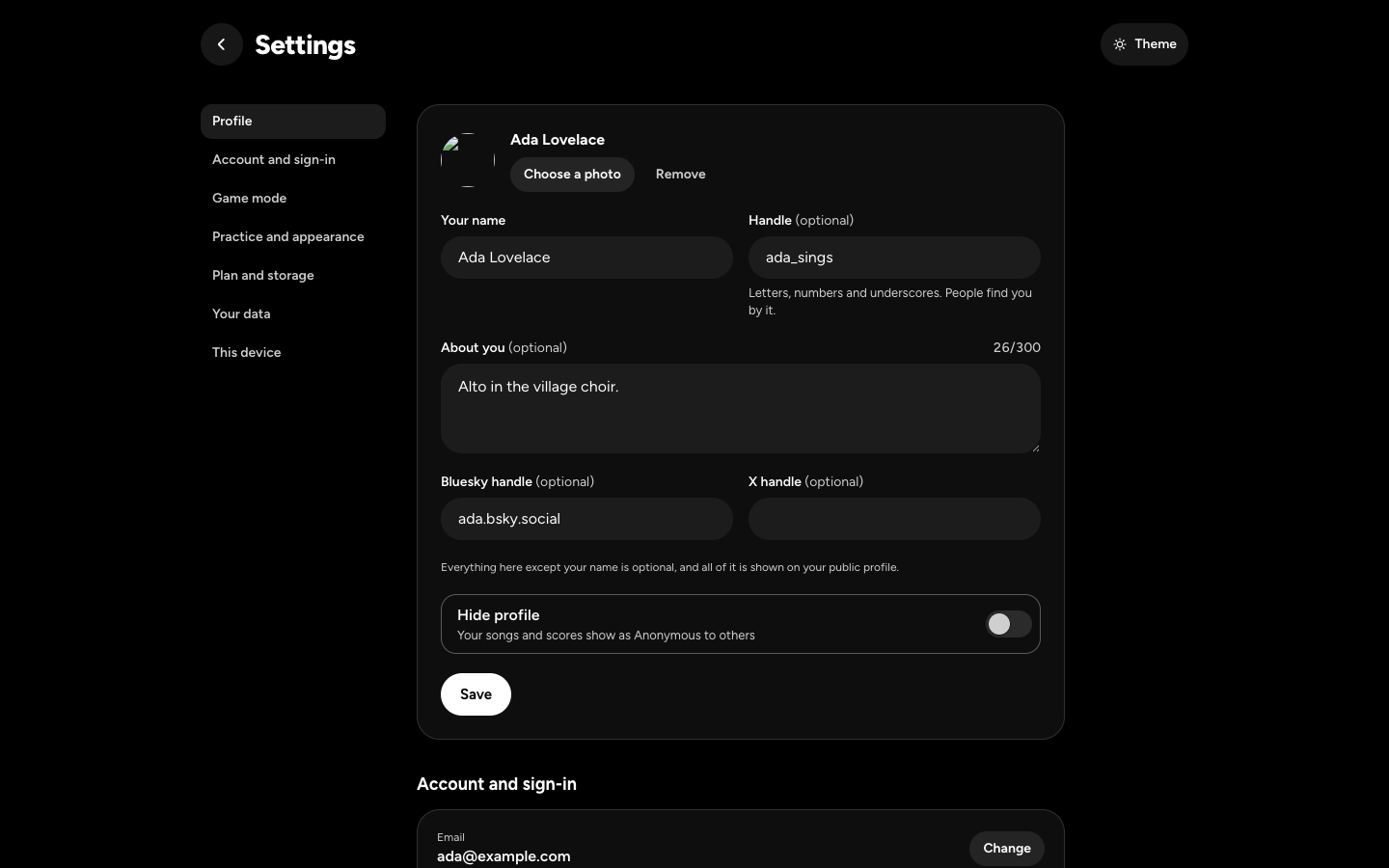
- The profile card has your photo (Choose a photo: a JPEG, PNG or WebP, up to 2 MB), Your name, your Handle, About you, and your Bluesky and X handles. Tap Save. Hide profile shows your songs and scores as Anonymous to others, and saves at once.
- Your name is how you appear in Stackapella, and the name learners see on the guides you sang. A handle is letters, numbers and underscores, 3 to 30 of them. Everything but your name is optional, and all of it shows on your public profile.
Email, password and ways to sign in
- Making an account asks When were you born?: the month and year only, so Stackapella suits your age. It's never shown to anyone.
- Under Account and sign-in, tap Change beside your email. Type the new one under New email and tap Change my email. It changes once you open the link we send there.
- Tap Change beside your password, then Change my password: it signs you out everywhere else. Signed up with Google or Apple? Add a password lets you sign in with your email too.
- Ways to sign in lists Google, Apple and Email and password, with a green dot for each you use, and Remove or Add. Your only way to sign in stays: add another first.
- For your safety, some changes ask you to sign in again first.
How it looks
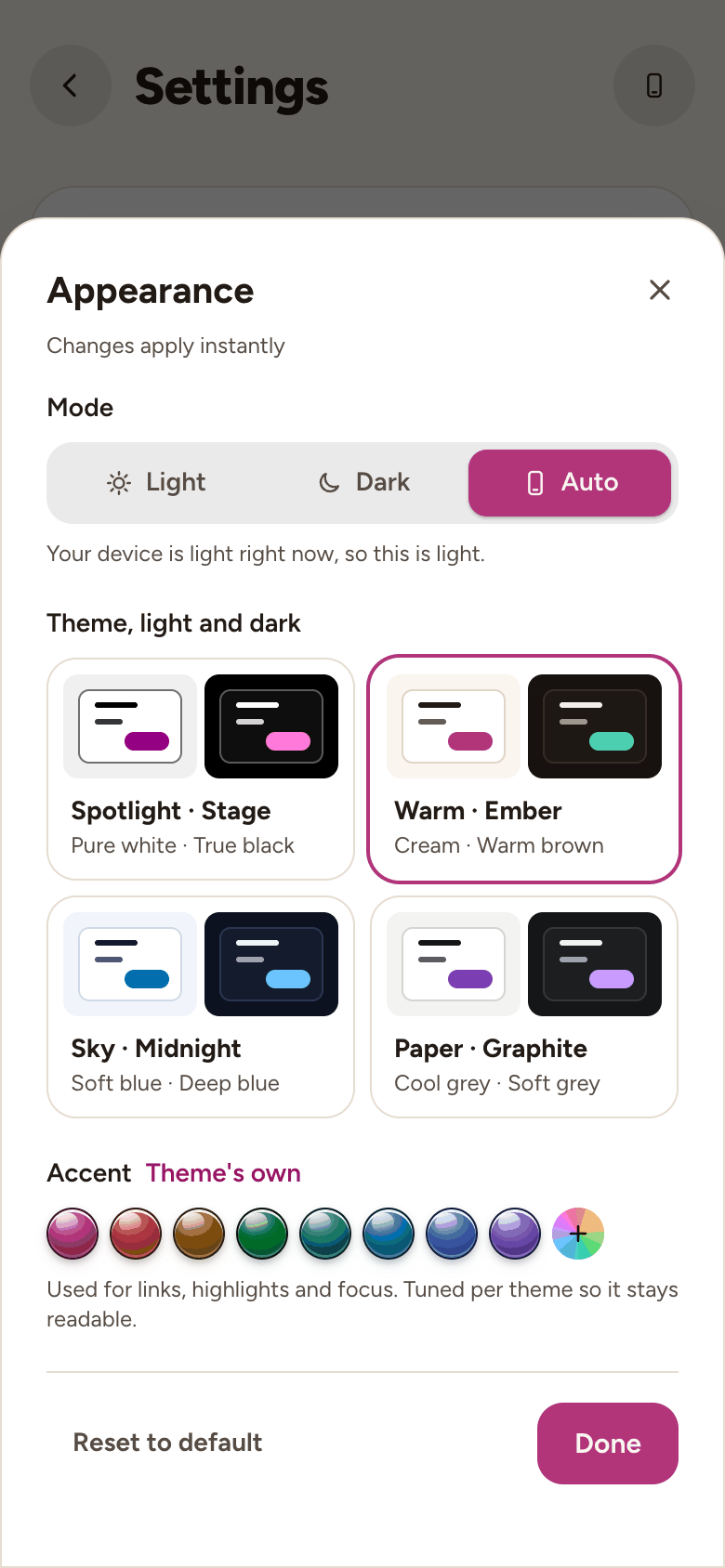
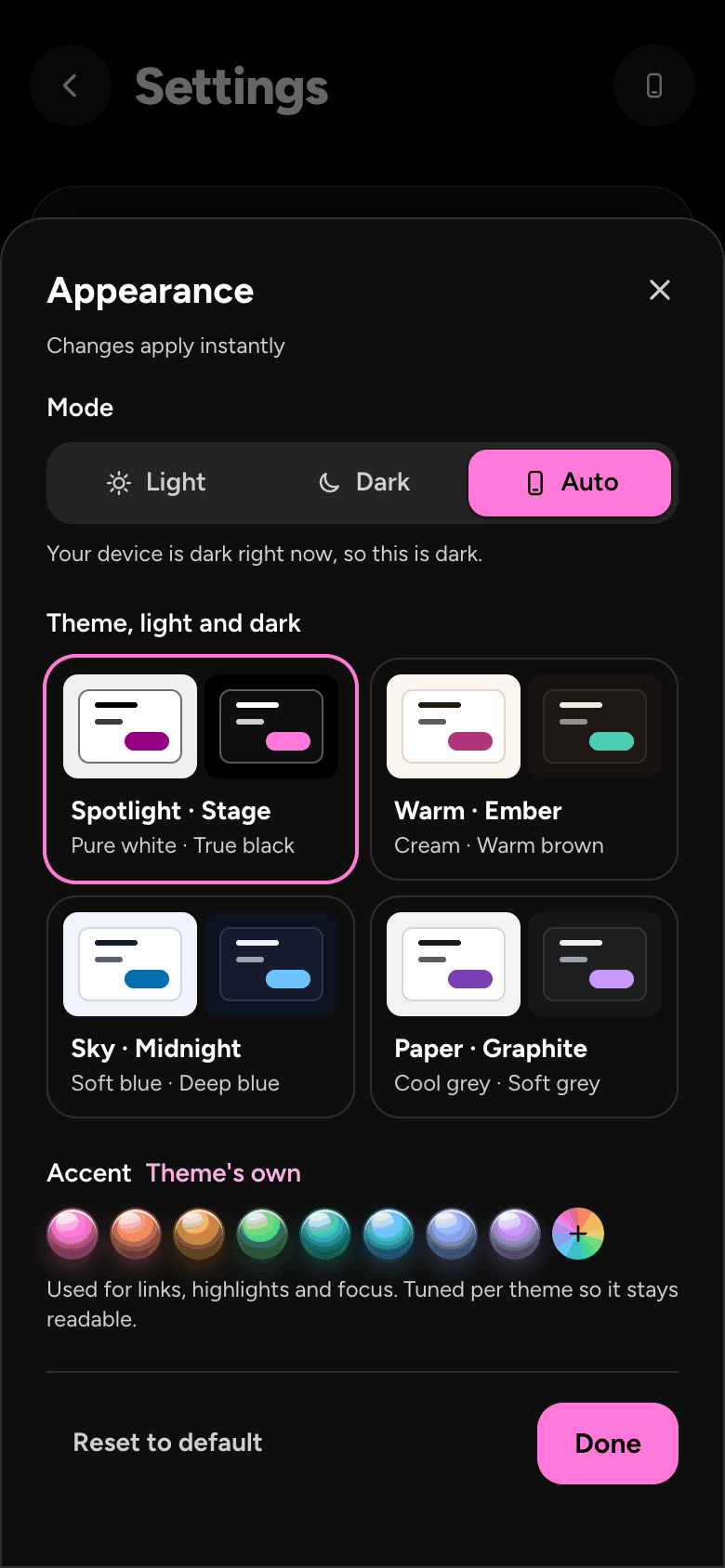
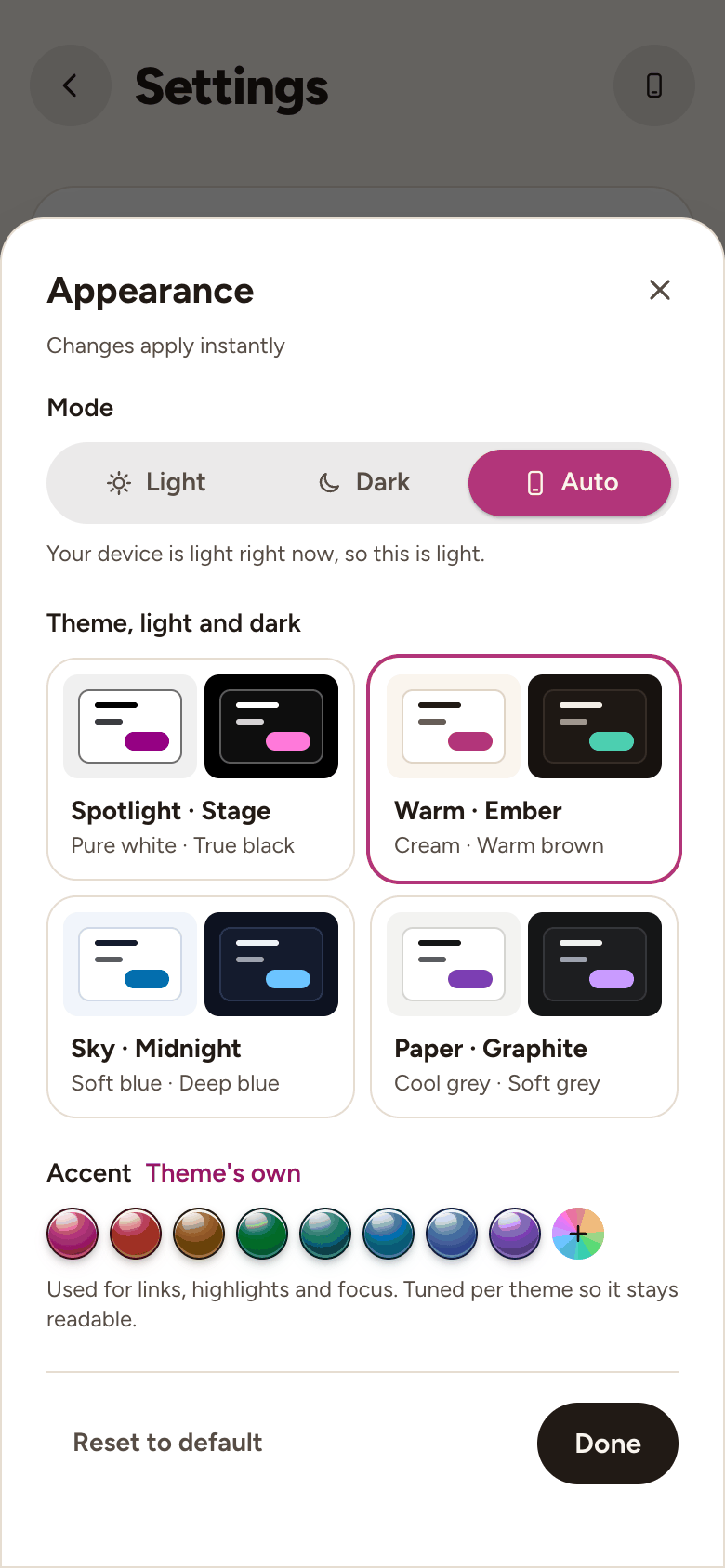
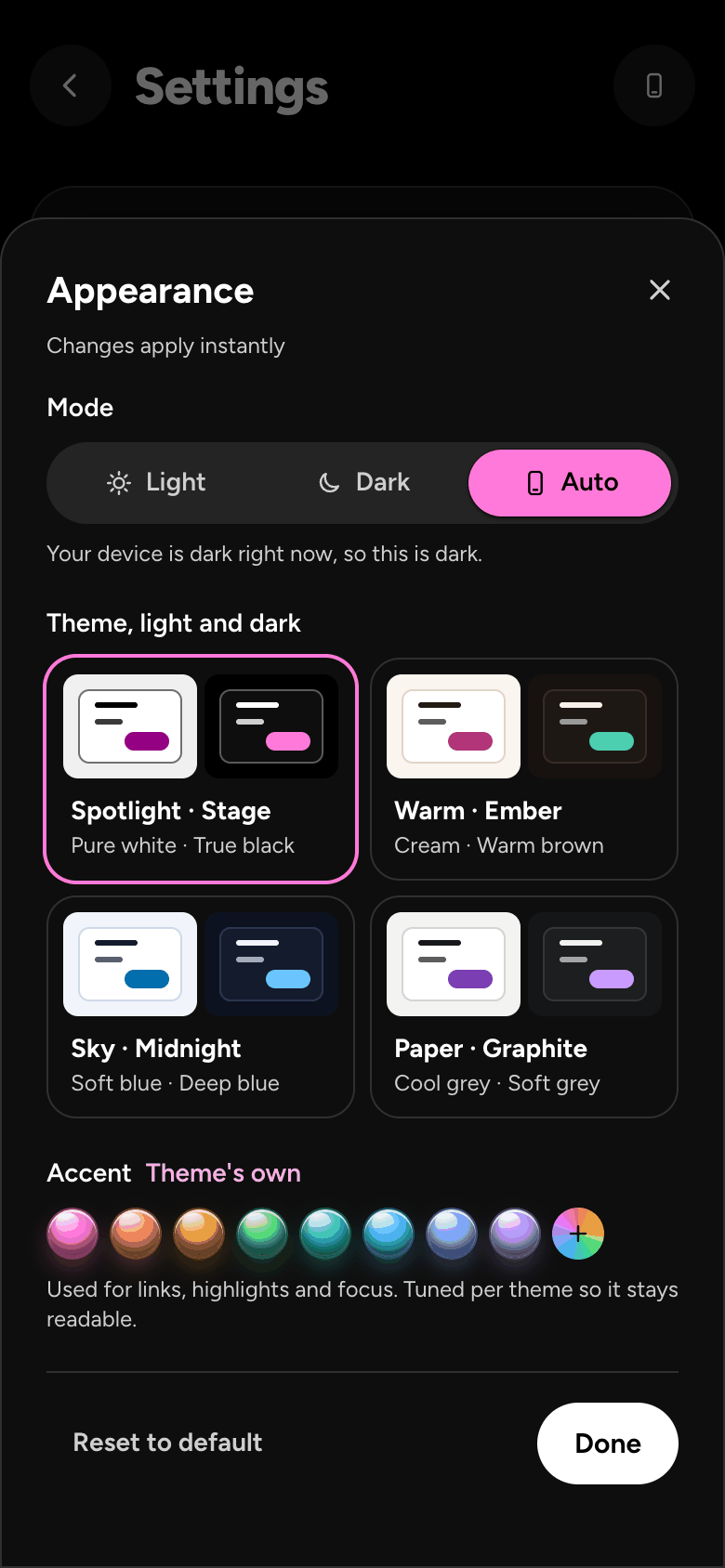
- Appearance, under Practice and appearance, says your look in a line. Tap the theme button beside it, or the one at the top of the home. On a bigger screen it says Theme.
- Mode: Light, Dark, or Auto, which follows your device.
- Colour: four sets, each with a dark and a light look. Until you choose, dark uses Stage and light uses Warm.
- Accent: the colour of links, highlights and the focus ring. Keep your theme's own, pick another, or choose your own colour. We keep every choice readable in your theme. Game mode, its own part of Settings, switches the arcade look, with XP, stars, badges, combos and high scores; off, it's a plain practice tool with just your measures, and nothing you've earned is lost. With it on, its extras turn off one at a time.
- Tap Done.
Reminders, choir groups and sounds
- Tap Practice reminders, then turn on Remind me to practise. Pick your Days (or Weekdays or Every day) and a Time. Changes save as you make them, and the next reminder is written underneath.
- Send a test shows one on this device straight away. At most one reminder a day, and never anything else. Reminders are set for each device, and the first time your browser asks if it may show notifications.
- On an iPhone or iPad, reminders need Stackapella on your home screen.
- Choir groups opens your groups, to join one or start your own. The page about choir groups has the rest.
- Sounds plays a short sound when your stars land, your mic is heard, or something special happens. Turn it off for quiet. It's set for this device.
- How you sing says what happens when you open a song to sing: Ask each time, Phrase by phrase or Whole song. Ticking Use this every time in Sing sets it too.
- If you chose not to be asked before discarding a draft, Ask before discarding drafts turns the question back on. Deleting a song always asks, and offers Undo for a few seconds after.
The mic and timing
- The mic and the timing check are in the studio, where you record. Open a song, then Microphone and timing: in the More menu on a phone, or the mic at the top on a bigger screen.
- Under Record with, pick the mic you sing into, and watch its level move. Check timing measures your delay. Run Check again after you change headphones.
- The studio's Headphones switch stops the question before each take. In the question itself, Don't ask again does the same.
- The pages about the mic and parts out of time have the details.
Your plan and storage
- Plan and storage says whether you're on the Free plan or Plus. See Plus (or Manage your plan, on Plus) opens the plan page. Plus and billing covers the trial, cancelling and refunds.
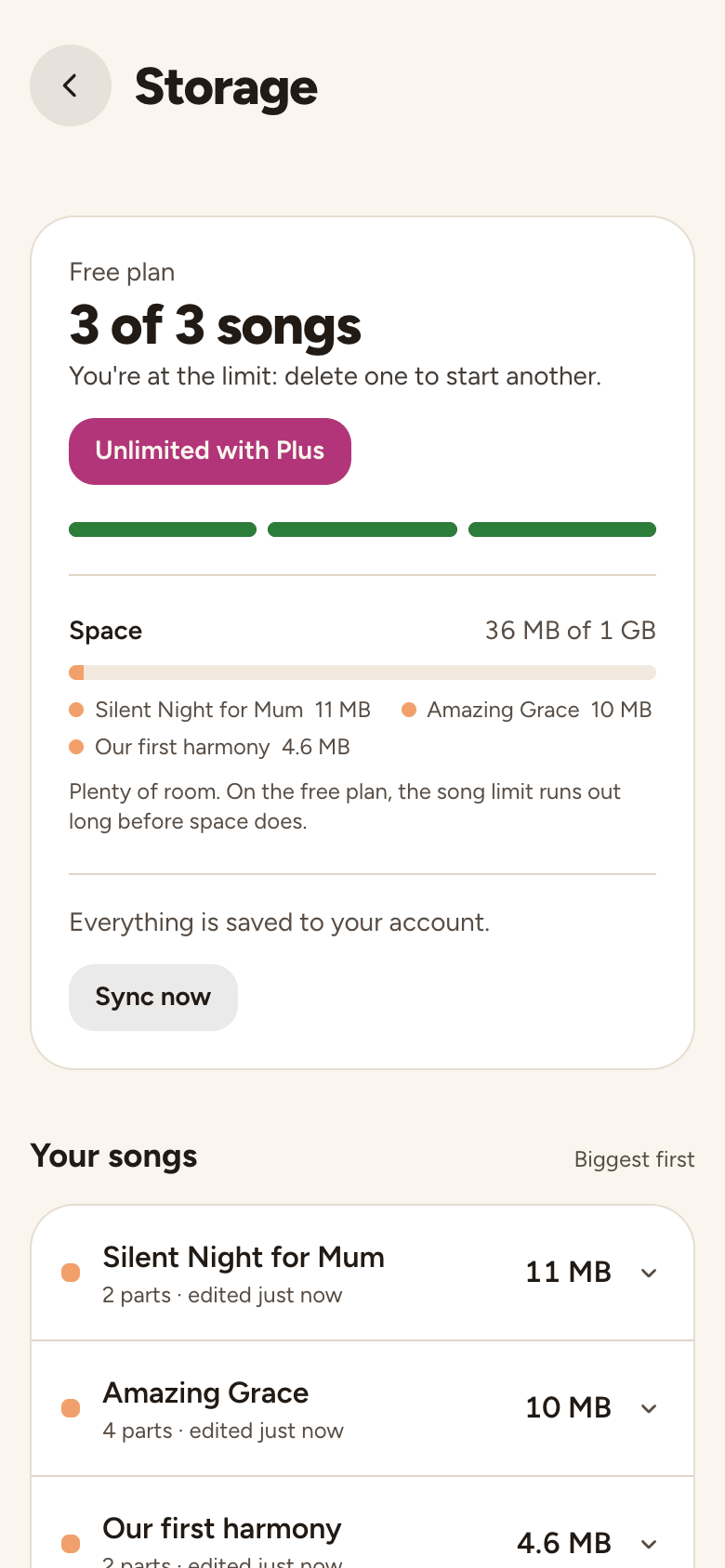
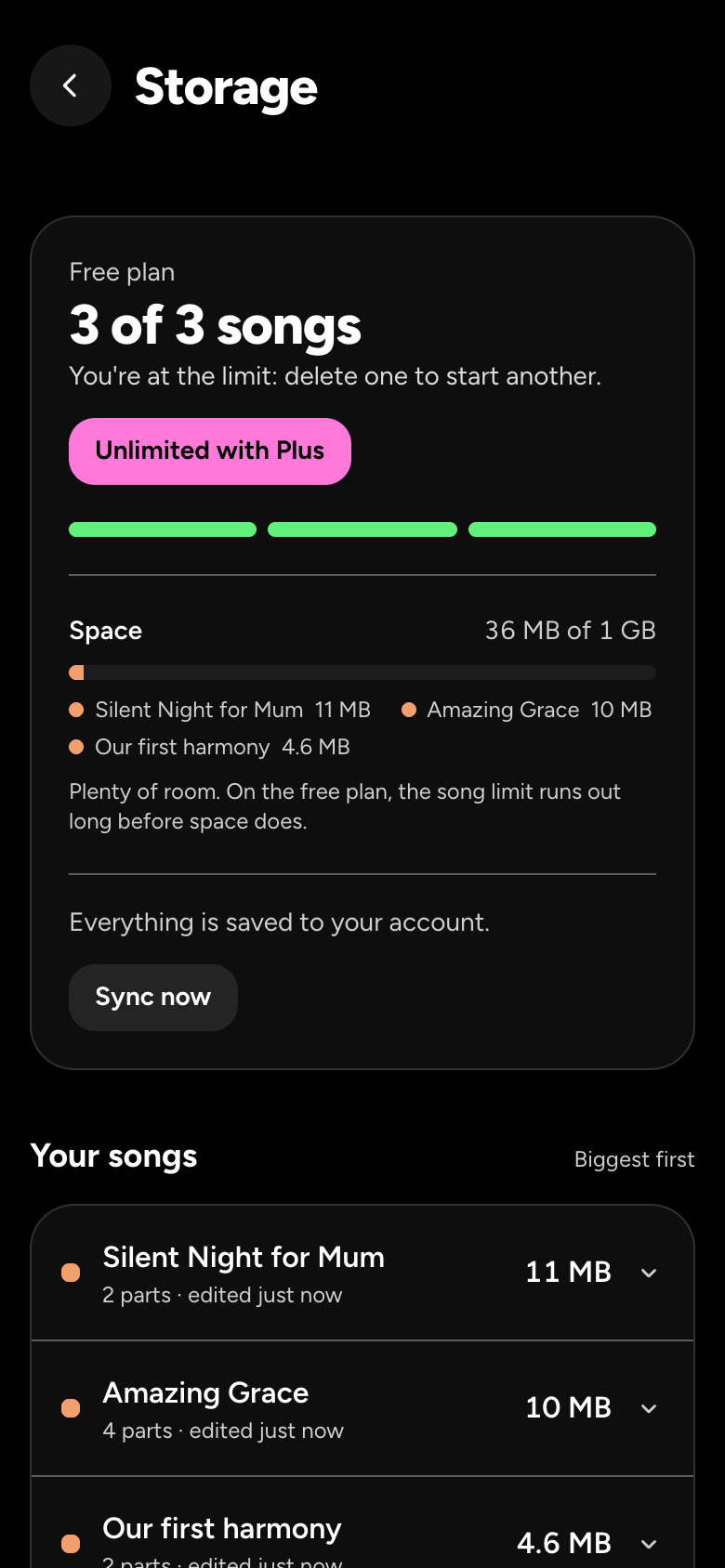
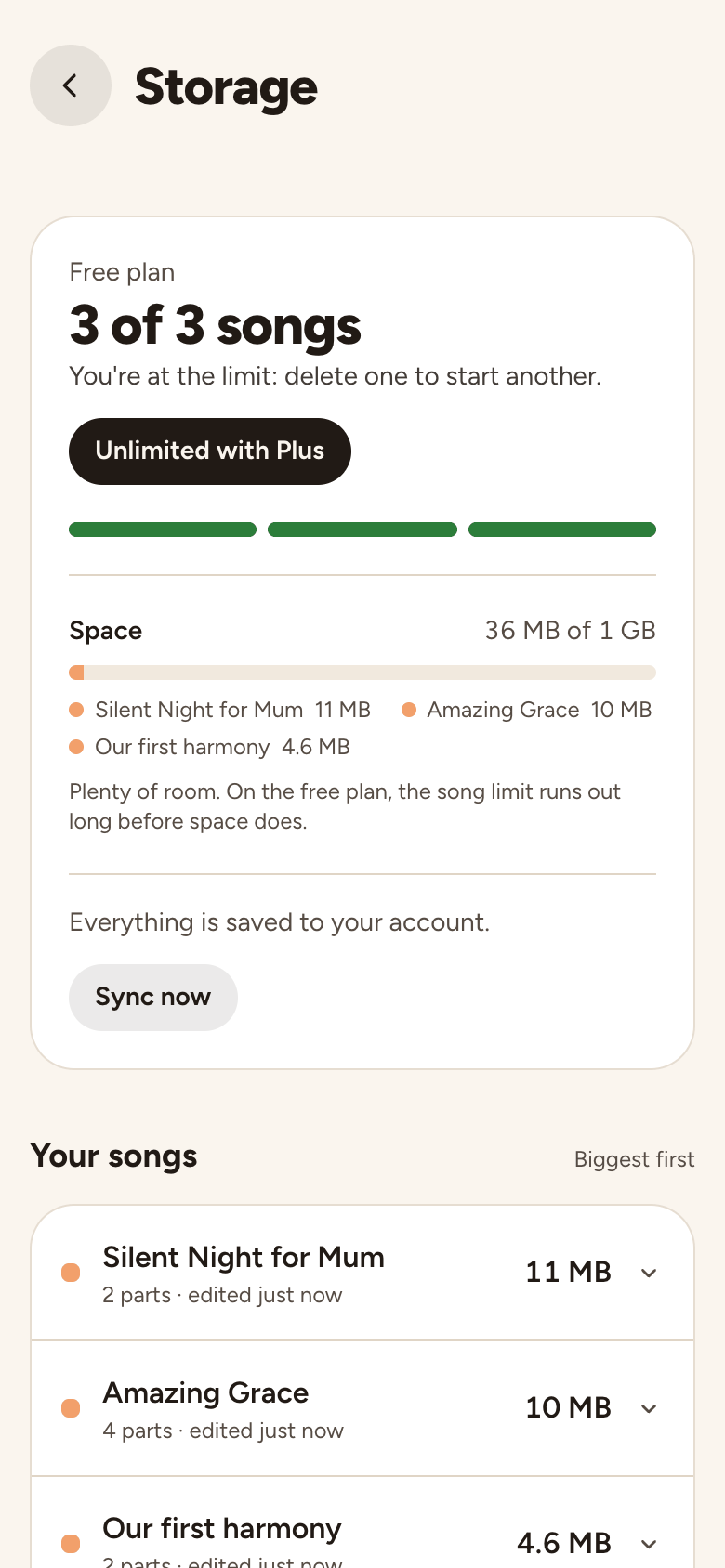
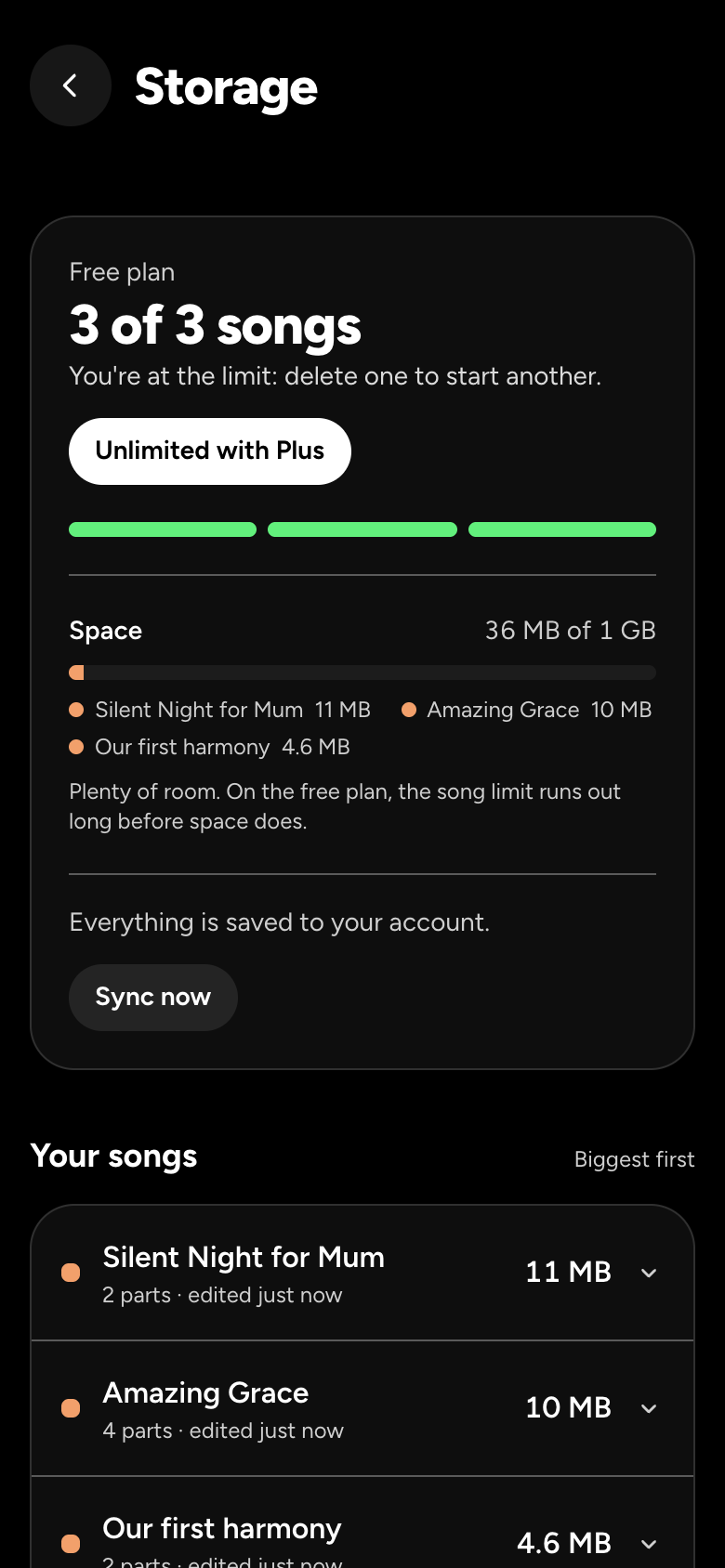
- On the free plan, Songs shows how many of your 3 you've made, one slot each. Storage is a bar of the space your recordings use in your account.
- See what's using space opens Storage: your songs as slots (Unlimited with Plus), then Space, and Your songs, biggest first. Open a song to see its current takes and the older takes you didn't keep. Clear older takes frees their space. Course voice takes, the first takes kept on this device for Then and now, has its own Delete.
- Recently deleted keeps deleted songs and replaced recordings for 30 days, each saying when it's gone for good. They don't use space or count toward your songs. Restore brings a song back, Restore take brings back a recording as an older take, and Delete now removes it for good.
Your data, signing out and deleting
- Download my data: tap Prepare my data, and Download appears once it's ready. Your privacy has the details.
- Sign out signs out this device. Sign out everywhere signs out every device. Your songs on this device stay here.
- Delete my account deletes your account, your songs and your recordings for good. Your privacy says what's deleted and what stays. Under This device, signed in or not, Delete everything here, then Delete everything, clears the songs, takes, course progress, drafts and settings kept in this browser, and signs you out here. Songs backed up to your account come back when you sign in again.
Contact us
- Contact us is at the bottom of Settings. Hillel reads every message.
- Choose what it's about (Account or Plus for anything about your account or paying), and say what happened: the box suggests what helps for that topic. For a recording problem, or something broken, Include device details is on; See exactly what's sent shows every detail, and never any audio. Tap Send message: Hillel replies by email.
Still stuck? Tell us what you tried: it sends the details we need, like your browser and your last timing check.
Or write to [email protected].